What Is a PDF File? Everything You Need to Know in 2026
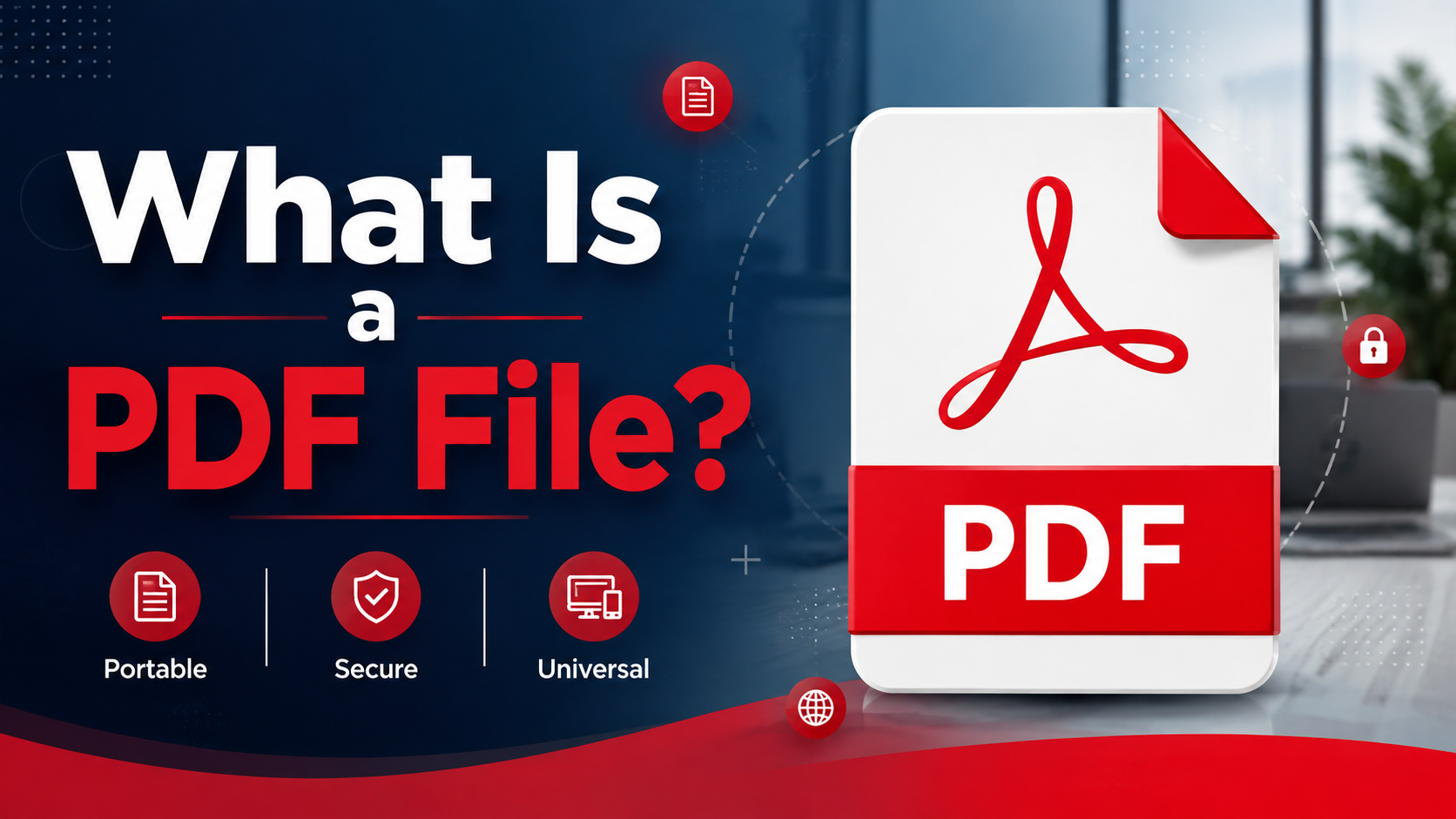
What is a PDF file, how does it work, and why is it the world's most used document format? Complete plain-English guide covering everything you need to know about PDF in 2026.
🛠 Free tools mentioned in this article
PDF is the world's most widely used document format. Every day, hundreds of millions of PDF files are created, shared, downloaded, printed, and archived by students, businesses, governments, and individuals in every country. But despite working with PDFs constantly, most people have never had a clear explanation of what a PDF actually is, how it works, and why it was designed the way it was.
This complete guide answers every common question about the PDF format — what it stands for, how it stores content, why it looks the same on every device, what you can and cannot do with it, and how to create, open, and edit PDF files for free in 2026.
What Does PDF Stand For?
PDF stands for Portable Document Format. Each word in the name explains something important about what the format does:
Portable means the document can be transferred between different computers, operating systems, and devices and still look exactly the same. A PDF created on a Windows computer looks identical when opened on a Mac, an iPhone, an Android phone, or a Linux machine — regardless of which fonts, software, or operating system the recipient has.
Document means the file contains a complete, self-contained document — text, images, fonts, formatting, and layout all in one file. Unlike a Word document that depends on the recipient having the right fonts and software version installed, a PDF carries everything it needs to display correctly within the file itself.
Format refers to the technical specification that defines exactly how the content is stored, structured, and rendered.
Who Invented PDF and Why?
PDF was invented by Adobe Systems and first released in 1993. The creator was John Warnock, one of Adobe's co-founders, who described the problem PDF was designed to solve in a 1991 internal paper called "The Camelot Project."
The problem was this: in the early 1990s, sharing a document between different computers was unreliable. A document created on one machine would often look completely different when opened on another — different fonts, shifted layouts, missing formatting. Printing was even worse. There was no reliable way to share a finished document and guarantee that every recipient would see exactly what the creator intended.
Warnock's solution was a format that would capture the appearance of a document exactly — fonts, images, layout, colours — and allow it to be viewed and printed identically on any device. PDF became that format.
Adobe originally sold PDF creation software and Adobe Acrobat Reader was proprietary. In 2008, Adobe released the PDF specification as an open standard under the control of the International Organization for Standardization (ISO), making PDF an internationally recognised open standard (ISO 32000). Today, PDF is maintained by ISO and no single company owns or controls the format.
How Does a PDF File Actually Work?
Understanding how PDF stores content explains why it looks the same everywhere and why it is difficult to edit.
A PDF file is not a document in the way a Word file is a document. A Word file stores text as characters, paragraphs, and styles — the word processor calculates where each character should appear on the screen every time you open the file. This is why Word documents can look different on different computers.
A PDF stores the finished, calculated result. Instead of "here is a paragraph in Times New Roman, 12pt, left-aligned," a PDF says "place these specific pixels at these specific coordinates on this page." Every character's exact position on the page is recorded. Every image's exact dimensions and location are recorded. The fonts themselves are embedded in the file so they are available even if the recipient does not have them installed.
When you open a PDF, the viewer reads these precise coordinates and renders the content exactly as specified — on any device, at any screen size, at any zoom level. The result always looks the same because the positions are absolute, not calculated.
This design explains both PDF's greatest strength (it looks identical everywhere) and its greatest limitation (it is difficult to edit because the text is stored by position rather than as a flowing, editable document).
What Is a PDF File Used For?
PDF became the standard document format for almost every professional and official use case because of its consistency and reliability. Common uses include:
Business documents — invoices, contracts, proposals, reports, and presentations are shared as PDFs because the recipient receives a document that looks exactly as the sender intended, regardless of their software.
Academic submissions — universities and academic journals require PDF for assignments, research papers, and theses because PDF preserves the exact formatting of the submission.
Legal and government documents — courts, government agencies, and legal professionals use PDF for filings, applications, and official correspondence because PDF records are tamper-evident and look identical in any jurisdiction.
Financial records — bank statements, tax forms, pay slips, and financial reports are distributed as PDFs because they cannot be accidentally modified and display consistently across software.
Publications and e-books — books, magazines, brochures, and manuals are distributed as PDFs because the layout, typography, and images are preserved exactly as designed.
Forms — application forms, registration forms, and official documents are distributed as PDFs because the form layout is preserved and, with interactive PDF forms, users can type directly into the fields.
Archiving — PDF/A (a specific PDF standard designed for long-term archiving) is used by libraries, archives, and organisations for preserving documents in a format that will be readable indefinitely.
What Are the Different Types of PDF Files?
Not all PDF files are the same. Several specialised PDF standards exist for specific use cases:
Standard PDF is the general-purpose format used for most documents. It supports text, images, fonts, vector graphics, hyperlinks, form fields, digital signatures, and many other features.
PDF/A (ISO 19005) is designed for long-term archiving. It restricts certain features that might not be readable in future software, such as encryption, audio and video content, and certain types of colour profiles. Libraries, national archives, and government agencies use PDF/A to ensure documents remain accessible for decades.
PDF/X (ISO 15930) is designed for professional printing and pre-press workflows. It ensures that documents print consistently across different printing systems.
PDF/UA (ISO 14289) is the accessibility standard for PDF. It specifies requirements for making PDFs readable by assistive technology such as screen readers — important for users with visual impairments.
PDF/E (ISO 24517) is designed for engineering documents, supporting large technical drawings and three-dimensional content.
For everyday use, standard PDF is appropriate. PDF/A is worth understanding if you are archiving important documents for long-term storage.
What Are the Advantages of PDF?
Consistent appearance: A PDF looks identical on every device, operating system, and screen size. This is the most fundamental advantage and the reason PDF became the standard for professional document sharing.
Font embedding: PDF files embed the fonts used in the document, so the text looks correct even if the recipient does not have those fonts installed. Word documents frequently substitute fonts, breaking carefully designed layouts.
Security options: PDFs can be password protected to prevent unauthorised opening. Permissions restrictions can prevent printing, copying, or editing. Digital signatures can verify the document's authenticity and integrity.
Small file size: Properly compressed PDF files are often smaller than equivalent Word documents because PDF compresses images efficiently and strips unnecessary metadata.
Universal compatibility: Every major operating system includes a built-in PDF viewer. iPhones, iPads, Android phones, Windows computers, and Macs can all open PDFs without any additional software.
Searchable text: Digitally created PDFs contain actual text characters that can be searched, selected, and copied. Scanned PDFs can have a searchable text layer added through OCR.
Print reliability: PDF was designed specifically for reliable printing. A PDF prints identically on any printer anywhere in the world.
What Are the Limitations of PDF?
Difficult to edit: Because PDF stores content by position rather than as editable text, making changes to a PDF is significantly harder than editing a Word document. Direct PDF editing requires either a PDF editor (which rearranges positioned elements) or conversion to Word first.
Large file sizes for image-heavy documents: PDFs containing many high-resolution images can be very large. Compression is often needed before sharing — our Compress PDF tool handles this for free.
Not designed for collaboration: PDFs support annotations and comments but are not designed for the kind of real-time collaborative editing that Google Docs or Microsoft Word Online provide.
Scanned PDFs are not searchable by default: A PDF created by scanning a paper document contains images of text rather than actual text characters. OCR must be applied to make the text searchable and selectable.
How to Open a PDF File
Every major device can open PDF files without any additional software:
Windows: Double-click a PDF file to open it in Microsoft Edge, which is the default PDF viewer in Windows 10 and 11. Adobe Acrobat Reader (free) is also widely used for more features.
Mac: Double-click a PDF file to open it in Preview, which is macOS's built-in PDF viewer with annotation tools included.
iPhone and iPad: Tap a PDF file in the Files app, Mail app, or Safari to open it in the built-in viewer. The Files app includes annotation tools through the Markup feature.
Android: Open a PDF in Chrome, Google Drive, or Google Files. The free Adobe Acrobat Reader app is also available.
Chrome and other browsers: Drag a PDF file into any browser window to open it in the browser's built-in PDF viewer.
How to Create a PDF File for Free
From Microsoft Word: Go to File then Save As and choose PDF format. Or go to File then Export then Create PDF/XPS.
From Google Docs: Go to File then Download then PDF Document.
From any application using print-to-PDF: Press Ctrl + P (Windows) or Command + P (Mac) and select Save as PDF from the printer dropdown.
From images: Use our PNG to PDF tool to convert JPG and PNG images to PDF instantly.
By scanning a paper document: Use your phone's built-in scanner (Notes app on iPhone, Google Drive on Android) to create a PDF from any paper document.
How to Edit a PDF File for Free
Editing PDF files requires either a dedicated PDF editor or conversion to a format that is designed for editing.
Convert to Word for full editing: Our PDF to Word tool converts any PDF to an editable DOCX file that preserves fonts, tables, and layout. Make your changes in Word or Google Docs, then export back to PDF.
For small changes: Use Preview on Mac (Markup tools), the Files app on iPhone (Markup), or Adobe Acrobat Reader (free) on Windows for adding text, highlights, and annotations.
For combining PDFs: Use our Merge PDF tool to combine multiple PDF files into one.
For reducing file size: Use our Compress PDF tool to significantly reduce PDF file size before emailing or uploading.
For fixing orientation: Use our Rotate PDF tool to permanently fix upside down or sideways pages.
For extracting pages: Use our Split PDF tool to extract specific pages or divide a PDF into sections.
How to Reduce a PDF File Size
PDF files can become very large, particularly those containing many images or created from presentations and design software. Our Compress PDF tool reduces PDF file size in seconds — free, with no software installation and no watermarks.
Frequently Asked Questions
What does PDF stand for?
PDF stands for Portable Document Format. It is an open international standard (ISO 32000) originally developed by Adobe Systems in 1993.
Why do people use PDF instead of Word?
PDF looks identical on every device regardless of the software installed. Word documents can shift layout, substitute fonts, and display differently depending on the version of Word the recipient has. PDF is used when the appearance of the document must be preserved exactly.
Can I edit a PDF file?
Yes. The easiest free method is to convert the PDF to Word using our PDF to Word tool, make your changes, and export back to PDF. For small edits, Preview on Mac and the Files app on iPhone include direct annotation tools.
What program opens PDF files?
Every major operating system includes a built-in PDF viewer. Windows uses Microsoft Edge, Mac uses Preview, iPhone and iPad use the Files app, and Android uses Chrome or Google Files. Adobe Acrobat Reader is a popular free third-party option with more features.
Why is my PDF so large?
PDFs are often large because of high-resolution embedded images, fully embedded fonts, or invisible metadata from the application that created them. Use our Compress PDF tool to reduce the file size significantly while keeping text sharp.
What is the difference between a scanned PDF and a digital PDF?
A digital PDF was created directly from a computer application and contains actual text characters that can be searched and copied. A scanned PDF was created by photographing or scanning a paper document — each page is stored as an image, and OCR must be applied to make the text searchable.
Ready to work with your PDFs?
All six tools are completely free — no signup, no watermarks, no limits.