How to Convert PDF to Word Without Losing Formatting
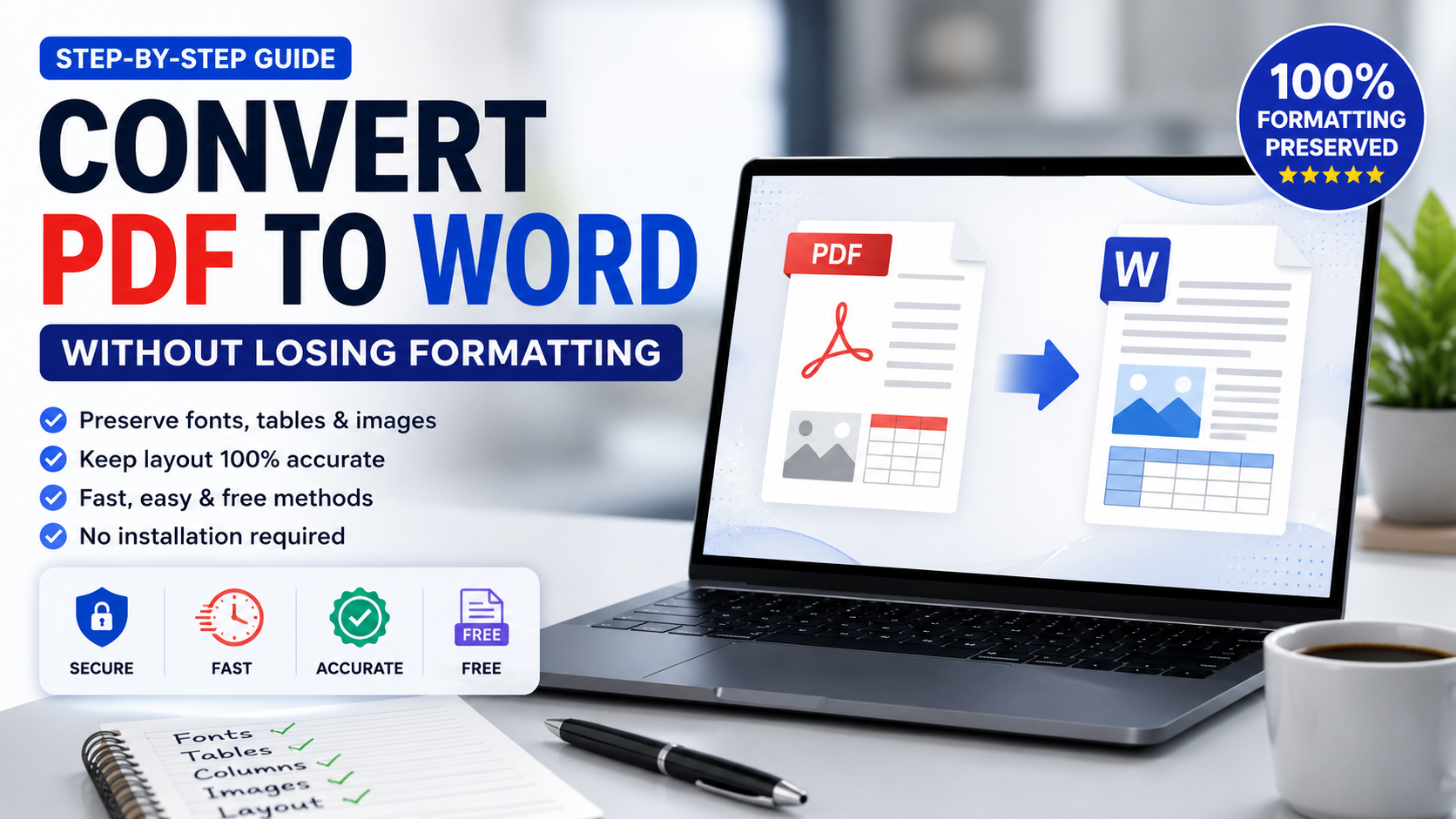
A 2-minute tutorial that preserves fonts, tables, columns and images — even from scanned documents.
🛠 Free tools mentioned in this article
Converting a PDF to a Word document sounds simple — until your tables fall apart and fonts get replaced by Times New Roman. With the right method, you can move from a locked PDF to a fully editable DOCX in under two minutes, with fonts, columns, lists and images intact.
Why Are PDFs Hard to Convert to Word?
PDF is a fixed-layout format designed for printing, not editing. Text is positioned character by character with precise coordinates. Tables are constructed from lines and floating text boxes — invisible to most parsers. A good converter reconstructs the document's logical structure from these low-level instructions. A bad one just dumps everything into a single column.
Method 1 — Use a Dedicated Online PDF to Word Converter (Recommended)
The fastest and most reliable method is a browser-based converter. Open our PDF to Word tool, drop your file onto the page, and click Convert. The conversion runs in your browser — your document is never uploaded to a server — and you get an editable DOCX in seconds.
What Gets Preserved?
- Fonts and text formatting
- Tables and column layouts
- Embedded images
- Headings and paragraph styles
- Page numbers and headers
Method 2 — Microsoft Word (Built-in)
Open Word, go to File then Open, and choose your PDF. Word rebuilds the document automatically. Works well for simple text-only documents but struggles with multi-column layouts, custom fonts, and scanned pages.
Method 3 — Google Docs (Free)
Upload your PDF to Google Drive, right-click and choose Open with Google Docs. Free and convenient, but Google reformats heavily — expect to lose most styling and complex layout.
Method 4 — OCR for Scanned PDFs
If your PDF was created from a scan or photograph, it contains images of text rather than actual characters. No converter can extract editable text without OCR (Optical Character Recognition).
Our PDF to Word tool includes OCR support. For best OCR results, scan documents at 300 DPI or higher.
Tips for Perfect PDF to Word Conversion
- Check footer page numbers, footnotes and table cells after converting
- If you only need one section, split the PDF first to keep the converter focused
- For very large files, run Compress PDF before converting to speed up the process
- Need to merge multiple PDFs first? Use Merge PDF before converting
Frequently Asked Questions
Can I convert PDF to Word for free?
Yes. Our PDF to Word tool is completely free — no signup, no watermarks, no daily limits.
Will my tables be preserved when converting PDF to Word?
Yes, with a good converter. Our tool reconstructs table structure from the PDF layout, preserving rows, columns, and cell content.
How do I convert a scanned PDF to editable Word?
Use our PDF to Word tool which includes OCR. It reads the text from scanned images and converts it to editable characters.
Can I convert PDF to Word on my phone?
Yes. Open our PDF to Word tool in Safari or Chrome on your phone — it works identically to the desktop version.
Ready to work with your PDFs?
All six tools are completely free — no signup, no watermarks, no limits.