How to Convert JPG to PDF Free — Complete Guide for All Devices
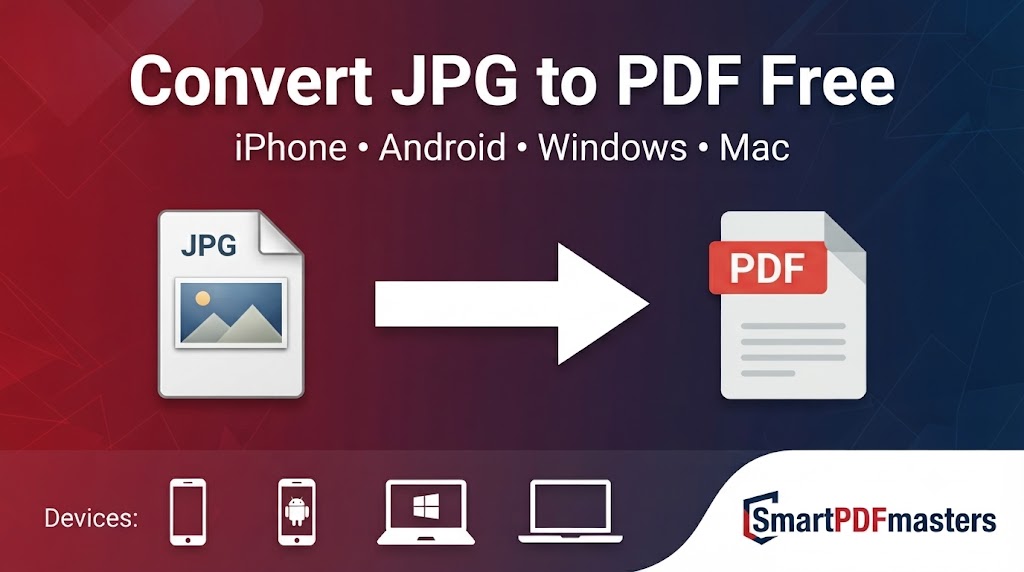
Convert any JPG, JPEG or PNG image to PDF instantly — free guide for iPhone, Android, Windows and Mac.
🛠 Free tools mentioned in this article
Converting a JPG image to PDF is one of the most searched document tasks. Whether you need to turn a photo of a receipt into a PDF, convert a scanned document image into a shareable file, combine multiple photos into one PDF, or submit an image through a portal that only accepts PDFs — this guide covers every method on every device.
What Is the Difference Between JPG and PDF?
A JPG is an image file that stores a photograph as a grid of coloured pixels. Ideal for photos and web images. A PDF is a document file that looks identical on every device. PDF is the standard format for sharing finished documents.
Method 1 — Convert JPG to PDF Online Free (Fastest)
Our PNG to PDF tool converts JPG, JPEG, PNG and other image formats to PDF instantly — completely free, no signup, no watermark.
- 1Open the PNG to PDF tool
- 2Click the upload area or drag and drop your JPG image
- 3Upload multiple images if combining into one PDF
- 4Arrange images in the correct order
- 5Click Convert and download your PDF
Method 2 — Convert JPG to PDF on iPhone
Using the Photos App
- 1Open Photos and find your image
- 2Tap Share
- 3Scroll down and tap Print
- 4Pinch outward with two fingers on the print preview thumbnail
- 5Tap Share and choose Save to Files
Using the Files App
- 1Open Files and find the image
- 2Tap and hold, then tap Quick Actions
- 3Tap Create PDF
Method 3 — Convert JPG to PDF on Android
Our PNG to PDF tool works in Chrome for Android without installing any app.
In Google Photos: Open the image, tap the three-dot menu, tap Print, select Save as PDF.
Method 4 — Convert JPG to PDF on Windows
- 1Open your JPG in any viewer
- 2Press Ctrl + P
- 3Select Microsoft Print to PDF from the printer list
- 4Click Print and choose where to save the PDF
Method 5 — Convert JPG to PDF on Mac
- 1Open the JPG in Preview
- 2Go to File and select Export as PDF
- 3Choose a name and location
- 4Click Save
How to Convert Multiple JPG Images to One PDF
Our PNG to PDF tool handles multiple images in one conversion. Upload all your JPG, JPEG, or PNG files at once, drag to arrange them, and click Convert.
After Converting — Compress and Merge
Large file size? Use our Compress PDF tool.
Need to combine with other PDFs? Use our Merge PDF tool.
Frequently Asked Questions
How do I convert JPG to PDF for free?
Use our PNG to PDF tool — upload your JPG image and download the PDF instantly. No signup, no watermark, completely free.
Can I convert multiple JPG files to one PDF?
Yes. Our tool accepts multiple images in one upload. Arrange them in order and convert them all into a single PDF.
Does converting JPG to PDF reduce image quality?
No. The conversion process does not reduce the quality of your image.
How do I convert JPG to PDF on iPhone without an app?
Open Safari, go to our PNG to PDF tool, upload your image, and download the PDF.
What is the difference between JPG and JPEG?
JPG and JPEG are the same format — JPEG is the full name and JPG is the shortened file extension.
Ready to work with your PDFs?
All six tools are completely free — no signup, no watermarks, no limits.