How to Convert PDF to JPG — Free Guide for All Devices
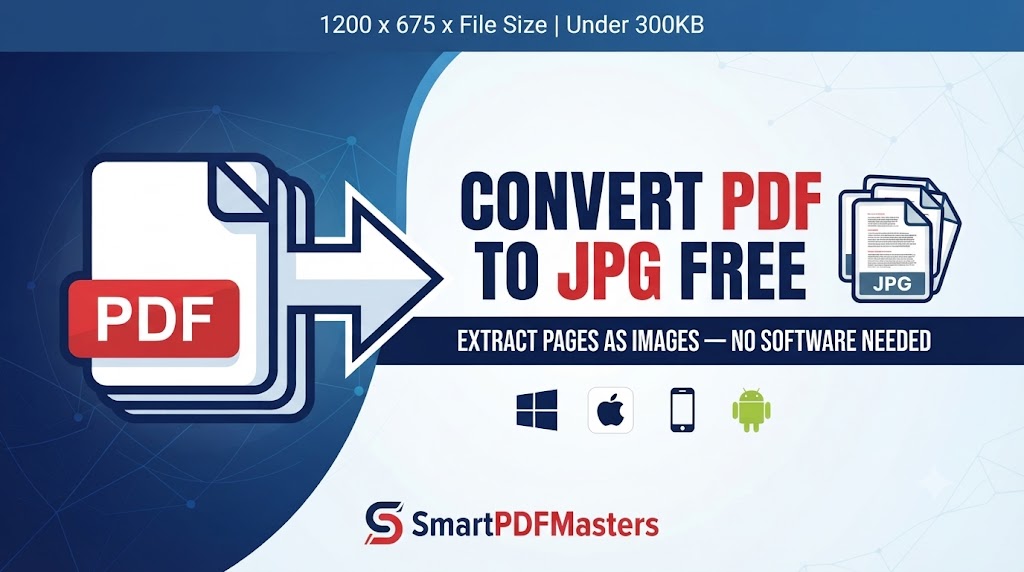
Learn how to convert any PDF page to JPG or PNG image free online — step-by-step guide for Windows, Mac, iPhone and Android with no software needed.
🛠 Free tools mentioned in this article
Converting a PDF to a JPG image is one of the most searched document tasks online. Whether you need to extract a page from a PDF as an image to post on social media, share a single page without sending the entire document, use a PDF page as a thumbnail or preview, embed PDF content into a presentation, or send a page as an image to someone who does not have a PDF viewer — knowing how to convert PDF to JPG quickly and for free is an essential skill.
This guide covers every method to convert PDF to JPG in 2026 — online, on iPhone, on Android, on Windows, and on Mac — so you can extract any PDF page as a high-quality image on any device in under a minute.
What Is the Difference Between PDF to JPG and JPG to PDF?
Converting PDF to JPG means extracting a page from a PDF document and saving it as an image file. Each page of the PDF becomes a separate JPG or PNG image. This is the reverse of converting JPG to PDF, which combines images into a document.
PDF to JPG conversion is useful when you need a visual snapshot of a document page rather than the editable document itself. The resulting image can be opened in any image viewer, edited in photo editing software, attached to a message, or embedded in any application that accepts image files.
Why Convert PDF to JPG Instead of Sharing the PDF?
There are several practical reasons to convert a PDF page to an image rather than sharing the PDF file directly. Not everyone has a PDF viewer installed — JPG images open in every device's built-in gallery or photo viewer without requiring any additional software. Social media platforms, messaging apps, and many websites accept image uploads but not PDF files. Sharing a single page as a JPG is faster and simpler than sending a multi-page PDF. And JPG images are generally smaller than full PDF files when you only need one or two pages.
Method 1 — Convert PDF to JPG Online Free (Fastest Method)
The fastest way to convert PDF to JPG on any device is to use a browser-based converter. Our tools at SmartPDFMasters support working with PDF files across all common formats and workflows. For converting PDF pages to images, look for a free online PDF to JPG tool that works in your browser — upload your PDF, select the pages you want to convert, choose JPG or PNG format, and download the resulting image files.
For best results, choose a tool that lets you select individual pages rather than converting the entire document, allows you to choose the output image resolution, and processes your file locally in your browser so your document content never leaves your device.
If you need to prepare your PDF before converting — for example, merging multiple PDFs into one before extracting pages — use our Merge PDF tool first.
If your PDF is very large and slow to process, compress it first using our Compress PDF tool to reduce the file size before converting.
Method 2 — Convert PDF to JPG on Mac Using Preview
Mac users can convert PDF pages to JPG images using the built-in Preview app without installing any additional software.
Open the PDF in Preview. Go to File in the menu bar and choose Export. In the format dropdown, select JPEG or PNG. Adjust the quality slider — higher quality produces a larger file with more detail, lower quality produces a smaller file suitable for web use. Choose where to save the image and click Save.
This method exports the currently displayed page as an image. To export multiple pages, use the page navigation in Preview to go to each page and repeat the export process, or select multiple pages in the thumbnail panel before exporting.
For PNG format (which preserves transparency and is better for documents with text), choose PNG from the format dropdown instead of JPEG.
Method 3 — Convert PDF to JPG on Windows
Windows does not include a built-in PDF to JPG converter, but there are several free approaches that work without purchasing software.
Using the Snipping Tool or Snip and Sketch: Open the PDF in any PDF viewer — Microsoft Edge, Adobe Acrobat Reader, or Chrome. Navigate to the page you want to convert to an image. Press Windows key and Shift and S to open the Snipping Tool. Select the area of the page you want to capture. The image is automatically copied to your clipboard and can be pasted into any image editor and saved as JPG. This method works well for one or two pages but is not practical for large documents.
Using Microsoft Edge's built-in PDF viewer: Open the PDF in Edge and use the browser's screenshot functionality to capture individual pages. Go to Settings and More, then Web capture, and select Capture full page or select the area you want.
For more professional results or for converting many pages at once, a browser-based PDF to JPG tool accessed through Chrome or Edge is more efficient than manual screenshots.
Method 4 — Convert PDF to JPG on iPhone and iPad
iPhone and iPad users can convert PDF pages to images using the built-in tools available in iOS without downloading any additional app.
Open the PDF in the Files app or any app that can view PDF files. Navigate to the page you want to convert to an image. Take a screenshot by pressing the Side button and Volume Up button simultaneously (on Face ID models) or the Side button and Home button simultaneously (on Touch ID models). The screenshot appears as a thumbnail in the bottom left corner of the screen. Tap the thumbnail to open the screenshot editor. Tap Full Page in the top right corner to capture the entire PDF page rather than just the visible area. Tap Done and save the image to Photos.
This method captures the page as it appears on screen. For higher resolution images, zoom in on the PDF before taking the screenshot to capture more detail.
Alternatively, open the PDF in the Files app, tap the Share button, and look for apps in your share sheet that can convert PDF to image. Some third-party apps available through the share sheet can convert PDF pages to higher-resolution images than screenshots produce.
Method 5 — Convert PDF to JPG on Android
Android phones do not include a built-in PDF to JPG converter, but screenshots provide a quick solution for individual pages, and browser-based tools handle batch conversion.
Open the PDF in Google Drive, Chrome, or any PDF viewer app. Navigate to the page you want to convert. Take a screenshot by pressing the Volume Down and Power buttons simultaneously. The screenshot is saved to your Gallery app as a JPG image.
For higher quality results or for converting multiple pages, use a browser-based PDF to JPG tool in Chrome for Android. Upload your PDF, select the pages to convert, and download the JPG images directly to your device.
How to Convert Multiple PDF Pages to JPG Images
If you need to convert an entire PDF document to a series of JPG images — one image per page — rather than just extracting one or two pages, the process requires a tool designed for batch conversion.
On Mac, Preview can export individual pages one at a time. For a complete document conversion, use a browser-based batch converter that processes all pages simultaneously and delivers the images as a ZIP file.
On Windows, any browser-based PDF to JPG tool accessed through Chrome or Edge handles multi-page conversion without requiring any software installation.
After converting, if you need to use the resulting JPG images to create a new PDF document, upload them to our PNG to PDF tool to convert them back to a single PDF in the correct page order.
JPG vs PNG — Which Format Should You Choose?
When converting PDF to image, you typically have the choice between JPG and PNG output. Understanding the difference helps you choose the right format for your specific use case.
JPG (JPEG) uses lossy compression, which means some image data is discarded to reduce file size. For photographs and complex images, the quality reduction is often imperceptible. For documents with sharp text, fine lines, or large areas of flat colour, JPG compression can cause visible artefacts — blurring around text edges and colour banding in solid areas. JPG does not support transparency.
PNG uses lossless compression, which means no image data is discarded. Text remains perfectly sharp. Fine lines and solid colours reproduce cleanly. PNG files are generally larger than JPG files for the same content. PNG supports transparency, which is useful if the PDF page has a transparent background.
For PDF pages that contain primarily text, diagrams, or charts, PNG produces better results. For PDF pages that contain primarily photographs, JPG produces smaller files with acceptable quality. When in doubt, choose PNG for documents and JPG for photographic content.
What to Do with PDF Pages Converted to JPG
Once you have converted your PDF pages to JPG images, you can embed them in presentations, reports, or websites. You can share them directly through messaging apps, email, or social media. You can use them as thumbnails or preview images for the original PDF document. You can edit them in any photo editing application. And you can combine them with other images into a new PDF using our PNG to PDF tool.
If the quality of the converted JPG is not sufficient for your needs — for example, if text appears blurry or fine details are lost — try converting to PNG instead of JPG, or increase the resolution setting in your conversion tool.
Frequently Asked Questions
How do I convert a PDF to JPG for free?
Use a browser-based PDF to JPG converter that processes your file locally in your browser. Alternatively, use Preview on Mac to export individual pages as JPEG or PNG, or use screenshots on iPhone, Android, or Windows to capture individual pages.
Can I convert a PDF to JPG on my phone?
Yes. Take a screenshot of the PDF page on iPhone or Android for quick conversion. For higher quality or multiple pages, use a browser-based PDF to JPG tool in Safari or Chrome on your phone — no app download required.
What is the best format when converting PDF to image — JPG or PNG?
For documents with text, diagrams, and charts, PNG produces sharper results because it uses lossless compression. For documents with photographs, JPG produces smaller files with acceptable quality.
How do I convert multiple PDF pages to JPG at once?
Use a browser-based batch PDF to JPG converter that processes all pages simultaneously and delivers them as a ZIP file. On Mac, Preview exports pages individually — a batch tool is more efficient for large documents.
Does converting PDF to JPG reduce quality?
The conversion process itself does not necessarily reduce quality — the output quality depends on the resolution setting you choose and the format (JPG vs PNG). At high resolution settings with PNG format, the converted image can be very close in quality to the original PDF page.
How do I convert a JPG back to PDF?
Use our PNG to PDF tool — upload your JPG images, arrange them in order, and download a PDF containing all your images.
Ready to work with your PDFs?
All six tools are completely free — no signup, no watermarks, no limits.