How to Save a Webpage as PDF — Chrome, iPhone, Android & Mac
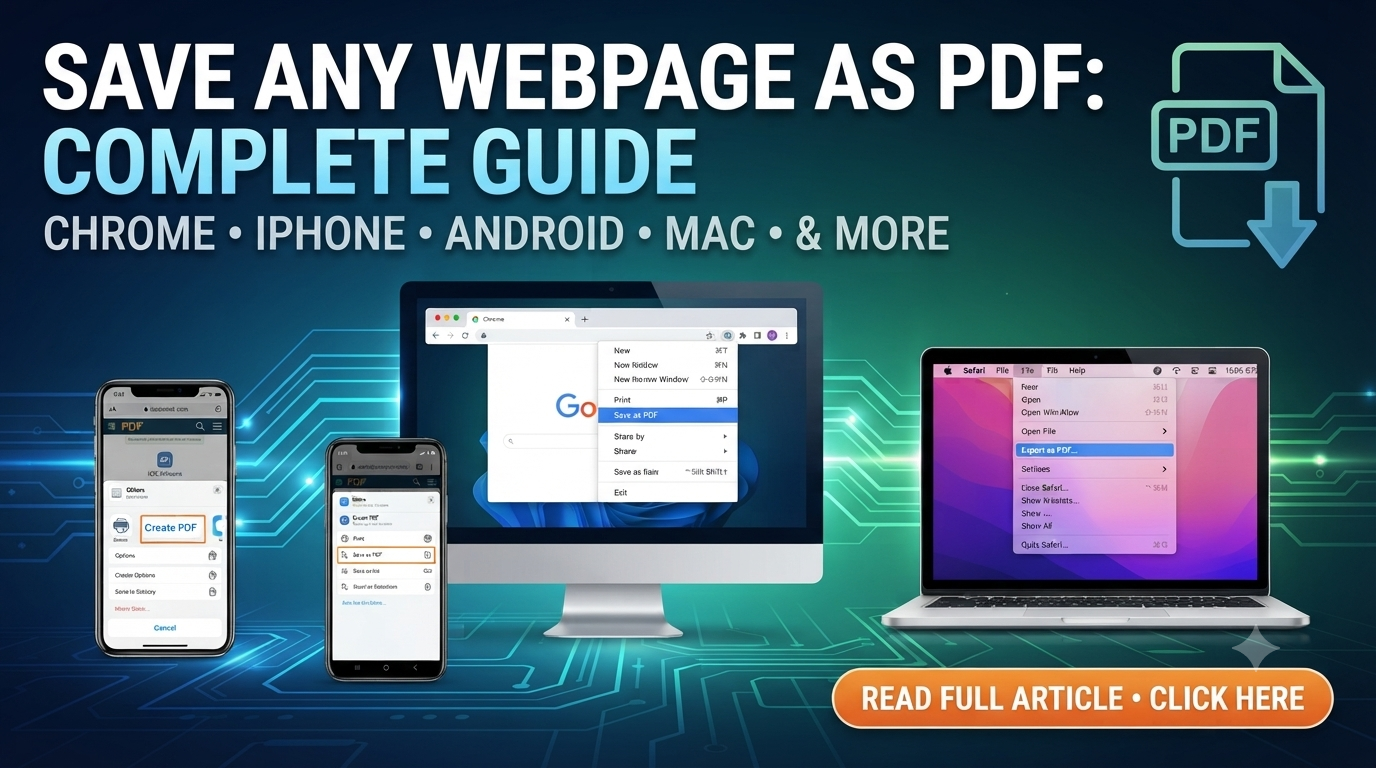
Save any website as a clean PDF in seconds — step-by-step guide for Chrome, Safari, iPhone, Android and Mac.
🛠 Free tools mentioned in this article
Saving a webpage as a PDF is something most people need to do — and most devices already have everything required built in. Whether you want to save a receipt, archive an article, keep a record of a contract, or share a webpage offline, converting a webpage to PDF takes under ten seconds on any device.
Why Save a Webpage as PDF?
A saved PDF captures the page exactly as it appears at that moment. Unlike a bookmark, a PDF does not disappear if the website goes offline. Unlike a screenshot, a PDF preserves selectable, searchable text. Unlike a printed page, a PDF takes no physical space and can be shared instantly.
How to Save a Webpage as PDF in Google Chrome
- 1Open the webpage
- 2Press Ctrl + P (Windows) or Command + P (Mac)
- 3In the destination field, select Save as PDF
- 4Adjust layout if needed
- 5Click Save and choose your file location
How to Save a Webpage as PDF on iPhone and iPad
- 1Open the webpage in Safari
- 2Tap the Share button
- 3Scroll down and tap Print
- 4Pinch outward with two fingers on the thumbnail — this converts it to PDF
- 5Tap Share in the top right corner
- 6Choose Save to Files
The pinch gesture is the step most guides miss.
How to Save a Webpage as PDF on Android
In Chrome for Android:
- 1Tap the three-dot menu
- 2Tap Share, then Print
- 3In the printer dropdown, select Save as PDF
- 4Tap the save icon
How to Save a Webpage as PDF in Safari on Mac
Go to File in the menu bar and choose Export as PDF.
After Saving — Compress and Merge
File too large? Use our Compress PDF tool.
Need to combine multiple saved pages? Use our Merge PDF tool.
Need to edit the content? Use our PDF to Word tool.
Tips for Cleaner Webpage PDFs
Switch to reader mode before saving to remove navigation menus, ads, and sidebars. In Safari, tap the reader icon in the address bar.
Frequently Asked Questions
Can I save a webpage as PDF without printing?
Yes. On Mac, use Safari's Export as PDF. On iPhone, use Create PDF in the share sheet. On Windows and Android, use Save as PDF in the print dialog.
Why does my saved PDF look different from the webpage?
Web pages are designed for screens, not fixed pages. Using reader mode before saving usually produces a cleaner result.
How do I save a webpage as PDF on mobile without an app?
Both iPhone and Android have built-in PDF creation through their share and print menus — no additional app required.
Ready to work with your PDFs?
All six tools are completely free — no signup, no watermarks, no limits.