How to Split a PDF into Multiple Files — Free Online Guide
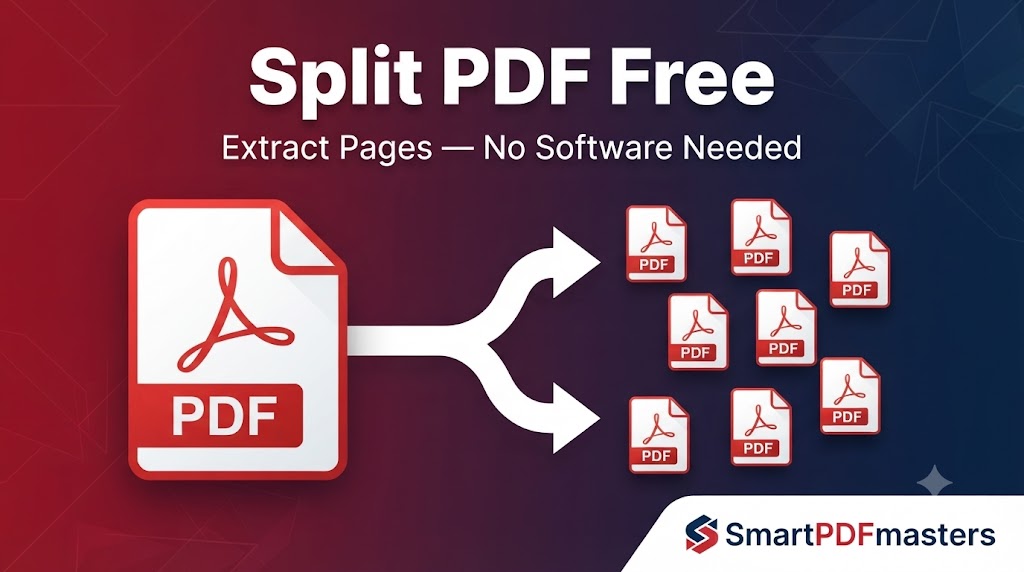
Need to split a large PDF into separate pages or sections? Free guide for Windows, Mac, iPhone and Android.
🛠 Free tools mentioned in this article
A large PDF with dozens of pages is not always useful as a single file. Sometimes you need to extract one page, separate a report into chapters, pull out a specific section, or divide a scanned document into individual files.
What Does Splitting a PDF Mean?
Splitting a PDF means dividing a single PDF into two or more separate files. You might split by page range, extract a single page, separate into individual pages, or split at a specific chapter break.
The original PDF is not changed by splitting — the result is new, smaller PDF files containing the pages you selected.
Method 1 — Split PDF Using Google Chrome (Any Device)
- 1Open the PDF in Chrome
- 2Press Ctrl + P (Windows) or Command + P (Mac)
- 3In the printer dropdown, select Save as PDF
- 4In the Pages field, enter specific pages — type 3 for page 3, or 5-10 for pages 5 through 10
- 5Click Save
Repeat for each section you want as a separate file.
Method 2 — Split PDF on Mac Using Preview
- 1Open the PDF in Preview
- 2Go to View and select Thumbnails
- 3Select the pages you want to extract
- 4Drag the selected thumbnail pages out of the Preview window onto your desktop
Preview automatically creates a new PDF containing only the pages you dragged out.
Method 3 — Split PDF on iPhone and iPad
For extracting one page on iPhone:
- 1Open the PDF in the Files app
- 2Tap Share, then Print
- 3Specify only the page number you want
- 4Pinch outward on the print preview thumbnail
- 5Save the single-page PDF to Files
Method 4 — Split PDF on Android
The Chrome print-to-PDF method works identically on Android. Open the PDF in Chrome, open print, select Save as PDF, enter your page range, and save.
After Splitting — Merge, Compress, Convert
Need to recombine sections? Use our Merge PDF tool.
Need smaller files? Use our Compress PDF tool on each section.
Need to edit extracted content? Use our PDF to Word tool.
Frequently Asked Questions
How do I split a PDF for free?
Use Google Chrome's print-to-PDF feature with a specific page range, use Preview on Mac to drag pages to a new file, or use a browser-based PDF splitter on any device.
How do I extract one page from a PDF?
Open the PDF in Chrome, press Ctrl + P, select Save as PDF, enter the single page number in the Pages field, and click Save.
Can I split a PDF on my phone?
Yes. The Chrome page-range method works on Android. On iPhone, specify the page in the print dialog before using the pinch-to-zoom gesture.
Does splitting a PDF reduce quality?
No. Splitting extracts pages exactly as they are in the original document without any quality reduction.
Can I split a password-protected PDF?
Enter the password to open the PDF first. Once open in Chrome or Preview, the splitting process works the same.
Ready to work with your PDFs?
All six tools are completely free — no signup, no watermarks, no limits.