How to Send Large PDF Files Free — Email, WhatsApp, WeTransfer & More
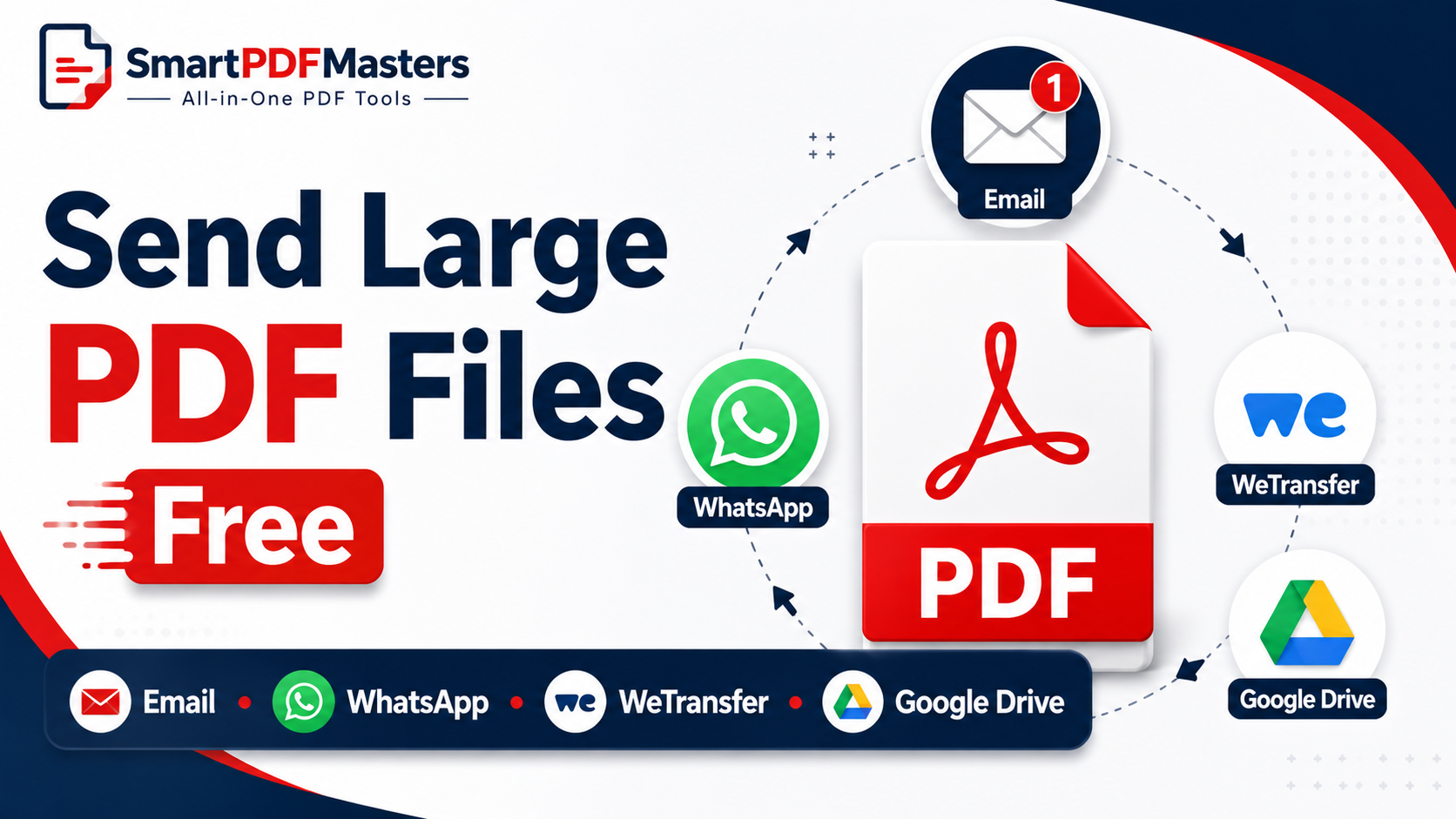
PDF too large to send? Learn every free method to share large PDF files by email, WhatsApp, WeTransfer, Google Drive and more — including how to compress them first.
🛠 Free tools mentioned in this article
You need to send a PDF. The file is 30MB. Gmail's limit is 25MB. Outlook says it is too large. WhatsApp Web shows an error. The email bounces back. You are standing in front of a completely ordinary document that has somehow become impossible to deliver.
This guide explains every free method to send a large PDF file in 2026 — from compressing it so it fits within email attachment limits, to using cloud services that bypass attachment limits entirely, to dedicated file transfer tools that handle files of any size without requiring the recipient to create an account.
Why PDF Files Become Too Large to Send
Before choosing a sending method, it helps to understand why the PDF is large. Different causes have different solutions.
High-resolution embedded images are the most common cause. Presentations exported to PDF often embed slide images at display resolution. Documents with many photographs contain full-quality image data. A single high-resolution photograph can occupy several megabytes on its own.
Scanned documents are large because each page is stored as a photograph. A 10-page document scanned at 300 DPI can easily reach 10 to 20MB.
Embedded fonts and metadata add weight invisibly. A document that uses many custom fonts or has extensive revision history stored in the file can be significantly larger than its visible content suggests.
Multiple combined documents — a PDF created by merging many separate PDFs — accumulates the size of all its source files.
Understanding the cause tells you whether compressing the PDF first is likely to be effective, or whether you need to use a file transfer service that bypasses size limits.
Solution 1 — Compress the PDF Before Sending (Best First Step)
For most large PDFs, compression is the simplest and fastest solution. Our Compress PDF tool reduces PDF file size by resampling embedded images to a lower resolution and removing invisible metadata — without changing anything visible to the reader.
Upload your PDF to our Compress PDF tool, choose the maximum compression level, and download the result. For text-heavy documents like contracts, reports, and typed letters, this typically reduces the file to under 1MB. For presentation PDFs with many slide images, the reduction is typically 50 to 80 percent.
After compressing, check the file size. If it is now under 25MB, you can attach it to Gmail. If it is under 20MB, you can attach it to Outlook. If it is still too large after compression — typically because the PDF contains very high-resolution photographs or many scanned pages — use one of the sending methods below.
Solution 2 — Send Via Google Drive Link (Best Overall Free Method)
Google Drive is the most practical free solution for sending large PDFs that are too big for email attachments. Every Google account includes 15GB of free storage, and sharing a file takes under a minute.
Upload your PDF to Google Drive by going to drive.google.com, clicking the plus button, and choosing File upload. Once uploaded, right-click the file and choose Share. In the sharing dialog, change the access setting from Restricted to Anyone with the link can view. Click Copy link. Paste the link into your email instead of attaching the file.
The recipient clicks the link and either views the PDF in their browser or downloads it — no Google account required on their end. The file size limit for Google Drive is 5TB per file, which means any PDF you are likely to encounter can be shared this way.
For sensitive documents, set an expiry date on the link if privacy is important. Google Drive does not have built-in link expiry, but you can revoke access at any time by returning to the sharing settings and changing the access back to Restricted.
Solution 3 — Send Via WeTransfer (Best for One-Time Transfers)
WeTransfer is the simplest free tool specifically designed for sending large files to someone without requiring either party to create an account.
Go to wetransfer.com. Enter the recipient's email address. Enter your own email address. Add a message if you want. Click the plus button to add your PDF file. Click Transfer. WeTransfer uploads your file and sends the recipient an email containing a download link. The link is valid for seven days, after which the file is automatically deleted from WeTransfer's servers.
The free WeTransfer plan allows files up to 2GB per transfer — more than sufficient for any PDF. The recipient receives a clean download link without needing to log into anything.
WeTransfer is particularly useful when sending to people who are not familiar with cloud storage services, because the experience is exactly like clicking a download link with no account setup involved.
Solution 4 — Send Via WhatsApp (Up to 100MB)
WhatsApp allows document sharing up to 100MB, which means most PDFs can be sent directly through WhatsApp without compression.
On iPhone, tap the attachment icon in a WhatsApp conversation, choose Document, and select your PDF from the Files app. On Android, tap the attachment icon, choose Document, and select your PDF. On WhatsApp Web, click the attachment icon, choose Document, and select the file from your computer.
If a PDF fails to send on WhatsApp, the most common reason is an unstable internet connection rather than file size — WhatsApp allows up to 100MB and most PDFs are well under this limit. Try switching from mobile data to Wi-Fi, or compressing the PDF using our Compress PDF tool before attempting to send again.
Solution 5 — Send Via Dropbox (Free Up to 2GB)
Dropbox's free tier includes 2GB of storage and allows sharing files with anyone via a link, similar to Google Drive.
Upload your PDF to Dropbox at dropbox.com. Hover over the file and click the Share button. Choose Create a link. Copy the link and share it via email or any messaging platform.
Recipients can view or download the file without needing a Dropbox account.
The main limitation of Dropbox's free tier is the 2GB storage limit — if your Dropbox account is full, you will need to delete other files before uploading new ones. For occasional large file sharing, Google Drive's 15GB free tier is generally more practical.
Solution 6 — Send Via Microsoft OneDrive (Free Up to 5GB)
Microsoft OneDrive provides 5GB of free storage and is already included with any Microsoft account (including free Outlook.com accounts).
Upload your PDF to onedrive.live.com. Right-click the file and choose Share. Select Anyone with the link and copy the link. Share the link via email or any other channel.
OneDrive sharing is particularly convenient for people who already use Microsoft services — the integration with Outlook means you can add a OneDrive link directly to an email without leaving Outlook, and the recipient sees a clean sharing invitation rather than a raw URL.
Solution 7 — Split the PDF and Send in Parts
If you need to send a large PDF as an email attachment and compression has not reduced it enough, splitting it into smaller sections allows you to send each section separately within the attachment limit.
Use our Split PDF tool to divide the document at logical break points — by chapter, by section, or by a specific page count. Compress each section using our Compress PDF tool. Send each section as a separate email attachment, clearly labelled in sequence (Part 1 of 3, Part 2 of 3, Part 3 of 3).
Inform the recipient in advance that the document is coming in multiple parts so they know to wait for all parts before reading.
Choosing the Right Method Based on File Size
For PDFs under 1MB: Attach directly to any email. No special action needed.
For PDFs between 1MB and 10MB: Attach directly to Gmail or Outlook. If the recipient's email server has stricter limits, compress first using our Compress PDF tool.
For PDFs between 10MB and 25MB: Compress first. If still too large for email, use Google Drive or WeTransfer.
For PDFs between 25MB and 100MB: Use WhatsApp, Google Drive, WeTransfer, or Dropbox. Email attachment is not possible without compression.
For PDFs over 100MB: Use Google Drive, Dropbox, or OneDrive. WeTransfer supports up to 2GB on the free plan.
Sending Sensitive PDF Files Securely
If your PDF contains confidential information — personal data, financial records, medical information, legal documents — consider security alongside convenience when choosing a sending method.
For sensitive documents, encrypt the PDF with a password before sharing it via any of the above methods. Share the password through a separate, different channel from the file itself — a phone call, a text message, or a separate email. Never send the password and the encrypted file in the same message.
Use expiring links where available to prevent the document from being accessible indefinitely. Google Drive's shared links remain active until you revoke them manually; WeTransfer links expire automatically after seven days.
After sending, if you uploaded the PDF to a cloud service, consider whether you want to keep it there permanently or delete it once the recipient has confirmed they received and downloaded it.
After Sending — Merging Received PDFs
If you received a large document in multiple parts and need to combine them back into one file, use our Merge PDF tool to join all the sections into one complete document.
Frequently Asked Questions
How do I send a PDF that is too large for email?
Use Google Drive or WeTransfer to share the file as a download link instead of an attachment. Alternatively, compress the PDF using our Compress PDF tool to reduce the file size before attaching it.
How do I send a large PDF on WhatsApp?
Tap the attachment icon in any WhatsApp conversation, choose Document, and select your PDF. WhatsApp supports documents up to 100MB.
How do I send a PDF for free without Gmail attachment limits?
Upload your PDF to Google Drive, right-click it, choose Share, set it to Anyone with the link, copy the link, and paste it into your email. The recipient can download the file without a Google account.
How do I send a large PDF without losing quality?
Use Google Drive, WeTransfer, Dropbox, or OneDrive to share the original file as a link. These methods deliver the exact file you uploaded with no quality reduction.
What is the maximum PDF size for Gmail?
Gmail allows email attachments up to 25MB. For files larger than 25MB, Gmail automatically offers to share the file via Google Drive as a link instead.
What is the maximum file size for WeTransfer free?
WeTransfer's free plan allows files up to 2GB per transfer. Download links are valid for seven days before the file is automatically deleted.
How do I compress a PDF for emailing?
Use our Compress PDF tool. Upload your PDF, choose maximum compression, and download the smaller file in under 30 seconds.
Ready to work with your PDFs?
All six tools are completely free — no signup, no watermarks, no limits.