Job Application PDF Checklist: Format Your Resume the Right Way
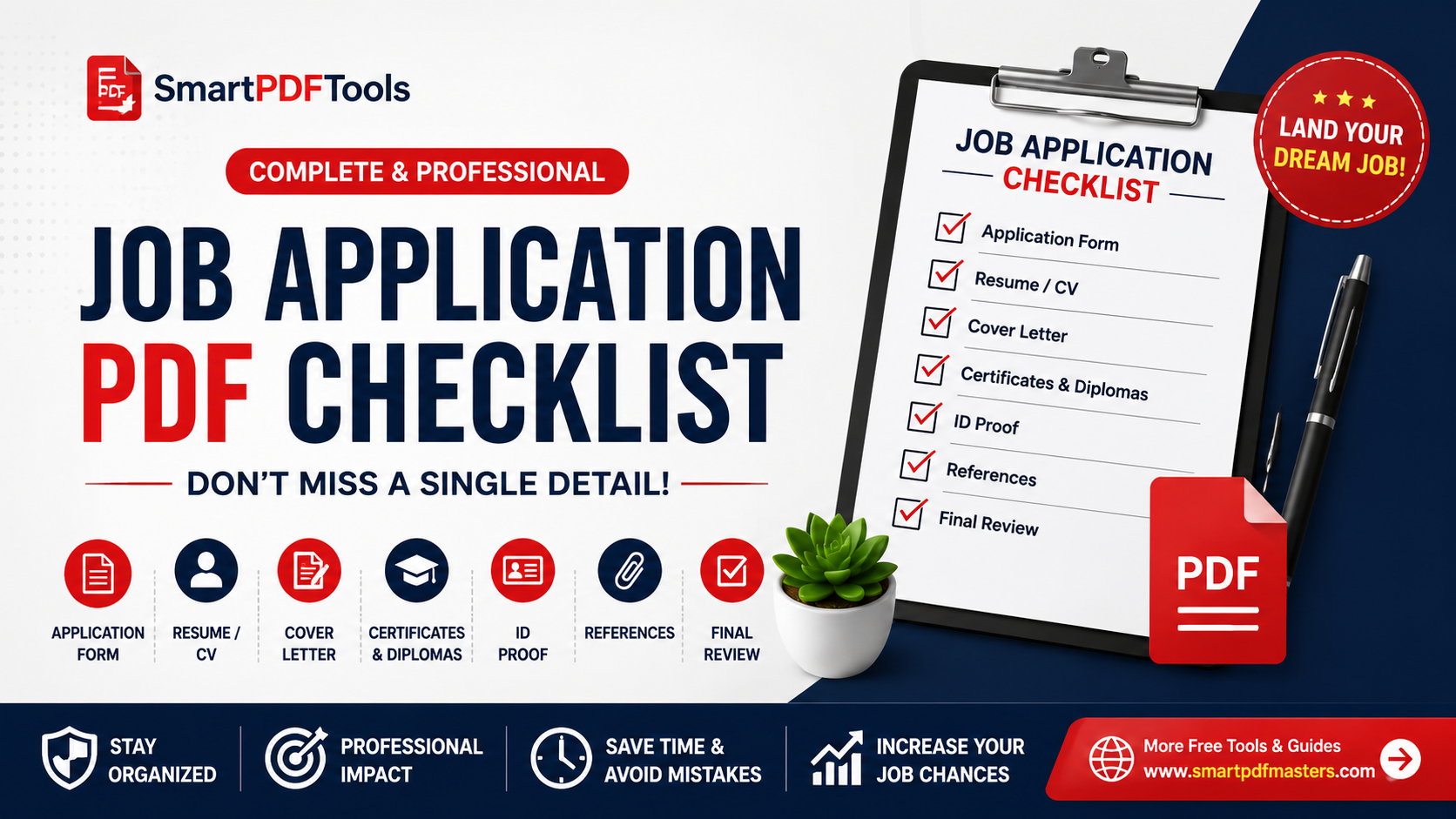
The exact PDF formatting rules recruiters and applicant tracking systems expect in 2026.
🛠 Free tools mentioned in this article
Every year, millions of job applications are rejected before a human ever reads them — not because the candidate was unqualified, but because the PDF itself failed. A resume that looked perfect on the candidate's laptop arrived garbled in the recruiter's inbox, or got silently dropped by an applicant tracking system that could not parse the file correctly.
Why PDF Is the Safest Format for Job Applications
Word documents shift formatting depending on which version of Word the recipient has installed. PDF locks the layout exactly as you designed it — the recruiter sees precisely what you intended, regardless of their device or software.
How ATS Systems Actually Read Your Resume PDF
Before a human opens your resume, it passes through an applicant tracking system (ATS). These systems extract text from your PDF, search for job-related keywords, and rank candidates. A PDF that confuses the ATS parser can filter out your application entirely.
ATS software reads PDFs in a linear order — the order text is stored in the file, not the order it visually appears. A multi-column PDF layout can be read in a scrambled order that makes your resume incomprehensible to the system.
The PDF Formatting Rules That Actually Matter
Layout
Use a single-column layout wherever possible. Two-column resumes are the most common cause of ATS parsing failures.
Contact Information
Never put contact information inside a text box or header element — some ATS parsers skip headers entirely.
Section Headings
Use standard headings: Experience, Education, Skills, Summary. Creative alternatives are less likely to be categorised correctly.
Fonts
Stick to Arial, Calibri, Georgia or Times New Roman.
Images
Never use images for text-based content. Text inside an image is invisible to ATS systems.
How to Combine Your Resume and Cover Letter
Use our Merge PDF tool to combine your cover letter and resume into one document — cover letter first, resume second.
Keeping Your File Size Under Control
Use our Compress PDF tool to reduce the file size while keeping text perfectly sharp.
If You Only Have a Word Version
Use our PDF to Word tool to convert an existing PDF resume to editable Word for updating, then export back to PDF.
Pre-Submission Checklist
- Open the finished file on a different device to confirm layout holds up
- Check that contact details appear in the body, not just in a header
- Confirm file size is under any limit in the job posting
- Name the file clearly: FirstName-LastName-Resume.pdf
Frequently Asked Questions
Should I send my resume as PDF or Word?
Always PDF for final submissions. PDF guarantees the layout looks identical on every device and cannot be accidentally edited.
How do I combine my resume and cover letter into one PDF?
Use our Merge PDF tool — upload both files, arrange cover letter first, and download the combined PDF in under a minute.
What font should I use in my resume PDF?
Arial, Calibri, Georgia or Times New Roman. These fonts embed correctly in PDF files and are reliably recognised by ATS systems.
Ready to work with your PDFs?
All six tools are completely free — no signup, no watermarks, no limits.