How to Scan Documents with Your Phone and Save as PDF
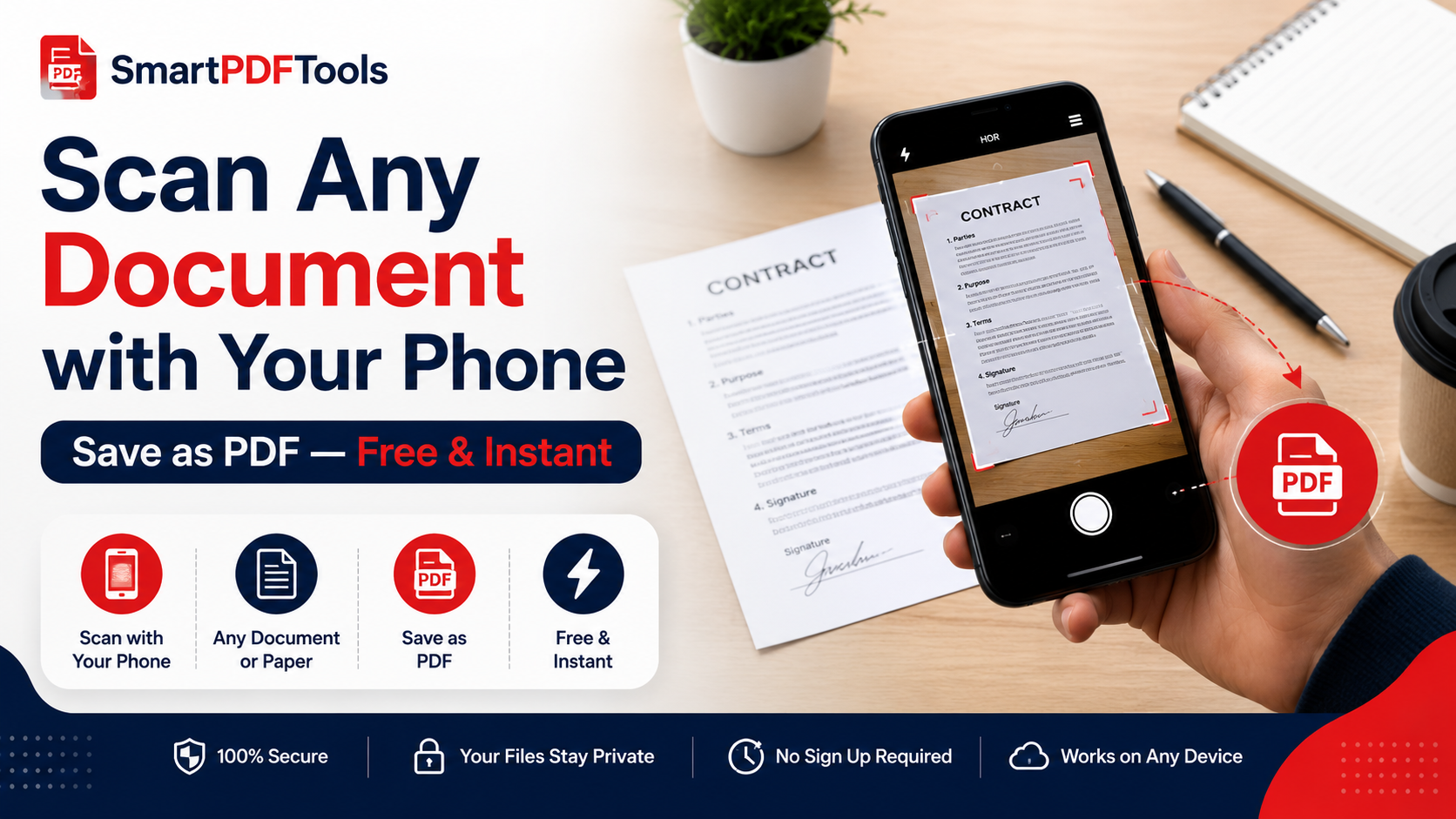
Turn any paper document into a clean, shareable PDF using just your smartphone — no scanner needed.
🛠 Free tools mentioned in this article
The smartphone in your pocket is a more capable document scanner than anything available in an office supply store ten years ago. Modern phone cameras combined with the right technique produce clean, readable PDFs from any paper document — contracts, receipts, ID documents, handwritten notes, tax forms.
Why Scanning to PDF Is Better Than a Photo
A phone photo of a document and a proper PDF scan are not the same thing. A quick camera photo often has perspective distortion, uneven lighting, large file size, and no searchable text. A proper scan corrects perspective automatically, normalises lighting, produces a much smaller file, and can include searchable text through OCR.
Method 1 — Convert Existing Photos to PDF
If you have already photographed your documents, use our PNG to PDF tool. Upload your photos, arrange them in order, and download a single combined PDF.
Method 2 — iPhone Built-in Scanner (Notes App)
- 1Open Notes and create a new note
- 2Tap the camera icon above the keyboard
- 3Choose Scan Documents
- 4Hold your phone over the document — the app detects edges automatically
- 5For multiple pages, keep scanning — each page is added to the same document
- 6Tap Save, then tap the scan, tap Share, and choose Save to Files as PDF
Method 3 — Android Built-in Scanner (Google Drive)
- 1Open Google Drive and tap the plus button
- 2Choose Scan
- 3Hold your phone over the document and tap the shutter button
- 4Google Drive automatically crops and enhances the image
- 5Add additional pages if needed
- 6Tap Save to store as PDF in your Google Drive
Method 4 — Samsung Phones
Samsung Galaxy phones have scanning options through Samsung Notes and, on some models, through the camera app via Bixby Vision.
Tips for Clean Phone Scans
- Use natural light or overhead room lighting
- Hold your phone directly above the document, not at an angle
- For multipage documents, keep all pages flat and do not move the background between pages
After Scanning — Combining and Compressing
Need to combine multiple scanned PDFs? Use our Merge PDF tool.
File too large? Use our Compress PDF tool.
Need editable text from a scan? Use our PDF to Word tool with OCR support.
Frequently Asked Questions
How do I scan a document with my iPhone and save it as PDF?
Open Notes, create a new note, tap the camera icon, choose Scan Documents, scan your pages, and save as PDF through the Share menu.
Can I scan multiple pages into one PDF on Android?
Yes. Google Drive's scan feature lets you add multiple pages before saving — tap the plus button after each page to add more.
How do I make scanned PDFs smaller?
Use our Compress PDF tool — it reduces scanned PDF size significantly while keeping text readable.
Ready to work with your PDFs?
All six tools are completely free — no signup, no watermarks, no limits.