How to Rotate PDF Pages Free — Fix Upside Down and Sideways PDFs
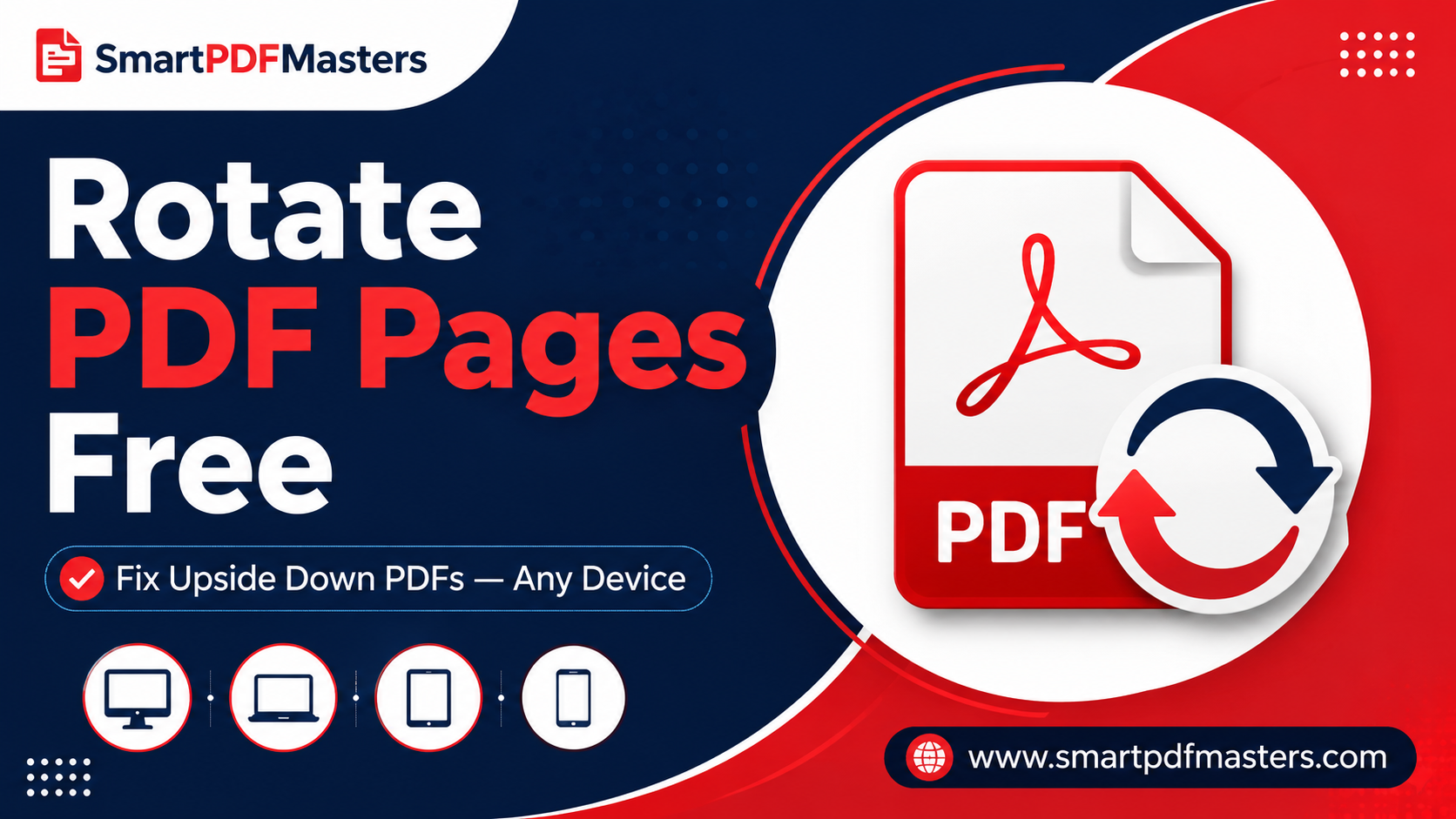
Fix upside down, sideways or incorrectly oriented PDF pages instantly — free guide for Windows, Mac, iPhone and Android with no software needed.
🛠 Free tools mentioned in this article
Receiving a PDF where all the pages are sideways or upside down is one of the most frustrating document problems — especially when you need to share it professionally or print it correctly. Scanned documents frequently come out rotated incorrectly because the paper was placed in the scanner at the wrong angle. PDFs exported from phones often have orientation issues because the phone camera was held in a different position than expected.
Rotating PDF pages permanently — so the change is saved into the file and not just displayed differently on your screen — is straightforward and completely free on every major device in 2026.
What Does Rotating a PDF Page Actually Mean?
When you rotate a page in a PDF viewer, you are usually changing only how it appears on your screen — the rotation is not saved into the file itself. Close and reopen the PDF and it is back to its original orientation.
Permanently rotating a PDF page means saving the rotation into the file structure so that the page displays correctly in every PDF viewer, on every device, for every recipient you send it to. This is what most people actually need when they search for how to rotate PDF pages.
Why PDF Pages End Up in the Wrong Orientation
Scanned documents are the most common cause of rotated PDF pages. If the paper is placed in the scanner sideways, or if the scanner does not automatically detect the paper orientation, the resulting PDF pages will be rotated 90 degrees or 180 degrees from their correct orientation.
Phone camera scans are another common cause. When you photograph a document with your phone and convert it to PDF, the orientation depends on how you held the phone when taking the photo. Portrait orientation photographs become portrait PDF pages. Landscape orientation photographs become landscape PDF pages. If you mixed orientations across multiple photos, your combined PDF will have inconsistent page rotation.
Some PDF export tools and older versions of PDF creation software do not correctly preserve the page orientation from the original document, producing PDFs where all pages appear rotated.
Method 1 — Rotate PDF Pages on Mac Using Preview (Permanent Rotation)
Mac users can permanently rotate PDF pages using the built-in Preview app without installing any additional software. This is the most reliable free method for Mac.
Open the PDF in Preview. Go to View in the menu bar and select Thumbnails to display the page panel on the left side of the window. Click on the thumbnail of the page you want to rotate. To rotate the page 90 degrees clockwise, go to Tools in the menu bar and choose Rotate Right. To rotate the page 90 degrees counter-clockwise, choose Rotate Left. To rotate 180 degrees, apply the same rotation twice.
To rotate multiple pages at once, hold Command and click each page thumbnail you want to rotate, then apply the rotation. To rotate all pages, press Command and A to select all thumbnails, then rotate.
After rotating, go to File and choose Export as PDF to save the rotated version as a new file. This is important — simply closing the file does not always save the rotation permanently in all versions of Preview. Exporting as a new PDF guarantees the rotation is embedded correctly in the file.
If you need to merge the rotated PDF with other documents afterward, use our Merge PDF tool.
Method 2 — Rotate PDF Pages on Windows
Windows does not include a built-in tool for permanently rotating PDF pages. The available free options are a browser-based tool or Adobe Acrobat Reader's limited rotation feature.
Using a browser-based PDF rotation tool: Open Chrome, Edge, or Firefox and search for a free online PDF page rotator. Upload your PDF, select the pages you want to rotate, choose the rotation direction and degree, and download the corrected PDF. This is the most practical free solution on Windows and takes under a minute for most documents.
Using Microsoft Edge: Edge's built-in PDF viewer lets you rotate pages for viewing using the View menu, but this rotation is not permanent — it is lost when you close the file.
After rotating and downloading your corrected PDF, if the file size is larger than expected, use our Compress PDF tool to reduce the size before sharing.
Method 3 — Rotate PDF Pages on iPhone and iPad
iPhone and iPad have a rotation option built into the Files app and the Markup tool for individual page adjustments.
Open the PDF in the Files app. Tap on a page to select it. If you see a rotation option in the file menu, use it to rotate the selected page. The rotation is saved into the file automatically.
For more comprehensive rotation of multiple pages, use a browser-based PDF rotation tool in Safari. Open Safari, visit a free online PDF page rotator, upload your PDF, rotate the pages you need to fix, and download the corrected file.
For scanned documents that you photographed with your iPhone and converted using our PNG to PDF tool, make sure you take your photos in the correct orientation before converting — this prevents rotation issues before they start.
Method 4 — Rotate PDF Pages on Android
Android does not include a built-in PDF page rotation tool. Use a browser-based PDF rotation tool in Chrome for Android.
Open Chrome, visit a free online PDF page rotator, upload your PDF file from your device storage, select the pages you want to rotate, apply the rotation, and download the corrected PDF. The process takes under a minute and requires no app installation.
Method 5 — Rotate PDF Pages Using Google Drive
Google Drive offers an indirect way to rotate PDF pages by converting the PDF to Google Docs format, adjusting the content, and re-exporting. This works best for text-heavy documents where the content has not been rendered as an image.
Upload your PDF to Google Drive. Right-click it and choose Open with Google Docs. Google will convert the PDF to an editable document. In Google Docs, go to File then Page setup to adjust the page orientation between portrait and landscape. After adjusting, go to File then Download then PDF Document to re-export as a corrected PDF.
Note that this method works best for simple documents. Complex layouts with tables, images, and precise formatting may not convert correctly.
How to Rotate Only One Page in a PDF While Keeping Others Unchanged
Rotating a single page in a multi-page PDF while keeping all other pages in their original orientation requires a tool that supports individual page rotation rather than applying rotation to all pages at once.
On Mac, Preview handles this precisely — select only the specific page thumbnail in the sidebar, apply the rotation, and export. Only the selected page is rotated.
In browser-based tools, look for a tool that shows individual page thumbnails and lets you apply rotation to individual pages by clicking on each one separately.
How to Fix a Rotated Scanned PDF
Scanned PDFs with rotation issues require the same rotation fix as any other PDF, but there is an additional consideration — the text in a scanned PDF is stored as an image rather than as selectable text. After rotating the page to the correct orientation, the content will display correctly but the text will still not be selectable or searchable.
If you need selectable, searchable text after rotating your scanned PDF, use our PDF to Word tool after rotating. It uses OCR to recognise the text in the scanned images and converts it to actual, editable text.
Permanently Saving PDF Rotation — Why It Matters
Many PDF viewers allow you to rotate pages for viewing without saving the rotation to the file. This is sometimes called a "view rotation" rather than a "permanent rotation." The distinction matters significantly when you are sharing the PDF with others.
If you rotate a PDF for viewing only in your PDF viewer, the file on disk is unchanged. Anyone who opens the same file on their device will see it in the original (incorrect) orientation. Only you see the rotated version because your PDF viewer remembers your preference locally.
Permanent rotation saves the corrected orientation directly into the PDF file structure. Every person who opens the file on any device will see the pages in the correct orientation without needing to rotate them manually.
Always export or save the file after rotating to ensure the rotation is permanent rather than just a view preference.
Tips for Preventing Rotation Issues
When scanning documents, check the orientation of your pages in the scanner preview before confirming the scan. Most modern scanners show a live preview that lets you verify the orientation is correct.
When photographing documents with a phone for conversion to PDF, hold your phone in the same orientation as the document you are photographing. For standard A4 or letter-size documents, hold your phone in portrait orientation directly above the document.
When exporting from Word, PowerPoint, or any other application to PDF, check the page orientation in the print settings before exporting. Landscape documents exported with portrait page settings will produce rotated pages.
Frequently Asked Questions
How do I rotate a PDF page permanently for free?
On Mac, open the PDF in Preview, select the page thumbnail, use Tools then Rotate Right or Rotate Left, and then File then Export as PDF to save permanently. On Windows and all other devices, use a free browser-based PDF rotation tool to rotate pages and download the corrected file.
How do I rotate only one page in a PDF without rotating all pages?
On Mac, select only the specific page thumbnail in Preview's sidebar before applying rotation — other pages are not affected. In browser-based tools, look for individual page rotation options that let you rotate specific pages rather than all pages at once.
Why does my rotated PDF go back to the wrong orientation when I reopen it?
This happens when the rotation was applied as a view preference only and was not saved permanently into the file. Always export or save the file after rotating to embed the correct orientation into the PDF file structure.
Can I rotate a PDF on my phone for free?
Yes. On iPhone, use the Files app rotation option or a browser-based tool in Safari. On Android, use a free online PDF rotation tool in Chrome. No app download is required.
How do I fix a scanned PDF that is sideways?
Use a browser-based PDF rotation tool or Preview on Mac to rotate the pages to the correct orientation. If you also need the text to be selectable after rotating, use our PDF to Word tool afterward to run OCR on the corrected pages.
Ready to work with your PDFs?
All six tools are completely free — no signup, no watermarks, no limits.