How to Print to PDF Free — Windows, Mac, iPhone & Android Guide
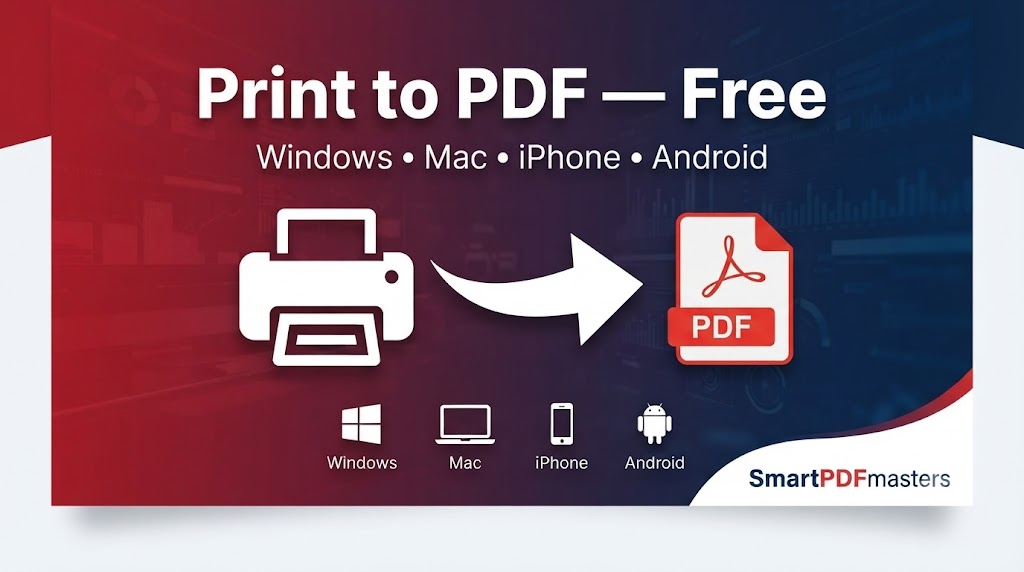
Learn how to print any document, webpage or file to PDF for free on any device.
🛠 Free tools mentioned in this article
Print to PDF means saving any document, webpage, email, or file as a PDF instead of sending it to a physical printer. Every major operating system has this feature built in for free — no software to install, no account to create.
What Does Print to PDF Actually Mean?
When you print to PDF, your device creates a PDF file instead of sending ink to paper. The result looks exactly like a printed page — same layout, fonts, and images — but saved as a digital file you can store, share, or email.
Print to PDF works from any application with a Print button. It works for webpages, emails, Word documents, Excel spreadsheets, photos, and almost any other file type.
How to Print to PDF on Windows 10 and Windows 11
- 1Open the document or webpage
- 2Press Ctrl + P
- 3In the printer dropdown, select Microsoft Print to PDF
- 4Choose your page range and settings
- 5Click Print
- 6Choose where to save the PDF and click Save
How to Print to PDF on Mac
Method 1 — PDF Button in Print Dialog
- 1Open your document or webpage
- 2Press Command + P
- 3Click the PDF button at the bottom left
- 4Select Save as PDF
- 5Choose name and location, click Save
Method 2 — Safari Export (Best for Webpages)
Go to File in the menu bar and choose Export as PDF.
How to Print to PDF on iPhone and iPad
- 1Open the document, email, or webpage
- 2Tap the Share button
- 3Tap Print
- 4Pinch outward with two fingers on the print preview thumbnail
- 5A PDF opens — tap Share to save it to Files or share via email
How to Print to PDF on Android
In Chrome
- 1Open the webpage
- 2Tap the three-dot menu
- 3Tap Share, then Print
- 4In the printer dropdown, select Save as PDF
- 5Tap the download icon to save
In Google Docs, Sheets, or Slides
- 1Tap the three-dot menu
- 2Tap Share and export
- 3Tap Send a copy
- 4Select PDF and tap OK
How to Print to PDF in Microsoft Word, Excel and PowerPoint
Go to File then Save As and choose PDF from the format dropdown. Or go to File then Export then Create PDF/XPS Document.
After Printing to PDF
File too large? Use our Compress PDF tool.
Need to edit the content? Use our PDF to Word tool.
Need to combine multiple printed PDFs? Use our Merge PDF tool.
Frequently Asked Questions
Is print to PDF free?
Yes. Every major operating system includes free built-in print to PDF functionality.
What is the difference between print to PDF and Save as PDF?
Print to PDF uses the print dialog. Save as PDF is a direct export option in apps like Microsoft Word. Save as PDF often produces better quality.
Why is my printed PDF blurry?
Usually caused by low-resolution images or a low-quality print setting. Use the highest quality setting, or use Save as PDF directly from the application.
Can I print to PDF on my phone?
Yes. Both iPhone and Android support print to PDF through their built-in print dialogs.
Ready to work with your PDFs?
All six tools are completely free — no signup, no watermarks, no limits.