How to Open PDF Files Free — Complete Guide for All Devices 2026
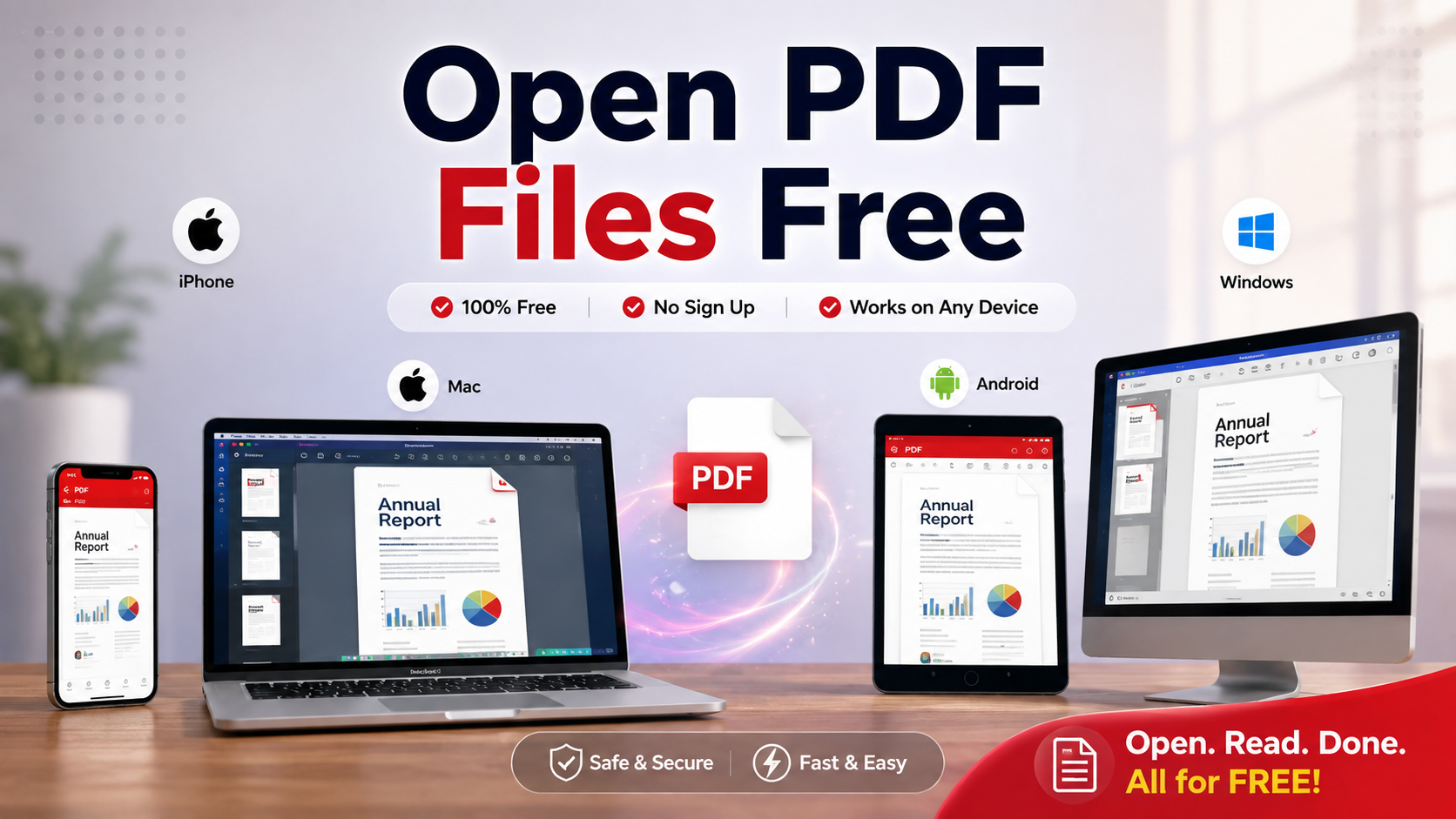
Learn how to open PDF files free on any device in 2026 — complete guide for Windows, Mac, iPhone, Android and Chrome, including how to open password-protected and corrupted PDF files.
🛠 Free tools mentioned in this article
Opening a PDF file is something billions of people do every day — downloading a bank statement, reading an email attachment, viewing a form that needs to be filled in, or accessing a document shared by a colleague. In 2026, every major device can open PDF files for free using built-in tools that require no download and no account. This guide covers every method for every platform, plus solutions for common problems like PDF files that won't open, password-protected PDFs, and very large PDF files.
How to Open PDF Files on Windows (Free)
Windows 10 and Windows 11 include a built-in PDF viewer in Microsoft Edge — no additional software needed.
Method 1 — Open in Microsoft Edge (Default):
Double-click the PDF file in File Explorer. If Microsoft Edge is set as your default PDF viewer, the file opens immediately in Edge. Edge includes a toolbar with zoom controls, a navigation panel, a search function, and basic annotation tools.
Method 2 — Open in Chrome:
Right-click the PDF file in File Explorer. Choose Open with, then Google Chrome. Chrome opens the PDF in its built-in viewer with zoom, search, print, and download options.
Method 3 — Drag and drop into a browser:
Open any browser window. Drag the PDF file from File Explorer and drop it into the browser window. The browser opens the PDF immediately.
Method 4 — Adobe Acrobat Reader (Free):
Download the free Adobe Acrobat Reader from Adobe's website. Once installed, it becomes the default PDF viewer and opens PDF files with a wider range of features including form filling, commenting, and basic editing.
After opening a PDF that is too large to share easily, use our Compress PDF tool to reduce the file size.
How to Open PDF Files on Mac (Free)
Mac includes Preview as its built-in PDF viewer — one of the most capable free PDF viewers available on any platform.
Method 1 — Double-click to open in Preview:
Double-click any PDF file in Finder. Preview opens the file immediately. Preview includes zoom controls, text search, a page thumbnail panel, annotation tools (highlights, notes, shapes, signatures), and form-filling capabilities.
Method 2 — Open in Safari:
Right-click the PDF file in Finder, choose Open with, then Safari. Safari opens the PDF in its built-in viewer. This is useful for quickly viewing a PDF without the full Preview interface.
Method 3 — Drag into browser:
Drag a PDF file from Finder into any open browser window — Safari, Chrome, or Firefox — to open it immediately.
Method 4 — Right-click and choose Open with:
Right-click any PDF file and choose Open with to see all applications on your Mac that can open PDFs, including Preview, Safari, Chrome, and Adobe Acrobat Reader if installed.
How to Open PDF Files on iPhone and iPad (Free)
iPhone and iPad have full PDF support built into iOS and iPadOS — no app download required.
Method 1 — Open in Files app:
Tap a PDF file in the Files app. The file opens in the built-in PDF viewer with a toolbar for navigation, search, and accessing Markup annotation tools.
Method 2 — Open from email attachment:
Tap a PDF attachment in the Mail app. The PDF opens in a preview viewer. Tap the share icon to save it to Files, print it, or open it in another app.
Method 3 — Open from Safari:
When Safari downloads a PDF or you tap a PDF link, the file opens in Safari's built-in PDF viewer. Tap the share icon to save it to Files or open it in another app.
Method 4 — Open in Google Drive:
If the PDF is stored in Google Drive, tap it in the Google Drive app to open it. Google Drive's PDF viewer includes search and basic navigation.
To annotate a PDF on iPhone — adding highlights, notes, or drawings — open it in the Files app and tap the pen icon to access the Markup tools.
How to Open PDF Files on Android (Free)
Android does not have a universal built-in PDF viewer in the same way as iOS, but several free options come pre-installed on most Android phones.
Method 1 — Open in Chrome:
Tap a PDF link in Chrome — the PDF opens in Chrome's built-in viewer. To open a PDF file from your storage, open Chrome, type file:/// in the address bar, navigate to your PDF and tap it. Or simply long-press a PDF in your file manager and choose Open with Chrome.
Method 2 — Open in Google Drive:
Upload or save the PDF to Google Drive. Tap the file in the Google Drive app to open it in Drive's built-in viewer with search and navigation.
Method 3 — Open in Google Files:
The Google Files app (pre-installed on Pixel phones and available free from the Play Store) can open PDF files directly with a basic viewer.
Method 4 — Samsung My Files:
On Samsung Galaxy phones, the My Files app includes a built-in PDF viewer. Tap any PDF in My Files to open it.
Method 5 — Adobe Acrobat Reader (Free):
Download the free Adobe Acrobat Reader app from the Google Play Store for a more complete viewing experience including form filling, annotations, and search.
How to Open PDF Files in a Browser (Any Device)
All major browsers include a built-in PDF viewer that works identically on Windows, Mac, Linux, and mobile devices.
Google Chrome: Drag and drop a PDF file into a Chrome window, or type the file path into the address bar. PDF links open automatically in Chrome's viewer.
Mozilla Firefox: Firefox has a built-in PDF viewer that opens PDF files and links automatically.
Microsoft Edge: Edge's PDF viewer is one of the most capable browser-based viewers, including annotations, highlighting, and a reading mode.
Apple Safari: Safari on Mac and iOS opens PDF files and links in its built-in viewer.
Browser-based PDF viewing requires no installation, no account, and works on any operating system. For most everyday PDF viewing tasks, a browser is all you need.
How to Open a Password-Protected PDF File
If a PDF file has been protected with an open password, you must enter the correct password to view it.
When you open a password-protected PDF in any viewer — Preview, Edge, Chrome, Acrobat Reader — a password prompt appears before the document is displayed. Enter the correct password and press Enter or click OK.
If you do not know the password, the PDF cannot be opened without it. Strong AES-256 encryption (used in all modern PDF tools) is computationally infeasible to bypass without the correct password.
If you created the PDF yourself and have forgotten the password, some commercial password recovery tools may help if the password was short or simple. These tools attempt common passwords and variations systematically.
After successfully opening a password-protected PDF, if you want to remove the password for convenience, save a copy without the password: in Preview on Mac, open the PDF, enter the password, then go to File then Export as PDF and leave the Encrypt checkbox unchecked.
How to Open a Very Large PDF File
Very large PDF files — those over 50MB or 100MB — can be slow or difficult to open on devices with limited memory.
Method 1 — Compress before opening: If the file is taking too long to download or open, use our Compress PDF tool first to reduce the file size significantly.
Method 2 — Open in a browser: For very large PDFs, opening in Chrome or Edge is often faster than opening in a desktop application because browsers handle large files efficiently.
Method 3 — Extract the pages you need: If you only need specific pages from a large document, use our Split PDF tool to extract those pages as a smaller file that opens instantly.
How to Open a Corrupted PDF File
PDF files occasionally become corrupted during download, transfer, or storage. Signs of a corrupted PDF include error messages when opening, blank pages, missing images or text, and strange characters instead of readable text.
Method 1 — Re-download the file: If the PDF was downloaded from the internet or received by email, the file may have been corrupted during transfer. Request the sender to resend it or download it again from the original source.
Method 2 — Try a different PDF viewer: Some PDF viewers handle minor corruption better than others. If a file will not open in Chrome, try Adobe Acrobat Reader or Preview on Mac, which sometimes successfully open files that other viewers reject.
Method 3 — Open in a browser: Drag the corrupted PDF into a Chrome or Firefox window. Browser-based PDF engines are sometimes more tolerant of minor file structure errors.
Method 4 — Use a PDF repair tool: Several free and paid online tools specialise in repairing corrupted PDF files. Search for "free online PDF repair tool" to find current options.
How to Open PDF Files Without Adobe Acrobat
Adobe Acrobat is not required to open PDF files. Every major operating system and browser can open PDFs without it:
Windows: Use Microsoft Edge or Chrome — both are already installed.
Mac: Use Preview — it is built into macOS and more capable than most third-party PDF viewers.
iPhone and iPad: Use the built-in Files app — it includes annotation tools.
Android: Use Chrome or Google Drive — both are pre-installed on most Android phones.
Adobe Acrobat Reader (the free version) offers additional features like form filling, commenting, and more annotation options — but it is not needed just to view a PDF.
What to Do After Opening a PDF
Once you have opened your PDF, you may need to do more with it:
Edit the content: Use our PDF to Word tool to convert the PDF to an editable Word document.
Combine with other PDFs: Use our Merge PDF tool to join multiple PDF files into one.
Reduce the file size: Use our Compress PDF tool to make it smaller for email or upload.
Fix page orientation: Use our Rotate PDF tool to fix sideways or upside-down pages.
Extract specific pages: Use our Split PDF tool to pull out the pages you need.
Frequently Asked Questions
How do I open a PDF file for free?
On Windows, double-click the PDF to open it in Microsoft Edge. On Mac, double-click to open in Preview. On iPhone, tap the file in the Files app. On Android, tap the file in Chrome or Google Drive. All of these methods are free and built into the operating system.
How do I open a PDF without downloading any software?
Drag the PDF file into any browser window — Chrome, Edge, Firefox, or Safari. The browser opens the PDF immediately using its built-in viewer, no installation required.
Why won't my PDF file open?
Common causes include a corrupted file, a wrong file extension, insufficient memory on your device, or a very old PDF version that your viewer does not support. Try opening the file in a different application or browser. If it was downloaded, try downloading it again.
How do I open a PDF on iPhone without an app?
Tap the PDF file in the Files app, Mail app, or Safari. iPhone's built-in PDF viewer opens the file immediately — no app download required.
How do I open a password-protected PDF?
Open the PDF in any viewer — a password prompt will appear. Enter the correct password to access the document. If you do not know the password, the file cannot be opened without it.
Ready to work with your PDFs?
All six tools are completely free — no signup, no watermarks, no limits.