How to Merge PDF Files Free — Complete Guide for All Devices
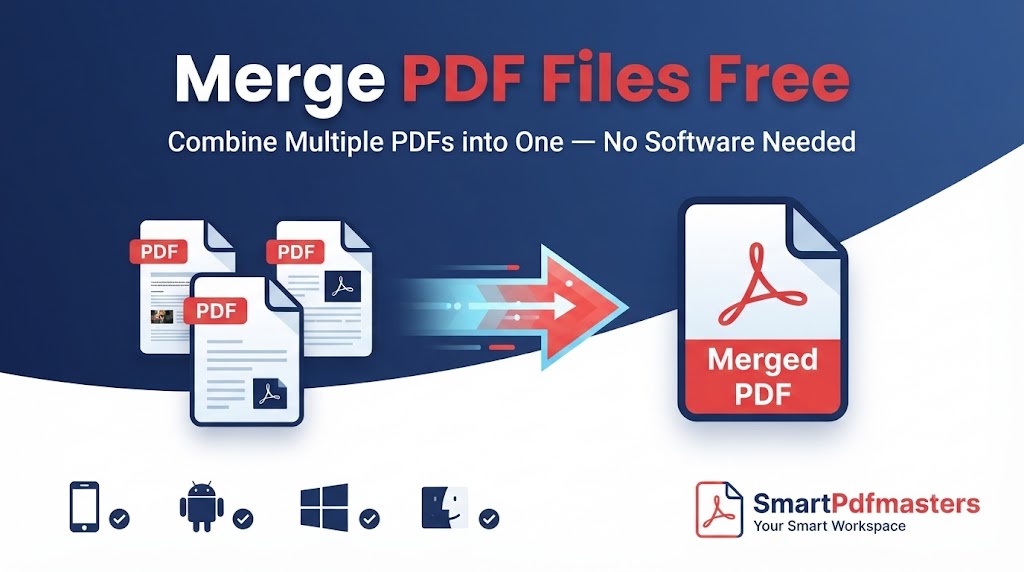
Learn how to merge PDF files free online in seconds. Combine multiple PDFs into one document on any device.
🛠 Free tools mentioned in this article
Merging PDF files is one of the most common document tasks people search for every day. Whether you need to combine a resume and cover letter, join multiple invoices, merge scanned pages, or consolidate a report — knowing how to merge PDFs quickly and free saves significant time.
What Does Merging PDF Files Mean?
Merging PDFs means combining two or more separate PDF documents into a single file. Pages from each file are joined in the order you choose, and the result is one clean PDF containing all content from the original files. Merging is also called combining PDFs, joining PDFs, or concatenating PDFs.
Method 1 — Merge PDF Online Free (Fastest Method)
Our Merge PDF tool lets you combine PDFs in seconds — completely free, no signup, no watermarks.
- 1Open the Merge PDF tool
- 2Click the upload area or drag and drop your PDFs
- 3Arrange files in the order you want
- 4Click Merge
- 5Download your combined PDF
Method 2 — Merge PDF on iPhone and iPad
iPhone and iPad users can merge PDFs using the built-in Files app:
- 1Open the Files app
- 2Navigate to your PDF files
- 3Tap and hold the first PDF, tap Select
- 4Select all PDFs you want to merge
- 5Tap Share and then Create PDF
For full control over page order, use our Merge PDF tool in Safari.
Method 3 — Merge PDF on Android
Android does not have a built-in PDF merger. Use our Merge PDF tool directly in Chrome for Android.
Samsung Galaxy phones running One UI 5 or later include a built-in option through My Files — long-press to select PDFs, tap More, and look for Combine.
Method 4 — Merge PDF on Windows
The fastest free method is our Merge PDF tool in Chrome or Edge — no installation required.
Method 5 — Merge PDF on Mac
- 1Open the first PDF in Preview
- 2Go to View and select Thumbnails
- 3Open the second PDF in a separate Preview window
- 4Drag thumbnail pages from the second document into the first
- 5Repeat for additional PDFs
- 6Go to File and select Export as PDF
Merge PDF and Then Compress
When you combine multiple PDFs, the merged document can be large. Use our Compress PDF tool after merging.
Merge Scanned Images with PDFs
Convert images to PDF first using our PNG to PDF tool, then merge all the PDF files together.
Convert a Merged PDF to Word
Use our PDF to Word tool to convert the merged PDF to an editable Word document.
Frequently Asked Questions
How do I merge PDF files for free?
Use our Merge PDF tool — upload your files, arrange them, and download the merged PDF. No signup, no watermark, completely free.
Can I merge PDF files on my phone?
Yes. Our Merge PDF tool works on iPhone and Android directly in any browser — no app download needed.
Does merging PDFs reduce quality?
No. Merging combines files without any quality loss. Text, images and formatting from each original file are preserved exactly.
Can I merge a password-protected PDF?
Enter the password to open the PDF first. Once open, you can upload it to our merge tool.
Ready to work with your PDFs?
All six tools are completely free — no signup, no watermarks, no limits.