How to Make a PDF Searchable Free — Convert Scanned PDF to Searchable Text
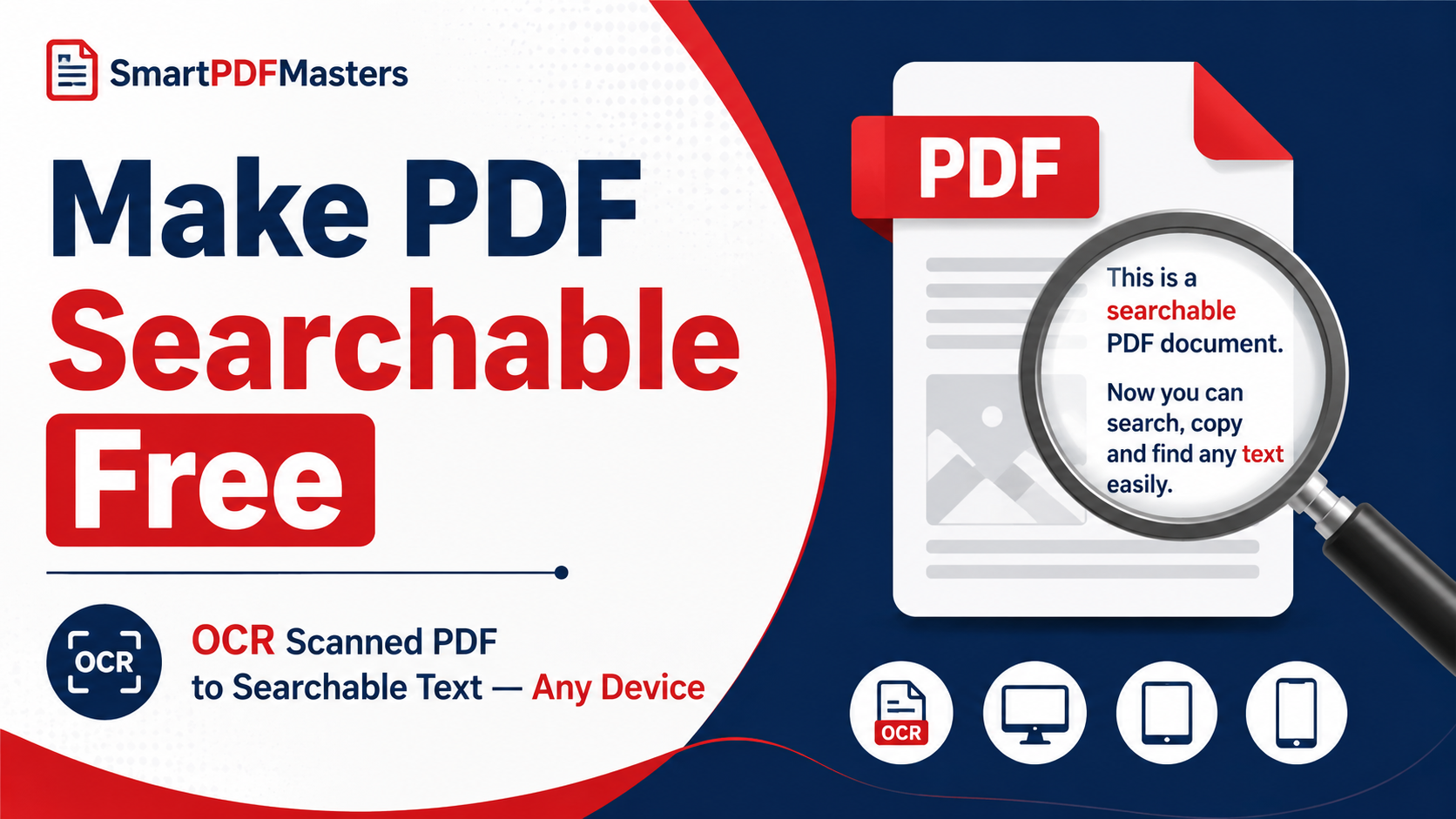
Learn how to make any scanned or image-based PDF fully searchable for free in 2026 — convert scanned PDFs to selectable, searchable text on Windows, Mac, iPhone and Android.
🛠 Free tools mentioned in this article
A scanned PDF looks exactly like a normal document on screen, but there is a crucial difference that makes it significantly less useful: you cannot search for words in it, select and copy text from it, or have a screen reader read it aloud. Every page is stored as a photograph of the text rather than as actual text characters.
Making a PDF searchable means running it through OCR — Optical Character Recognition — which analyses the images of text in your scanned pages and converts them into real, selectable, searchable text characters. Once a PDF is searchable, you can press Ctrl + F to find any word instantly, copy and paste paragraphs into other documents, and use assistive technology to read the content aloud.
This complete guide explains every free method to make a PDF searchable in 2026 on Windows, Mac, iPhone, iPad, and Android — without paying for Adobe Acrobat or any other premium software.
Why Scanned PDFs Are Not Searchable
When you scan a paper document or photograph it with your phone, the resulting PDF stores each page as a raster image — a grid of coloured pixels that happens to look like text. From the PDF's perspective, there is no difference between a page of typed text and a photograph of a tree: both are just collections of pixels.
PDF viewers like Adobe Acrobat Reader display these pixel images correctly on screen, so the document looks normal. But when you press Ctrl + F to search, the viewer has no text to search through — only pixels. The same is true for copy and paste: there are no text characters in the file to copy, only an image of what text looks like.
OCR solves this by using pattern recognition to identify which pixel patterns correspond to which letters and words, then creating a hidden text layer in the PDF that sits over the original image. The document still looks the same visually, but now contains actual text that can be searched, copied, and read by assistive technology.
Method 1 — Make PDF Searchable Using Google Drive OCR (Free, No Software)
Google Drive includes built-in OCR that can make scanned PDFs searchable for free. This method works on any device with a browser and requires only a free Google account.
Go to Google Drive at drive.google.com and upload your scanned PDF by clicking the New button and choosing File upload. Wait for the upload to complete. Right-click the uploaded PDF file. Choose Open with and then Google Docs.
Google Drive automatically runs OCR on the scanned pages as it converts the PDF to a Google Docs document. This process may take a few seconds to a few minutes depending on the number of pages and the complexity of the document.
Once opened in Google Docs, the document contains actual searchable text extracted from your scanned pages. You can search within it using Ctrl + F, copy and paste text, and edit the content. To save it as a searchable PDF, go to File then Download then PDF Document. The downloaded PDF contains both the original scanned images and the OCR text layer, making it fully searchable.
This method is completely free, works without installing any software, and handles most common document types accurately. The OCR quality is good for clearly printed documents in English and most major languages. Handwritten text and unusual fonts may require manual correction.
After making your PDF searchable, if the file size is larger than you need, use our Compress PDF tool to reduce it while keeping the searchable text layer intact.
Method 2 — Make PDF Searchable on Mac Using Preview (Built-in OCR)
Mac users running macOS Sequoia (15) or later have built-in text recognition in the Preview app that can make scanned PDFs searchable without any additional software or internet connection.
Open the scanned PDF in Preview. Go to Tools in the menu bar. Look for a Recognize Text option or similar language depending on your macOS version. Click it to run text recognition on the document. Preview processes each page and adds a searchable text layer.
Once complete, you can press Command + F to search for text, select and copy paragraphs, and the document is saved as a searchable PDF automatically.
For Mac users running older versions of macOS that do not include text recognition in Preview, the Google Drive method (Method 1) works identically in Safari and is completely free.
Method 3 — Make PDF Searchable Using Microsoft Word (Windows and Mac)
Microsoft Word can open PDF files and, in the process, runs OCR on scanned content — converting image-based pages to editable text. If you have Microsoft Word installed, this is the fastest free method that does not require an internet connection.
Open Microsoft Word. Go to File then Open and select your scanned PDF. Word displays a notice that it is converting the PDF and that scanned content will be processed with OCR. Click OK. Word converts each scanned page to editable text using its built-in OCR engine.
Review the converted document and correct any OCR errors — pay particular attention to numbers, punctuation, and unusual characters, which are the most likely to be misrecognised.
When the document looks correct, go to File then Save As and choose PDF format. The saved PDF is fully searchable because it was rebuilt from the OCR-extracted text.
To edit the searchable content further or use it in another document, use our PDF to Word tool to convert it back to an editable Word format at any time.
Method 4 — Make PDF Searchable Using Adobe Acrobat Reader (Free Version)
The free version of Adobe Acrobat Reader includes a basic text recognition feature for making scanned PDFs searchable. Download Adobe Acrobat Reader (the free version, not Acrobat Pro) from Adobe's website.
Open your scanned PDF in Acrobat Reader. Go to Edit in the menu bar and look for Recognize Text or Make Searchable option. In some versions of Reader this appears when you try to select text in a scanned document — a banner appears offering to make the document searchable. Follow the prompts to run OCR.
Note that the free Acrobat Reader's OCR capabilities are more limited than the paid Acrobat Pro. For most standard typed documents, the free version produces acceptable results. For complex layouts with multiple columns, tables, or unusual fonts, you may get better results with the Google Drive method.
Method 5 — Make PDF Searchable on iPhone and iPad
iPhone and iPad running iOS 16 or later include Live Text, a system-wide OCR feature that can recognise text in images and PDFs. While Live Text does not create a permanently searchable PDF file, it allows you to select and copy text from scanned PDFs directly in the Files app or Preview.
Open your scanned PDF in the Files app. Tap and hold on any text in the PDF — if Live Text recognises it, a selection handle appears around the text, allowing you to copy it. This works for extracting specific text from scanned documents without needing to process the entire file.
For creating a permanently searchable PDF on iPhone, use the Google Drive method. Open Safari, go to drive.google.com, upload your PDF, open it with Google Docs, and download it as a searchable PDF. This works identically to the desktop process on iPhone and iPad.
Method 6 — Make PDF Searchable on Android
Android users can use Google Drive's OCR through Chrome for Android using the same process as on desktop. Open Chrome, go to drive.google.com, upload your scanned PDF, right-tap (long press) the file, choose Open with Google Docs, and download the result as a searchable PDF.
Alternatively, the Google Docs app on Android supports opening PDFs from Google Drive with OCR — tap the three-dot menu on any uploaded PDF and choose Open with Google Docs.
How to Check if a PDF Is Already Searchable
Before running OCR on a PDF, check whether it is already searchable by pressing Ctrl + F (Windows) or Command + F (Mac) in your PDF viewer and searching for a word you can see on the page. If the viewer highlights the word, the PDF is already searchable. If the search returns no results, the PDF is image-based and needs OCR.
On iPhone, try to select text in the PDF by tapping and holding on a word. If a selection cursor appears, the PDF is searchable. If nothing happens, it is image-based.
Improving OCR Accuracy
The accuracy of OCR text recognition depends heavily on the quality of the original scanned document. For the best results from any free OCR method, ensure your scanned pages are clear and well-lit with no shadows across the text. Text should be horizontal on the page — tilted or rotated text significantly reduces accuracy. Use scans at 300 DPI or higher for best results with complex layouts. Black text on white or light-coloured backgrounds recognises far more accurately than light text on dark backgrounds.
If your scanned PDF has incorrectly rotated pages — a common issue with phone camera scans — fix the rotation before running OCR using our Rotate PDF tool. Correct orientation significantly improves recognition accuracy.
What to Do with a Searchable PDF
Once your PDF is searchable, you have significantly more options for working with it. You can search for any word or phrase using Ctrl + F and jump directly to its location. You can select and copy paragraphs of text to paste into emails, documents, or notes. Screen readers and assistive technology can read the document aloud. You can use our PDF to Word tool to convert the searchable PDF to a fully editable Word document for making changes to the content.
To combine your newly searchable PDF with other documents, use our Merge PDF tool to join them into one organised file.
If the searchable PDF is large — which often happens because it contains both the original scan images and the added text layer — reduce its size using our Compress PDF tool before sharing or archiving.
Frequently Asked Questions
How do I make a scanned PDF searchable for free?
Upload your scanned PDF to Google Drive and open it with Google Docs. Google automatically runs OCR on the pages. Download the result as a PDF. The downloaded file is fully searchable with no cost and no software installation required.
Why can't I search for text in my PDF?
Your PDF is image-based — each page is stored as a photograph of text rather than actual text characters. You need to run OCR on it to add a searchable text layer. Use Google Drive (free) or Microsoft Word to convert it.
Can I make a PDF searchable on iPhone without an app?
Yes. Open Safari, go to Google Drive, upload your PDF, open it with Google Docs, and download it as a PDF. The entire process works in Safari without any app download.
How accurate is free OCR for making PDFs searchable?
For clearly printed typed documents in standard fonts, free OCR tools like Google Drive achieve very high accuracy. Handwritten text, unusual fonts, very small text, and poor-quality scans result in more errors that need manual correction.
Will making a PDF searchable change how it looks?
No. OCR adds a hidden text layer to the document without changing its visual appearance. The PDF looks identical to the original scan.
Can I make a password-protected PDF searchable?
You need to remove the password protection before running OCR. Enter the password to open the PDF, then process it with your chosen OCR method.
Ready to work with your PDFs?
All six tools are completely free — no signup, no watermarks, no limits.