How to Make a PDF Editable Free — Complete Guide 2026
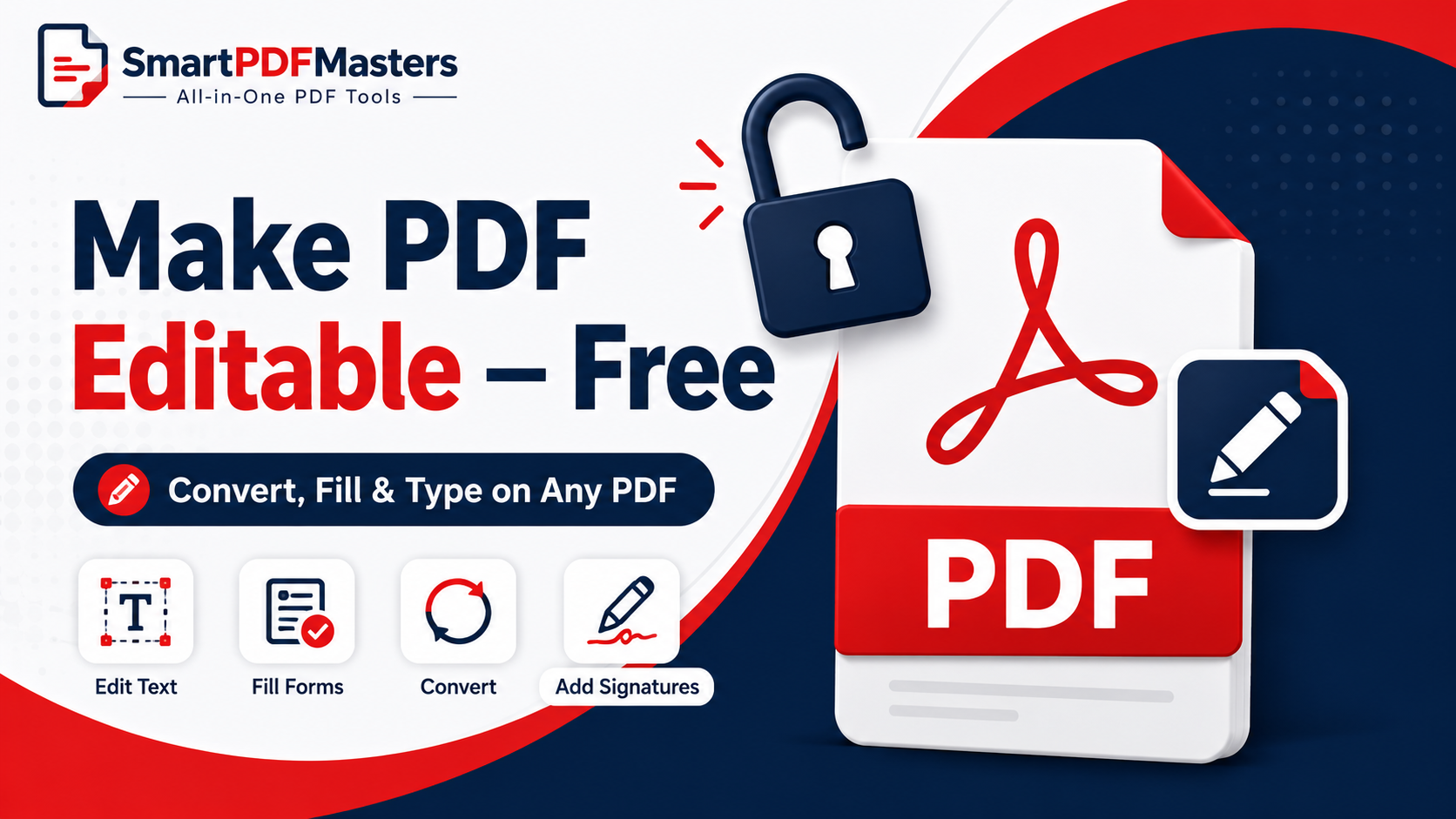
Learn how to make any PDF editable for free in 2026 — convert locked PDFs to Word, fill forms, type on PDFs, and edit scanned documents on Windows, Mac, iPhone and Android.
🛠 Free tools mentioned in this article
Making a PDF editable is one of the most searched document tasks on the internet — and one of the most misunderstood. PDFs were deliberately designed to be difficult to edit. That is partly the point: a PDF shared as a finished document should not be accidentally changed. But when you need to update a form, correct an error in a report, fill in a template, or modify a document you received without the original source file, being unable to edit the PDF is a genuine problem.
This complete guide explains every free method to make any PDF editable in 2026 — from converting it to Word for full editing, to typing on it directly, to filling interactive form fields — on Windows, Mac, iPhone, iPad, and Android.
What Does Making a PDF Editable Actually Mean?
There are three different things people mean when they say they want to make a PDF editable, and they require completely different approaches:
Converting a PDF to an editable document means extracting the text, tables, and formatting from the PDF and placing them into a Word document or similar format that you can rewrite, restructure, and modify fully. This is what you need when you want to update the content of a document significantly.
Filling in a PDF form means typing into form fields that already exist in the document — text boxes, checkboxes, radio buttons, and dropdown menus that were built into the PDF when it was created. This is what you need when you receive an application form, a questionnaire, or a survey as a PDF.
Adding text or annotations to a PDF means placing text boxes, highlights, or notes on top of the existing PDF content without changing the underlying document. This is what you need when you want to complete a non-fillable form, add your name to a signature line, or annotate a document with comments.
Each approach has different free tools and different methods.
Method 1 — Convert PDF to Editable Word (Best for Full Editing)
If you need to make significant changes to a PDF — rewriting paragraphs, updating figures, restructuring sections, changing fonts, or modifying tables — the most effective approach is to convert the PDF to an editable Word document first.
Our PDF to Word tool converts any PDF to a fully editable DOCX file in seconds. Upload your PDF, wait for the conversion, and download the Word document. Open it in Microsoft Word, Google Docs, or LibreOffice to make your changes. When you are finished editing, export back to PDF if needed.
This method works best for PDFs that were originally created digitally — typed documents, reports, contracts, and presentations exported to PDF. The conversion preserves the text, tables, basic layout, and most formatting from the original document.
For scanned PDFs — created by photographing or scanning a paper document — the conversion uses OCR (Optical Character Recognition) to identify the text in the scanned images and convert it to editable characters. OCR accuracy depends on the quality of the original scan: clear, well-lit, high-resolution scans produce accurate editable text, while blurry or low-contrast scans may require manual correction.
What to Do After Converting to Word
After converting, review the document against the original PDF. Pay particular attention to tables, which sometimes need column width adjustments after conversion. Check that bullet lists and numbered lists are formatted correctly. Verify that headers and footers are intact.
Make your edits in Word or Google Docs. When finished, save or export back to PDF: in Word, go to File then Save As and choose PDF; in Google Docs, go to File then Download then PDF Document.
If the resulting PDF is larger than you need, run it through our Compress PDF tool before sharing.
Method 2 — Fill PDF Form Fields Directly (For Interactive Forms)
If your PDF was created with interactive form fields, you do not need to convert it to Word. You can type directly into the fields in any modern PDF viewer.
In Adobe Acrobat Reader (free): Open the PDF. If form fields are present, a purple banner appears at the top saying the document contains fillable fields. Click on any text field and type. Use Tab to move between fields. Click checkboxes to check them. When finished, go to File then Save a Copy to save your completed form.
In Google Chrome: Open the PDF directly in Chrome (drag and drop the file into a Chrome window, or go to File then Open). Chrome detects interactive form fields and lets you type into them. When finished, print to PDF using Ctrl and P then Save as PDF to save with your entries included.
On iPhone: Open the PDF in the Files app. If the form has interactive fields, tap on them and the keyboard appears for typing. Tap Done when complete and save the file.
On Android: Open the PDF in Google Drive by uploading it, or open it directly in Chrome. For interactive forms, Chrome on Android allows typing into form fields.
Method 3 — Add Text to Non-Fillable PDFs (For Flat Forms and Documents)
If your PDF has no interactive form fields — it might be a scanned form, a flat PDF exported from a design program, or a simple document with no interactive elements — you need to add text boxes on top of the existing content.
On Mac using Preview: Open the PDF in Preview. Go to View then Show Markup Toolbar, or click the pen icon in the toolbar to show markup tools. Click the Text button (a large A in a box). Click anywhere on the PDF where you want to add text. Type your information. Reposition the text box by dragging it to align with the form field on the page. Adjust the font size so the text fits the space. Repeat for each field. Go to File then Export as PDF to save.
On iPhone using Markup: Open the PDF in the Files app. Tap the pen icon to open Markup. Tap the plus button at the bottom right. Choose Text. A text box appears — type your information and drag it to the correct position on the form. Tap Done to save.
On Windows: Windows does not include a native tool for adding text to PDFs. Use a browser-based PDF editor or convert the form to Word using our PDF to Word tool, add your text in Word, and re-export to PDF.
Method 4 — Use Google Docs to Make a PDF Editable (Free, No Software)
Google Docs provides a completely free way to make a PDF editable using only a Google account.
Upload your PDF to Google Drive. Right-click the uploaded file and choose Open with Google Docs. Google automatically converts the PDF to an editable Google Docs document using Google's built-in OCR and document recognition technology. Edit the document directly in Google Docs. When finished, go to File then Download then PDF Document to save the edited version as a PDF.
This method is completely free, works on any device with a browser, and requires only a Google account. The conversion quality is good for simple text documents but may not perfectly preserve complex layouts, tables, or unusual fonts. Always compare the converted document against the original PDF to verify accuracy.
Method 5 — Microsoft Word (If Installed)
If you have Microsoft Word installed on your computer, you can open PDFs directly in Word without any additional tools.
In Word, go to File then Open and select your PDF file. Word displays a notice that it is converting the PDF and that the result may not look exactly like the original. Click OK. Word converts the PDF to an editable document. Make your changes. Save as PDF using File then Save As then PDF format.
This method is free if you already have Word and works well for text-heavy documents. Complex layouts with multi-column formatting, custom fonts, or many images may not convert perfectly and may need manual adjustment after conversion.
How to Make a Scanned PDF Editable
Scanned PDFs are the hardest to make editable because they store pages as images rather than as text. The text in a scanned PDF is not actually text in the file — it is a picture of text. To make a scanned PDF editable, the text must be recognised from the images using OCR.
Our PDF to Word tool includes OCR support for converting scanned PDFs to editable Word documents. Upload your scanned PDF and the tool attempts to identify the text in each scanned page and place it in the correct positions in the Word document.
For the best OCR results, the original scan should be at 300 DPI or higher, with good, even lighting across the entire page and no significant page curl, shadows, or reflections. Low-quality scans with blurry text or strong shadows will produce OCR errors that need manual correction.
How to Make a PDF Editable on iPhone
iPhone provides several free options for making PDFs editable depending on what type of editing you need.
For filling interactive form fields: Open the PDF in the Files app and tap on any form field. The keyboard appears and you can type directly into the field.
For adding text to a non-fillable PDF: Open the PDF in any app that supports Markup (Files, Mail, Safari). Tap the Markup icon (a pen tip). Tap the plus button and choose Text. Add your text boxes and position them over the form fields.
For full document editing: Use Google Drive to open the PDF in Google Docs, make your edits, and download the edited version. Alternatively, use our PDF to Word tool in Safari to convert the PDF to Word, then open the Word document in Microsoft Word for iPhone or Google Docs.
How to Make a PDF Editable on Android
On Android, use Chrome's built-in PDF viewer for interactive forms, or use Google Drive and Google Docs for full document editing.
For interactive forms: Open the PDF in Chrome and type directly into form fields.
For full editing: Upload the PDF to Google Drive. Tap the three-dot menu and choose Open with Google Docs. Make your edits and download as PDF when finished.
For converting to Word: Use our PDF to Word tool in Chrome for Android. Upload your PDF, download the Word file, and open it in Microsoft Word for Android or Google Docs.
Making a Password-Protected PDF Editable
If a PDF is protected with an open password, you must enter the password before you can access and edit the document. Once you have unlocked it with the correct password, the editing process is the same as for any unprotected PDF.
If a PDF has permissions restrictions — preventing editing, copying, or printing — even though it opens without a password, you may not be able to edit it directly. In these cases, converting to Word using our PDF to Word tool may allow you to work with the content, though results depend on the specific restrictions applied.
After Editing — Merging and Compressing
If you have edited individual sections of a document separately and need to combine them back into one file, use our Merge PDF tool to join the edited sections in the correct order.
If the edited PDF is larger than you need for sharing or uploading, compress it using our Compress PDF tool before sending.
Frequently Asked Questions
How do I make a PDF editable for free?
Use our PDF to Word tool to convert the PDF to an editable Word document. Open it in Word or Google Docs, make your changes, and export back to PDF.
How do I make a PDF editable without Adobe Acrobat?
Use our PDF to Word tool for full editing, or use Google Docs by uploading the PDF to Google Drive and opening it with Google Docs. Both methods are free and require no Adobe software.
How do I fill in a PDF form for free?
Open the PDF in Adobe Acrobat Reader (free), Google Chrome, or the Files app on iPhone. If the form has interactive fields, click or tap them and type. For non-fillable forms, use Preview on Mac or the Markup tool on iPhone to add text boxes.
How do I make a scanned PDF editable for free?
Use our PDF to Word tool with OCR support. It recognises the text in scanned pages and converts them to editable Word document characters.
How do I make a PDF editable on my phone?
On iPhone, use the Markup tool for adding text or the Files app for interactive forms. On Android, use Google Drive to open the PDF in Google Docs. For Word conversion, use our PDF to Word tool in Safari or Chrome.
Can I make a PDF editable online for free?
Yes. Our PDF to Word tool converts any PDF to an editable Word document in your browser, free, with no signup required.
Ready to work with your PDFs?
All six tools are completely free — no signup, no watermarks, no limits.