How to Fill Out a PDF Form Online Free — Complete Guide
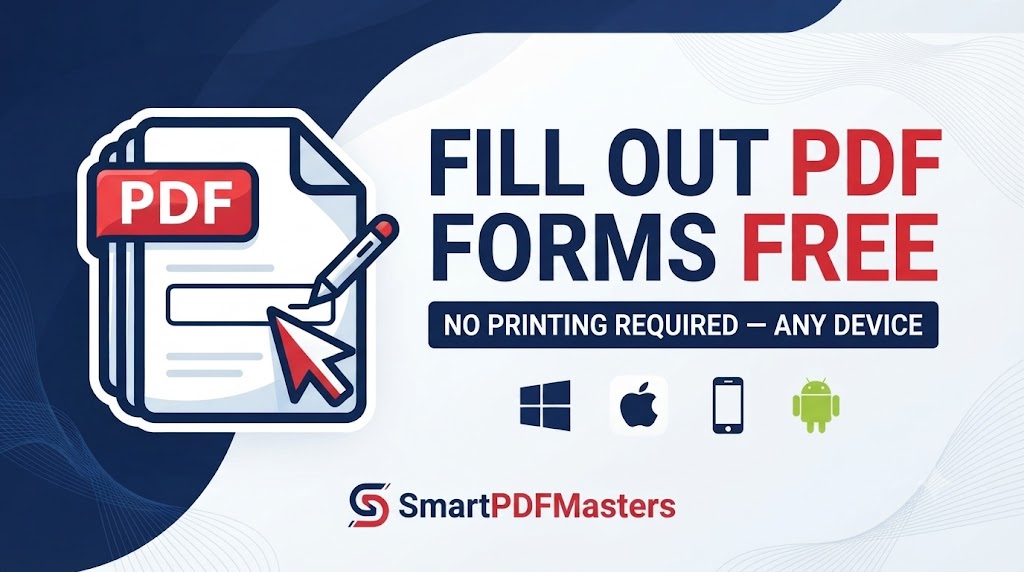
Learn how to fill out any PDF form online for free — step-by-step guide for fillable and non-fillable PDFs on Windows, Mac, iPhone and Android.
🛠 Free tools mentioned in this article
Filling out a PDF form used to mean printing it, writing by hand, scanning it, and sending it back — a process that could take twenty minutes for something that should take two. In 2026, you can fill out any PDF form directly on your screen in seconds, on any device, completely free, without printing a single page.
This guide explains how to fill out both types of PDF forms — interactive fillable forms that already have clickable fields, and flat non-fillable forms that look like scanned documents — using built-in tools and free browser-based options on Windows, Mac, iPhone, iPad, and Android.
What Is the Difference Between a Fillable and Non-Fillable PDF Form?
A fillable PDF form contains interactive form fields — text boxes, checkboxes, radio buttons, dropdown menus, and date pickers — that you can click on and type into directly in any PDF viewer. These forms were created specifically for digital completion and are the easiest type to fill out.
A non-fillable PDF form, sometimes called a flat PDF or image PDF, looks like a form but contains no interactive fields. It may have been created by scanning a paper form, printing a form to PDF, or exporting from a program that does not add interactive fields. To fill out a non-fillable PDF, you need to add text boxes on top of the existing layout.
Most government forms, tax forms, application forms, and business forms distributed as PDFs are fillable. Scanned forms are almost always non-fillable.
Method 1 — Fill Out a PDF Form in Adobe Acrobat Reader (Free)
Adobe Acrobat Reader is the most widely used free PDF viewer and includes form-filling functionality. Download and install the free Reader version (not the paid Pro version) from Adobe's website.
Open your PDF form in Acrobat Reader. If the form is fillable, you will see a purple bar at the top of the document saying that the form contains fillable fields. Click on any text field and start typing. Use the Tab key to move to the next field. Check checkboxes by clicking them. Select radio buttons by clicking them. Complete dropdown menus by clicking and selecting from the list.
When you have filled in all fields, go to File and choose Save to save a copy with your typed information included.
If the form is not fillable, Acrobat Reader will show a message saying it cannot detect any interactive form fields. In this case, use the Add Text tool (found under Tools or the Comment menu) to add text boxes on top of the form fields manually.
Method 2 — Fill Out a PDF Form in Chrome (No Software Needed)
Google Chrome can open and display PDF forms, and for simple fillable forms it allows basic text entry. Open Chrome, go to File then Open, and select your PDF form. If the form has interactive fields, click on them and type your information. Save the completed form by pressing Ctrl and S on Windows or Command and S on Mac.
Chrome's PDF form support is more limited than dedicated PDF applications — it may not support all field types, signatures, or complex form logic. For straightforward text entry forms, it is a quick option that requires no software installation.
Method 3 — Fill Out a PDF Form on Mac Using Preview
Preview on Mac handles both fillable and some non-fillable PDF forms.
Open your PDF form in Preview. If the form is fillable, click on any text field and start typing. The fields are highlighted in blue when active. Use Tab to move between fields. Check checkboxes by clicking them.
For non-fillable forms, Preview includes a text tool that lets you add text anywhere on the page. Go to View then Show Markup Toolbar, then click the Text button (a large T icon). Click anywhere on the form where you want to add text, then type your information. Reposition and resize the text box as needed to align it with the form field.
Preview also allows you to add your signature to PDF forms. Click the Signature button in the Markup Toolbar, create a signature by drawing it on the trackpad or photographing a handwritten signature with your camera, and place it in the signature field.
Method 4 — Fill Out a PDF Form on iPhone and iPad
iPhone and iPad have built-in PDF form support through the Files app, the Mail app, and the Markup tool.
Open your PDF form in the Files app. If the form is fillable, tap on any text field and the keyboard will appear. Type your information and tap the next field to continue. For checkboxes, tap them to check or uncheck. When complete, tap Done and save the file.
For non-fillable forms, tap the Share button while viewing the PDF and choose Markup. In Markup, tap the Text tool (a plus sign with text options) and tap where you want to add text on the form. Type your information and tap Done to save.
To add your signature on iPhone, open the PDF in Markup, tap the Signature tool (a squiggly line icon), draw your signature with your finger, and tap Done. Drag the signature to position it in the correct field on the form.
The Markup tool is available in the Files app, Mail app, and through the Share menu in most PDF-compatible apps on iPhone and iPad.
Method 5 — Fill Out a PDF Form on Android
Android does not include a built-in PDF form editor, but Google Drive and browser-based tools provide free options.
Using Google Drive: Upload your PDF form to Google Drive. Open it, tap the three-dot menu in the top right corner, and choose Open with Google Docs. Google Docs will convert the PDF to an editable document — note that complex form layouts may not convert perfectly. Fill in your information, then go to File then Download and choose PDF to re-export as a completed PDF form.
Using a browser-based PDF form filler: Open Chrome for Android and search for a free online PDF form filler. Upload your form, fill in the fields, and download the completed PDF. This approach works well for both fillable and non-fillable forms and requires no app installation.
How to Fill Out a Non-Fillable PDF Form
If your PDF form has no interactive fields — it may be a scanned form, a government form distributed as an image PDF, or a flat PDF exported from a design program — you need to add your text on top of the existing layout.
The key challenge with non-fillable forms is placing your typed text precisely over the printed lines and boxes on the form. Each platform's text tool works slightly differently, but the general process is:
Open the PDF in a tool that allows adding text overlays. Add a text box by clicking or tapping the text tool. Click or tap the exact location on the form where you want to add text. Type your information. Adjust the font size so your text fits within the form field. Reposition the text box if needed by dragging it. Repeat for each field on the form.
After completing all fields, save the PDF. The result is a flat PDF with your typed text overlaid on the original form layout.
If you need to convert the completed form to Word for editing, use our PDF to Word tool to get a fully editable version.
How to Add a Signature to a PDF Form
Many PDF forms require a signature in addition to typed text fields. In 2026, there are three common types of signatures used on PDF forms:
A typed signature is your name typed in a cursive or script font. Simple to create in any PDF editor but does not carry the same legal weight as a handwritten or cryptographic signature.
A drawn signature is a signature you draw with a mouse, trackpad, stylus, or finger. Most PDF form-filling tools include a signature drawing tool. The result looks like a handwritten signature but is stored as an image placed on the PDF page.
A cryptographic digital signature uses a private key to create a verifiable proof of identity. This is the most secure type and is required for many legal and financial documents. It requires a digital certificate, which is issued by a trusted Certificate Authority.
For most everyday form-filling — applications, consent forms, delivery confirmations — a drawn signature is accepted and practical.
How to Save and Send a Completed PDF Form
After filling out a PDF form, save the completed version before closing. On Windows, press Ctrl and S. On Mac, press Command and S. On iPhone, tap Done. On Android, save through the file menu of whichever app you used.
Before sending a completed form by email, check the file size. Forms that contain high-resolution signature images can become unexpectedly large. Use our Compress PDF tool to reduce the file size while keeping all your form data and signature intact.
If you need to combine your completed form with supporting documents before submitting — for example, attaching identification documents or certificates — use our Merge PDF tool to combine all the files into one submission package.
If the organisation you are submitting to requires a scanned physical copy rather than a digitally completed form, print the completed PDF, sign it by hand, photograph the signed form with your phone, and convert the photograph to PDF using our PNG to PDF tool.
Tips for Filling Out PDF Forms Accurately
Before you start filling in a form, read all the instructions at the top of the document. Many forms have specific requirements for date formats, name order (last name first or first name first), or acceptable abbreviations that affect whether your submission is accepted.
Use Tab to move between fields rather than clicking each one — it is faster and reduces the chance of accidentally skipping a required field.
After completing the form, review every field before saving. Pay particular attention to fields with validation requirements — phone number formats, postal code formats, and email addresses that need to match a specific pattern.
If the form requires specific field sizes that your typed text does not fit, reduce the font size in your text tool until the text fits within the printed lines on the form.
Frequently Asked Questions
How do I fill out a PDF form for free?
Open the form in Adobe Acrobat Reader (free version), in Preview on Mac, or in the Files app on iPhone. If the form has interactive fields, click or tap them and type your information. For non-fillable forms, use the text tool to add text boxes over the form fields.
How do I fill out a PDF form that is not fillable?
Use the text overlay or markup tool in Preview on Mac, the Markup tool on iPhone, or a browser-based PDF editor that allows adding text boxes to any PDF. Click or tap where you want to add text and type over the printed form fields.
Can I fill out a PDF form on my phone without an app?
On iPhone, use the built-in Markup tool through the Files app or share sheet. On Android, use a browser-based PDF form filler in Chrome — no app download needed.
How do I add a signature to a PDF form for free?
On Mac, use the Signature tool in Preview's Markup toolbar to draw or photograph your signature. On iPhone, use the Signature tool in the Markup editor. On Windows, use Adobe Acrobat Reader's Sign tool in the free version.
How do I save a filled PDF form?
After completing the form, save it using Ctrl + S on Windows or Command + S on Mac. On iPhone and Android, tap Done or Save in whichever app you used to fill in the form.
Can I fill out a government PDF form online for free?
Yes. Most government PDF forms are fillable and can be completed in Adobe Acrobat Reader, Preview on Mac, or the Files app on iPhone without printing.
Ready to work with your PDFs?
All six tools are completely free — no signup, no watermarks, no limits.