How to Extract Text from PDF Free — Copy Text from Any PDF Instantly
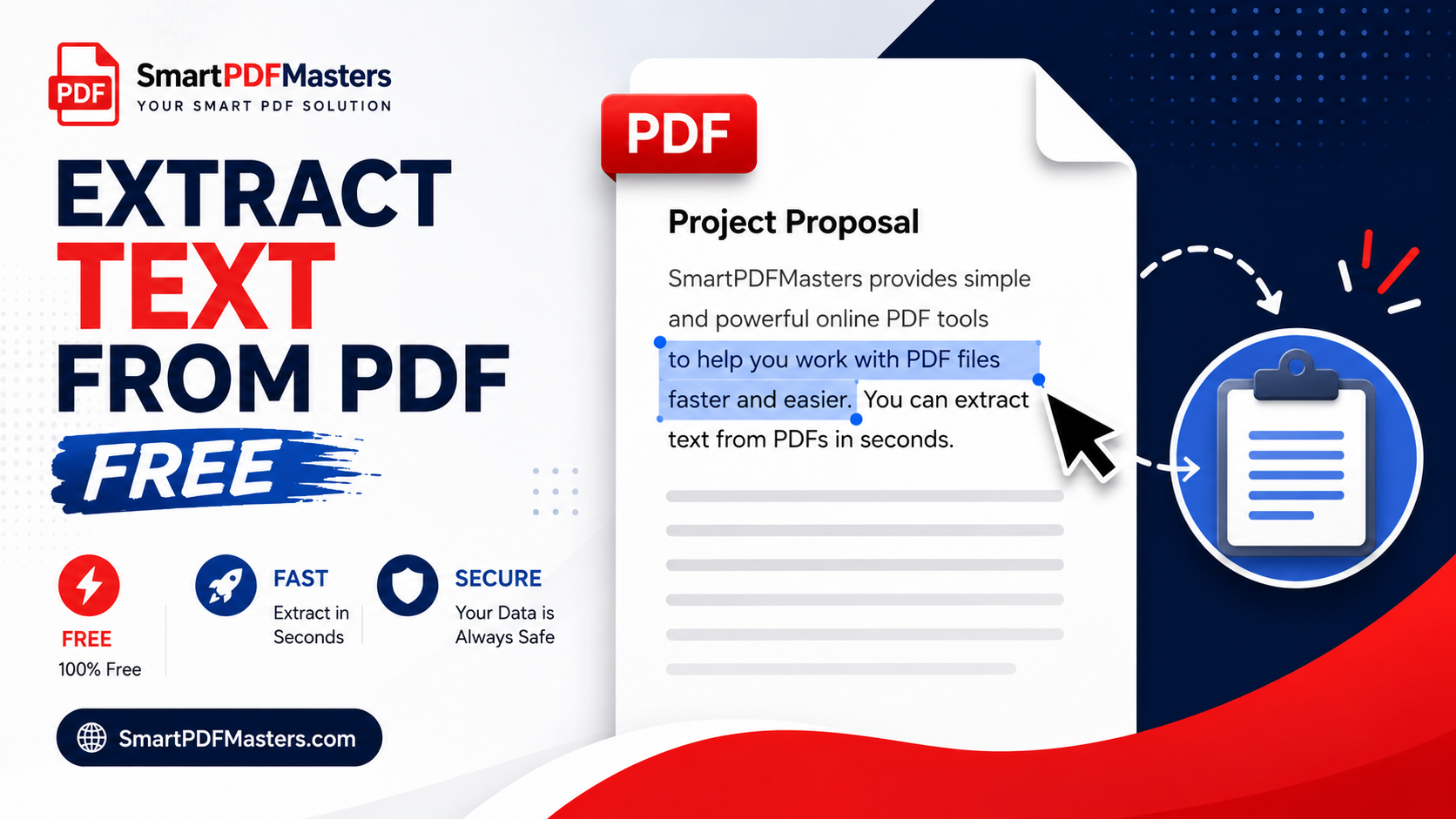
Learn how to extract and copy text from any PDF file free in 2026 — including scanned PDFs, locked PDFs, and image-based PDFs on Windows, Mac, iPhone and Android.
🛠 Free tools mentioned in this article
Extracting text from a PDF is one of the most fundamental document tasks — copying a paragraph to paste into an email, pulling data from a table, grabbing a quote from a research paper, or extracting all the text from a document to reuse in another format. But PDFs are designed to preserve layout rather than make text easily accessible, and depending on how the PDF was created, extracting text ranges from trivial to genuinely challenging.
This complete guide explains every free method to extract text from any PDF in 2026 — from simple copy-paste for digital PDFs to OCR-based extraction for scanned documents — on Windows, Mac, iPhone, iPad, and Android.
Why Extracting Text from PDFs Is Sometimes Difficult
Not all PDFs are the same. The method that works perfectly for one PDF may produce garbled output for another. Understanding the three main types of PDFs helps you choose the right extraction method immediately.
Digitally created PDFs were generated directly from a word processor, spreadsheet, or design application — never printed or scanned. These PDFs contain actual text characters stored in the file, and text can be selected and copied directly in any PDF viewer.
Scanned PDFs were created by scanning or photographing a paper document. Each page is stored as an image with no text layer. Text cannot be selected or copied without first running OCR on the document.
Restricted PDFs are digitally created documents with permissions settings that prevent selecting, copying, or extracting text. The text exists in the file but the PDF viewer is instructed not to allow copying.
Method 1 — Extract Text by Selecting and Copying (Digitally Created PDFs)
For digitally created PDFs, the simplest and fastest extraction method is to select the text with your cursor and copy it.
Open the PDF in any PDF viewer — Adobe Acrobat Reader, Chrome, Preview on Mac, or the Files app on iPhone. Click at the beginning of the text you want to extract. Hold Shift and click at the end of the selection to select a range of text. Press Ctrl + C (Windows) or Command + C (Mac) to copy. Paste into any text editor, email, or document with Ctrl + V or Command + V.
To select all text in the document at once, press Ctrl + A (Windows) or Command + A (Mac) while the PDF is open, then copy.
This method works instantly for any PDF where the text layer is accessible. If the text does not highlight when you click and drag, the PDF is either scanned or has copy restrictions.
If you need the extracted text in a fully formatted editable document rather than plain text, use our PDF to Word tool to convert the entire PDF to an editable DOCX file that preserves formatting, tables, and layout.
Method 2 — Extract Text from Scanned PDFs Using Google Drive OCR (Free)
For scanned PDFs where text cannot be selected directly, Google Drive's built-in OCR can extract the text for free without installing any software.
Go to Google Drive at drive.google.com and upload your scanned PDF by clicking New then File upload. Once uploaded, right-click the file and choose Open with Google Docs. Google Docs runs OCR automatically and opens the document with the extracted text alongside the original images. You can now select, copy, and edit all the text that was recognised from your scanned pages.
For the best OCR accuracy, ensure your scanned PDF was scanned at 300 DPI or higher with clear, even lighting and no shadows over the text. Google Drive OCR handles English and most major European languages very accurately. Handwritten text and unusual fonts produce more errors.
After extracting text via Google Docs, if you need to work with the content as a proper Word document, download it as DOCX using File then Download then Microsoft Word.
Method 3 — Extract Text on Mac Using Preview (Built-in)
Mac's Preview app can extract text from digitally created PDFs directly. For scanned PDFs on macOS Sequoia or later, Preview also includes text recognition.
Open the PDF in Preview. For text selection in digital PDFs, choose the Text Selection tool from the toolbar (it looks like a cursor with lines). Click and drag to select text, then copy and paste.
For scanned PDFs on macOS Sequoia, go to Tools then Recognize Text. Preview processes the pages and adds a text layer, after which you can select and copy the recognised text.
To extract all text quickly, press Command + A to select everything, then Command + C to copy all text at once.
Method 4 — Extract Text from Restricted PDFs (Permissions Workaround)
If a PDF has permissions restrictions that prevent text selection and copying, you can often work around this by printing the PDF to a new file, which creates a fresh copy without the inherited restrictions.
Open the restricted PDF in Google Chrome — you should be able to view it even if you cannot copy from it. Press Ctrl + P (Windows) or Command + P (Mac). Select Save as PDF from the printer dropdown. Save the new file. Open the new file in any PDF viewer — the copy restrictions from the original are not inherited by the printed copy, so you can now select and copy text normally.
After removing restrictions, use our PDF to Word tool to convert the unrestricted document to a fully editable Word file for easier text extraction and editing.
Method 5 — Extract Text on iPhone Using Live Text
iPhone and iPad running iOS 16 or later include Live Text, which can recognise and extract text from PDFs directly in the Files app.
Open your PDF in the Files app. Tap and hold on any text in the document. Live Text recognises the text and displays selection handles, allowing you to copy specific words, sentences, or paragraphs. Tap Copy to copy the selected text to your clipboard.
For extracting large amounts of text from a scanned PDF on iPhone, the Google Drive method works identically in Safari — upload the PDF to drive.google.com, open it with Google Docs, and copy the extracted text.
Method 6 — Extract Text on Android Using Google Drive
Android users can extract text from PDFs — both digital and scanned — using Google Drive and Google Docs.
Open the Google Drive app and upload your PDF. Tap the three-dot menu on the uploaded file and choose Open with Google Docs. Google Docs runs OCR if needed and presents the text in editable form. Select and copy the text you need, or download the document as DOCX for full editing.
Alternatively, open the PDF in Chrome for Android — for digitally created PDFs, long-press on text to start selection, then copy and paste as needed.
How to Extract All Text from a Multi-Page PDF
For extracting all text from a long PDF document at once, the most efficient free method is to use our PDF to Word tool. This converts the entire PDF to an editable Word document, giving you access to all the text in a structured, easily searchable format.
After conversion, open the DOCX file in Microsoft Word or Google Docs. Press Ctrl + A to select all text, then Ctrl + C to copy, or use Find and Replace to locate specific terms throughout the document.
How to Extract Text from a Specific Page
To extract text from only one or a few specific pages of a large PDF, first extract those pages as a separate file using our Split PDF tool, then use any of the text extraction methods above on the smaller file.
How to Extract Data from PDF Tables
PDF tables are particularly challenging to extract accurately because the table structure — rows, columns, and cell boundaries — is not stored as structured data in the PDF. It is created visually from lines and positioned text.
For extracting table data to use in Excel or Google Sheets, the most reliable free method is to convert the PDF to Word using our PDF to Word tool, then copy the table from Word and paste it into Excel, which recognises the table structure and organises the data into rows and columns automatically.
Frequently Asked Questions
How do I extract text from a PDF for free?
For digital PDFs, open in any PDF viewer and select text then copy. For scanned PDFs, upload to Google Drive and open with Google Docs to run free OCR. For the most complete extraction with formatting preserved, use our PDF to Word tool.
Why can't I copy text from my PDF?
Either the PDF is scanned (contains images of text rather than actual text characters) or it has permissions restrictions preventing copying. Use Google Drive OCR for scanned PDFs, and Chrome's print-to-PDF method to remove permissions restrictions.
How do I extract text from a scanned PDF for free?
Upload to Google Drive and open with Google Docs — it runs OCR automatically and makes the text copyable. Alternatively, use our PDF to Word tool which includes OCR support.
Can I extract text from a PDF on iPhone for free?
Yes. Use Live Text by tapping and holding on text in the Files app. For scanned PDFs, upload to Google Drive in Safari and open with Google Docs to extract text via OCR.
How do I extract data from a PDF table?
Use our PDF to Word tool to convert the PDF, then copy the table from Word and paste into Excel. Excel recognises the table structure and organises data into rows and columns.
Ready to work with your PDFs?
All six tools are completely free — no signup, no watermarks, no limits.