How to Delete Pages from a PDF Free — Complete Guide for All Devices
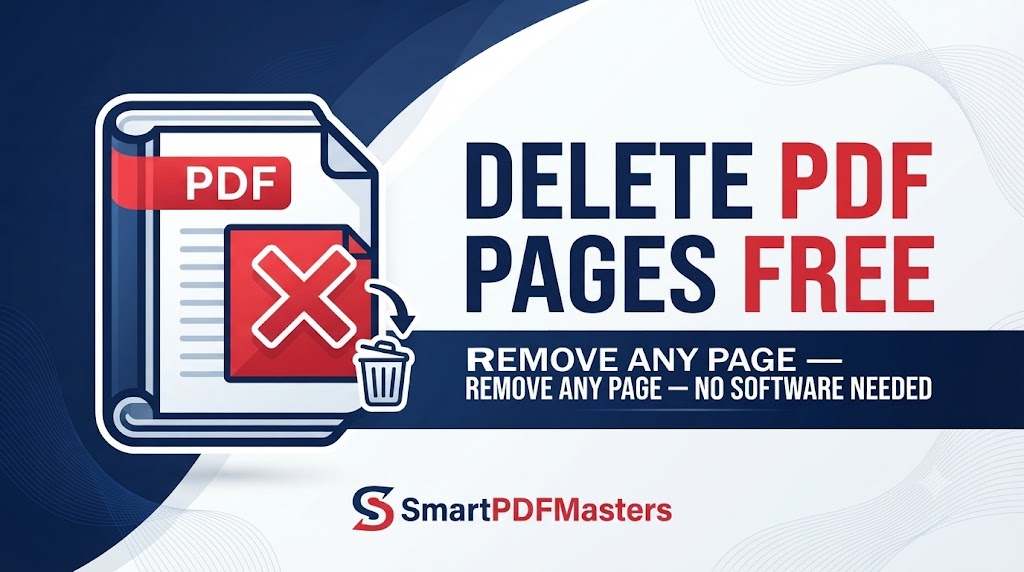
Learn how to delete specific pages from any PDF file for free — complete guide for Windows, Mac, iPhone and Android with no software needed.
🛠 Free tools mentioned in this article
Deleting pages from a PDF is something millions of people need to do every day — removing blank pages from a scanned document, cutting out pages that contain confidential information before sharing, trimming a long report to just the sections a specific recipient needs, or stripping cover pages and legal boilerplate before archiving.
In 2026, removing pages from a PDF is completely free on every major device using built-in tools or browser-based options that require no software installation.
Why You Might Need to Delete Pages from a PDF
Scanned documents frequently contain blank pages, because double-sided scanning of single-sided documents produces an empty page for every other sheet. Removing these blank pages makes the document cleaner and reduces file size.
Long reports and technical documents often contain sections that are not relevant for every recipient. Deleting irrelevant sections before sharing reduces the file size and prevents information from reaching people who should not see it.
Contract packages, legal documents, and application submissions sometimes include draft versions, internal notes, or pages that should be removed before the final version is distributed.
Confidential pages — containing salaries, personal identification numbers, medical information, or legally privileged content — sometimes need to be removed from a document before it is shared with external parties who should not see those details.
Method 1 — Delete PDF Pages on Mac Using Preview (Built-in, Free)
Mac users can delete pages from PDF files using the built-in Preview app without installing any additional software. Preview is the most reliable free option for Mac.
Open the PDF in Preview. Go to View in the menu bar and choose Thumbnails to display the page panel on the left side of the window. Click on the thumbnail of the page you want to delete. To select multiple pages, hold Command and click each additional thumbnail you want to remove. To select a consecutive range of pages, click the first thumbnail, then hold Shift and click the last thumbnail in the range.
Once you have selected all the pages you want to remove, press the Delete key on your keyboard. The selected pages disappear from the thumbnail panel. Go to File and choose Export as PDF to save the document with the pages removed as a new file. Do not use Save — use Export as PDF to create a new file that reflects your deletions.
After saving, verify the page count by checking the thumbnail panel. If the count does not reflect your deletions, the export may not have worked correctly — try again using File then Export as PDF.
If you need to combine the trimmed PDF with another document, use our Merge PDF tool afterward.
Method 2 — Delete PDF Pages on Windows
Windows does not include a built-in PDF page deletion tool. The most practical free options are browser-based.
Using a browser-based PDF page remover: Open Chrome, Edge, or Firefox and search for a free online PDF page remover or PDF editor that supports page deletion. Upload your PDF, select the pages you want to remove using the visual thumbnail display, confirm the deletion, and download the trimmed PDF.
Using Google Chrome's page-range print-to-PDF: This method does not delete pages — instead, it extracts the pages you want to keep, which achieves the same result. Open the PDF in Chrome, press Ctrl and P, select Save as PDF from the printer dropdown, and enter only the page numbers you want to keep in the Pages field. For example, if you want to remove pages 3 and 7 from a 10-page document, enter 1-2,4-6,8-10. Click Save. The downloaded PDF contains only the pages you specified.
This Chrome method is particularly useful because it requires no additional tools and works immediately without any software installation.
Method 3 — Delete PDF Pages on iPhone and iPad
iPhone and iPad users can delete PDF pages using the built-in Files app.
Open the PDF in the Files app. Long-press on the PDF file icon to open the file options menu. Choose Markup if available, or open the file and tap the Share button followed by Markup. In Markup mode, tap the page navigation at the bottom of the screen. Tap and hold on the thumbnail of the page you want to remove. Look for a Delete Page option in the menu that appears.
Alternatively, for more precise control and the ability to delete multiple pages at once, use a browser-based PDF page removal tool in Safari. Open Safari, visit a free online PDF editor that supports page deletion, upload your PDF, select the pages to remove, and download the trimmed result.
After trimming, if the resulting file is larger than expected, use our Compress PDF tool to reduce the file size.
Method 4 — Delete PDF Pages on Android
Android does not include a built-in PDF page deletion tool. Use the Chrome browser method or a browser-based tool.
Chrome page-range method on Android: Open the PDF in Chrome on Android. Tap the three-dot menu and choose Print. Select Save as PDF from the printer dropdown. Enter the page numbers you want to keep in the Pages field (excluding the pages you want to remove). Save the PDF.
Browser-based tool: Open Chrome for Android, visit a free online PDF page removal tool, upload your PDF, select the pages to delete, and download the trimmed result.
Method 5 — Delete Blank Pages from a Scanned PDF
Blank pages in scanned PDFs appear when a double-sided document is scanned without the scanner knowing which sides are blank. The scanner captures an image of the blank page the same as any other page, resulting in a PDF that alternates between content pages and blank pages.
To remove blank pages from a scanned PDF, you need to either manually identify and delete each blank page, or use an online tool that can automatically detect and remove blank pages.
On Mac, open the PDF in Preview and scroll through the thumbnails to identify blank pages visually. They will appear as white rectangles in the thumbnail panel. Select each blank page thumbnail and press Delete, then Export as PDF.
For large scanned documents with many blank pages, look for an online tool with automatic blank page detection — these tools scan the content of each page and remove pages with no visible content without requiring you to identify each blank page manually.
After removing blank pages, the remaining file will be smaller. You can further reduce the size using our Compress PDF tool before archiving or sharing.
How to Remove Pages from a PDF Without Changing the Original File
If you want to share a version of your PDF with certain pages removed while keeping the original file intact, the safest approach is to work on a copy rather than the original.
Before starting, duplicate the file. On Mac, right-click the PDF in Finder and choose Duplicate. On Windows, copy and paste the file in File Explorer to create a copy. On iPhone, use the Files app copy option. Perform all page deletions on the copy, not the original.
This way, if you make a mistake or need to access the deleted pages later, the original file is always available.
How to Remove Pages from a PDF and Convert the Result to Word
If you need to delete pages from a PDF and then edit the remaining content, combine these two operations: delete the unnecessary pages first, then convert the trimmed PDF to an editable Word document.
Delete the pages using Preview on Mac, the Chrome page-range method, or a browser-based tool. Download the trimmed PDF. Then use our PDF to Word tool to convert the trimmed PDF to an editable DOCX file.
How to Delete Pages from a Protected PDF
If your PDF is password protected, you need to enter the password to open it before you can delete any pages. Once you have unlocked the PDF with the password, the page deletion process is the same as for an unprotected file.
If the PDF has permissions restrictions that prevent editing or page extraction — a separate type of protection from the open password — you may not be able to delete pages until those restrictions are removed. The permissions password controls what actions can be performed on an open PDF, independent of the open password.
Frequently Asked Questions
How do I delete pages from a PDF for free?
On Mac, open the PDF in Preview, select the page thumbnails you want to remove, press Delete, and export as PDF. On Windows and all other devices, use the Chrome print-to-PDF method with a specific page range, or use a free browser-based PDF page removal tool.
How do I remove a specific page from a PDF on Windows?
Open the PDF in Chrome, press Ctrl + P, select Save as PDF, and in the Pages field enter the pages you want to keep (excluding the page you want to remove). For example, to remove page 5 from a 10-page document, enter 1-4,6-10. Click Save.
Can I delete pages from a PDF on my phone for free?
On iPhone, use the Files app Markup option or a browser-based tool in Safari. On Android, use Chrome's print-to-PDF page range method or a free online PDF editor in Chrome.
How do I delete blank pages from a scanned PDF?
Open the PDF in Preview on Mac, identify blank page thumbnails visually, select them, press Delete, and export as PDF. On other devices, use a browser-based tool with blank page detection, or manually identify and remove each blank page using a page range in Chrome's print-to-PDF.
Will deleting pages from a PDF affect the remaining content?
No. Deleting pages from a PDF removes only those specific pages — the content, formatting, images, and text on the remaining pages are completely unchanged.
How do I delete multiple pages from a PDF at once?
On Mac in Preview, hold Command and click each page thumbnail you want to remove, then press Delete. In browser-based tools, look for a multi-select option that lets you choose multiple pages before confirming the deletion.
Ready to work with your PDFs?
All six tools are completely free — no signup, no watermarks, no limits.