How to Convert Word to PDF Free — Complete Guide 2026
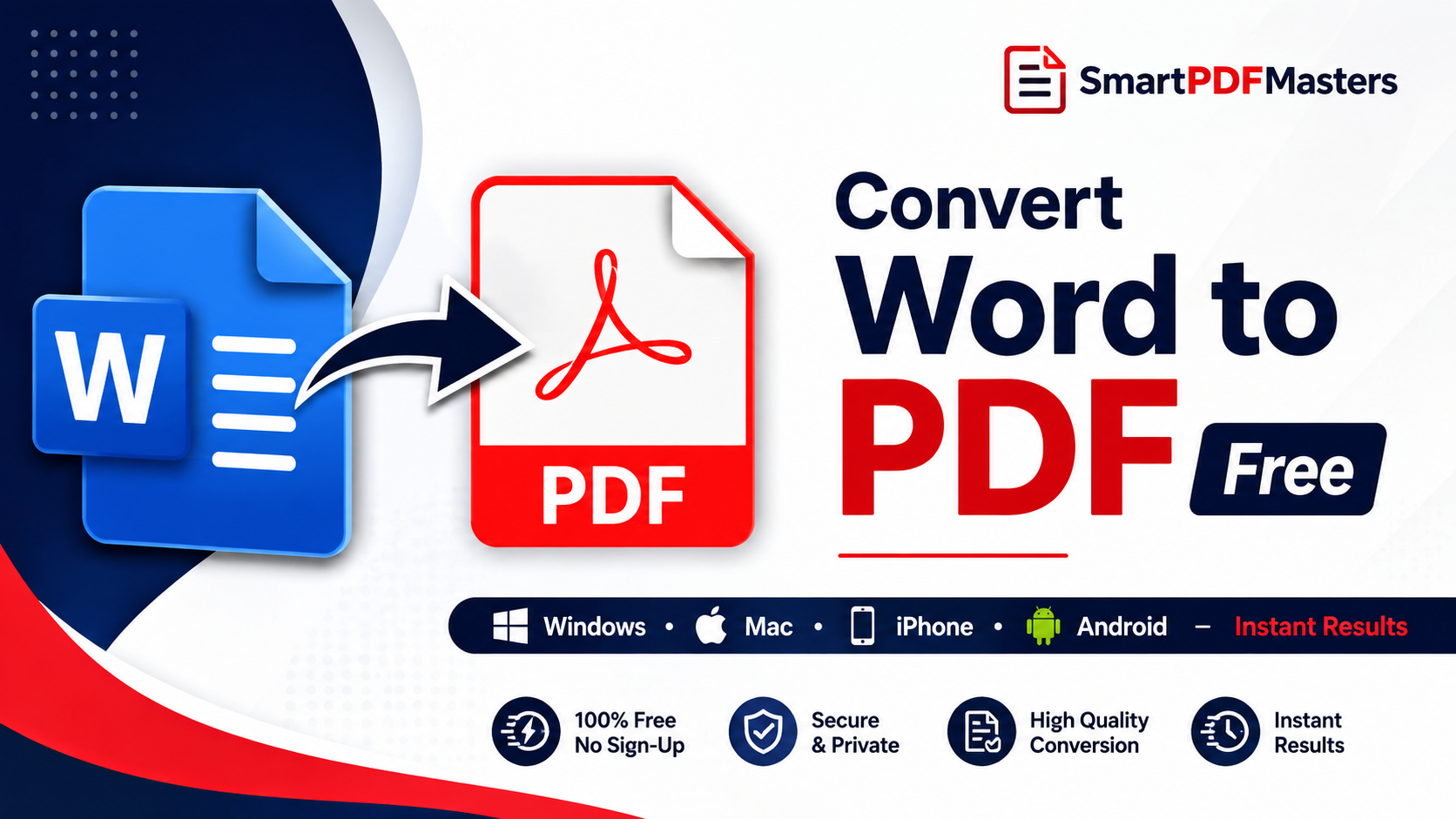
Learn how to convert any Word document to PDF free in 2026 — complete guide for Windows, Mac, iPhone and Android with no software installation and no watermarks.
🛠 Free tools mentioned in this article
Converting a Word document to PDF is one of the most common document tasks in the world — millions of people do it every day before sending a resume, submitting an assignment, sharing a contract, or delivering a finished report. PDF locks your formatting so the document looks identical on every device, while Word files can shift layout, fonts, and spacing depending on the software the recipient has installed.
The good news is that converting Word to PDF is completely free in 2026 on every major platform — no software to buy, no watermarks, no file size limits. Every method in this guide is free and available right now on your device.
Why Convert Word to PDF?
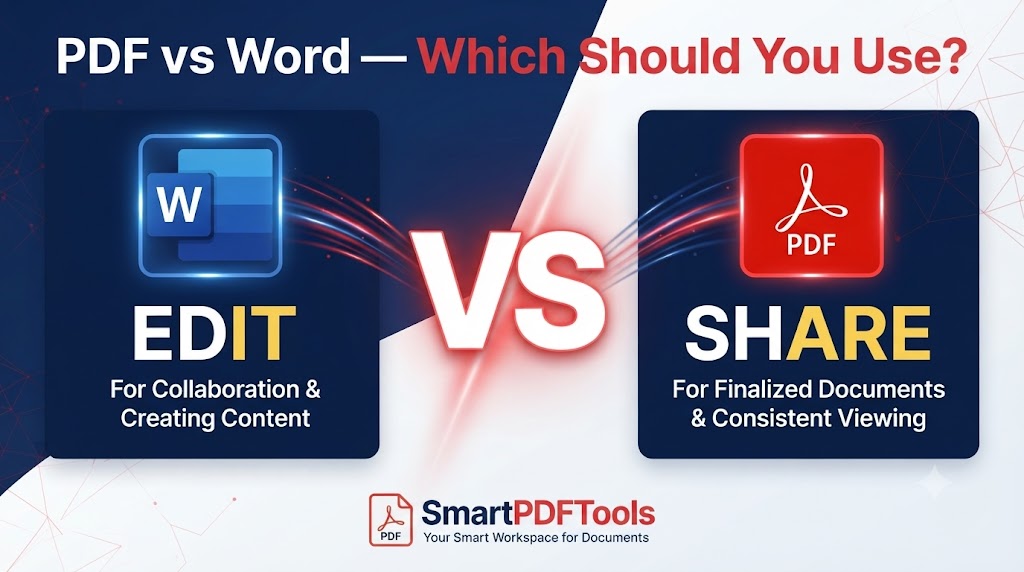
Word documents are editable by design — anyone who receives a DOCX file can change the content, accidentally or intentionally. Fonts that are not installed on the recipient's device are substituted automatically, often breaking carefully designed layouts. Tables shift. Margins change. A document that looks perfect on your screen can look completely different when the recipient opens it on their computer.
PDF solves all of these problems. A PDF looks identical on every device and operating system — the same fonts, the same spacing, the same layout — whether opened on a Windows laptop, a Mac, an iPhone, or an Android phone. PDF is also the expected format for professional submissions: job applications, university assignments, legal documents, invoices, and contracts are almost always requested as PDFs.
Method 1 — Convert Word to PDF in Microsoft Word (Windows and Mac)
Microsoft Word has built-in PDF export on both Windows and Mac — no additional software or internet connection required.
On Windows: Open your Word document. Go to File in the menu bar. Choose Save As. In the format dropdown, select PDF. Choose where to save the file and click Save. Alternatively, go to File then Export then Create PDF/XPS Document. Click Publish to save the PDF.
On Mac: Open your Word document. Go to File in the menu bar. Choose Save As. Click the Format dropdown at the bottom of the save dialog and select PDF. Click Save. Alternatively, press Command + P to open the print dialog and click the PDF button at the bottom left, then choose Save as PDF.
Quality tip: In Word for Windows, when you choose File then Save As then PDF, click the Options button before saving. Make sure Standard (publishing online and printing) is selected rather than Minimum size. The Standard option preserves full image quality and produces a better PDF.
If your converted PDF is larger than expected, use our Compress PDF tool to reduce the file size before emailing or uploading.
Method 2 — Convert Word to PDF Using Google Docs (Free, Any Device)
Google Docs is one of the fastest free Word to PDF converters available — it works on any device with a browser and requires only a free Google account.
Go to drive.google.com and upload your Word document by clicking New then File upload. Once uploaded, double-click the file to open it in Google Docs. Google Docs automatically converts the DOCX to its own format for editing. To save as PDF, go to File then Download then PDF Document. The PDF downloads immediately to your device.
This method is particularly useful on devices that do not have Microsoft Word installed, including Chromebooks, older computers, and school or work computers where you cannot install software.
Important: Google Docs may slightly reformat complex Word documents — particularly those with unusual fonts, precise table layouts, or heavy use of styles. Always check the downloaded PDF against your original Word file to ensure the layout is preserved correctly. For simple documents like letters, reports, and standard resumes, Google Docs conversion is accurate and reliable.
Method 3 — Convert Word to PDF on iPhone and iPad (Free)
iPhone and iPad can convert Word documents to PDF directly without any app download.
Using the Files app: If your Word document is saved in the Files app, tap and hold the file. Choose Quick Actions from the menu. Tap Create PDF. The Files app converts the Word document to PDF and saves it in the same folder automatically.
Using Microsoft Word for iPhone: If you have the free Microsoft Word app installed, open your document. Tap the three-dot menu in the top right corner. Choose Export then Send a Copy. Select PDF as the format and tap OK. You can then save the PDF to Files or share it directly.
Using Google Docs on iPhone: Open the Google Docs app, open your document, tap the three-dot menu, choose Share and export then Save as then PDF Document. The PDF saves to your Files app.
After converting on iPhone, if you need to combine the PDF with other documents, use our Merge PDF tool in Safari.
Method 4 — Convert Word to PDF on Android (Free)
Android users have several free options for converting Word to PDF.
Using Google Docs: Upload your Word document to Google Drive. Open it in Google Docs. Tap the three-dot menu and choose Share and export then Save as then PDF Document. The PDF downloads to your device.
Using Microsoft Word for Android: Open the free Microsoft Word app and open your document. Tap the three-dot menu and choose Export then PDF. Save to your preferred location.
Using a browser-based converter: Open Chrome for Android and search for a free Word to PDF converter. Upload your DOCX file, convert, and download the PDF. Choose a tool that processes files locally in your browser and does not require an account.
Method 5 — Convert Word to PDF Using LibreOffice (Free Desktop Software)
LibreOffice Writer is a free, open-source word processor that can open Word documents and export them as PDF — completely free with no watermarks and no file size limits.
Download LibreOffice from libreoffice.org. Open your Word document in LibreOffice Writer. Go to File then Export as PDF. In the export dialog, adjust settings if needed and click Export. The resulting PDF is saved to your chosen location.
LibreOffice is particularly useful for converting many Word files to PDF in one session, and for converting older DOC files that Google Docs may not handle as accurately.
How to Convert Multiple Word Files to PDF at Once
If you need to convert many Word documents to PDF, the most efficient free approach is Google Drive's conversion feature combined with our Merge PDF tool.
Upload all your Word files to Google Drive. Open each one in Google Docs and download as PDF. Then use our Merge PDF tool to combine all the converted PDFs into one complete document if needed.
Common Problems When Converting Word to PDF
Fonts look different in the PDF: The Word document uses a font that is not embedded. In Word, go to File then Options then Save and check the box for Embed fonts in the file before converting.
Images are blurry in the PDF: The PDF was exported with minimum quality settings. Re-export using Standard or High quality settings.
Tables shifted or broke: Complex tables sometimes reformat during conversion, especially in Google Docs. For precise table layouts, use Microsoft Word's built-in PDF export rather than Google Docs.
PDF is too large to email: Use our Compress PDF tool after converting to reduce the file size while keeping text perfectly sharp.
What to Do After Converting Word to PDF
Once you have your PDF, you can share it by email, upload it to any portal, or archive it for long-term storage. If you need to make further edits after converting, use our PDF to Word tool to convert back to an editable Word document at any time.
Frequently Asked Questions
How do I convert a Word document to PDF for free?
In Microsoft Word, go to File then Save As and choose PDF format. In Google Docs, go to File then Download then PDF Document. Both methods are completely free and require no additional software.
How do I convert Word to PDF on iPhone without an app?
Tap and hold your Word file in the Files app, choose Quick Actions, and tap Create PDF. No app download required.
Why does my Word to PDF look different from the original?
Fonts that are not installed on the converting device may be substituted, and complex layouts can shift in some converters. For the most accurate conversion, use Microsoft Word's built-in Save as PDF feature.
How do I reduce the PDF size after converting from Word?
Use our Compress PDF tool — upload your PDF, choose your compression level, and download the smaller file in under 30 seconds.
Can I convert a Word file to PDF on Android for free?
Yes. Use the free Google Docs app or Microsoft Word app on Android — both include free PDF export with no watermarks.
Ready to work with your PDFs?
All six tools are completely free — no signup, no watermarks, no limits.