How to Convert PDF to PowerPoint Free — Complete Guide 2026
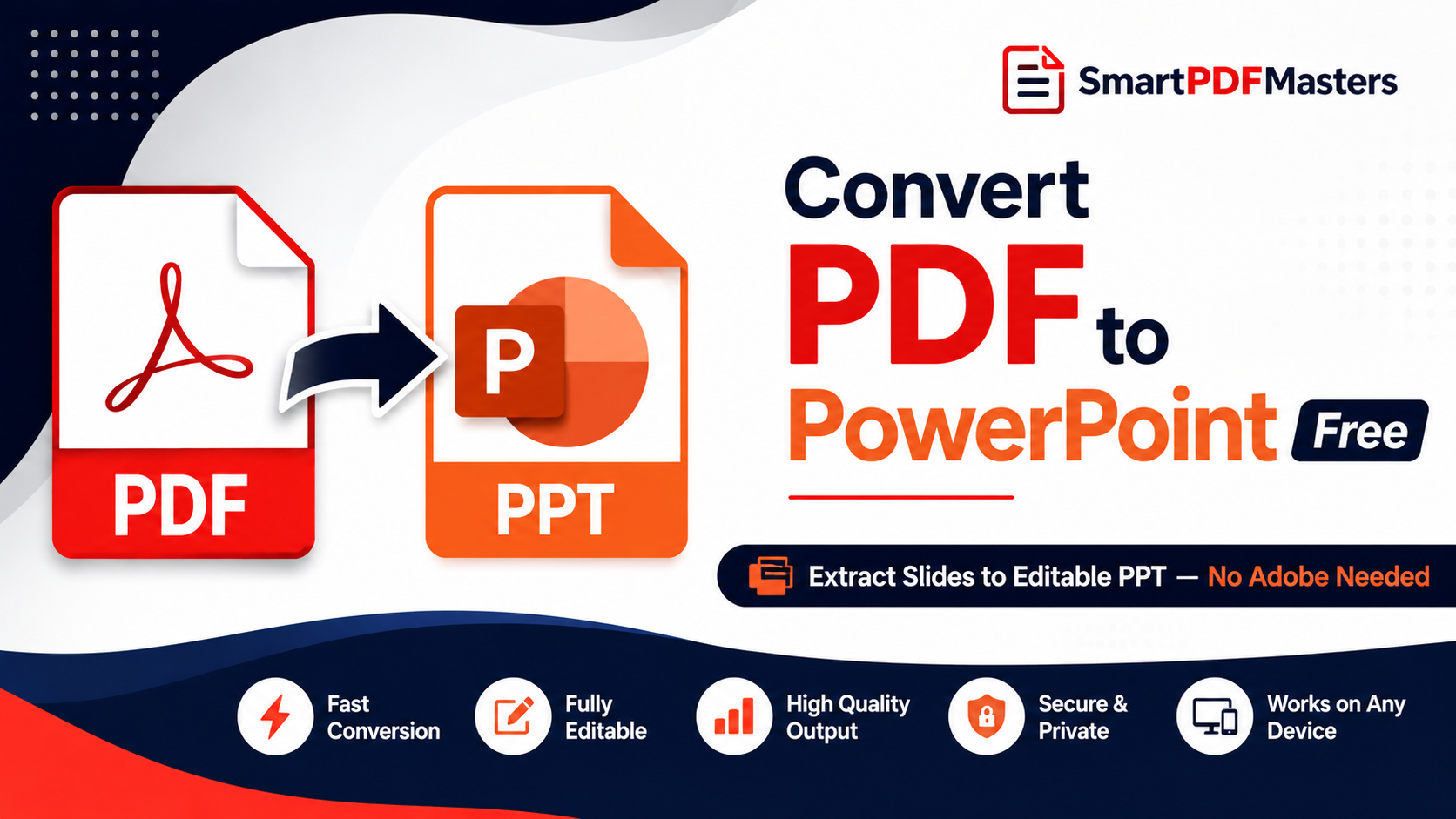
Learn how to convert any PDF to PowerPoint free in 2026 — extract slides from PDF to editable PPT on Windows, Mac, iPhone and Android without Adobe Acrobat.
🛠 Free tools mentioned in this article
Converting a PDF to PowerPoint is one of the most searched document conversion tasks for students, teachers, business professionals, and presenters. Whether you received a presentation as a PDF and need to edit the slides, want to add your company branding to a PDF presentation, need to update outdated information in a slide deck, or want to repurpose PDF content into a new presentation — knowing how to convert PDF to PowerPoint free saves significant time and money.
This complete guide covers every free method to convert PDF to PowerPoint in 2026 on Windows, Mac, iPhone, iPad, and Android — without paying for Adobe Acrobat Pro or any other premium software.
Why Convert PDF to PowerPoint?
PDF presentations are common — companies share pitch decks as PDFs to prevent editing, conferences distribute speaker presentations as PDFs, and academic institutions often share course materials in PDF format. But receiving a presentation as a PDF means you cannot modify the slides, add your own content, update figures, change the design, or use the slides as a starting point for your own presentation.
Converting PDF to PowerPoint gives you a fully editable version of the presentation where you can change text, replace images, modify layouts, update data, add new slides, and adapt the content for your own needs. For teachers who want to update course materials, students who want to annotate slides, and professionals who need to repurpose existing content, PDF to PowerPoint conversion is an essential skill.
Understanding What PDF to PowerPoint Conversion Does
PDF to PowerPoint conversion is technically more complex than PDF to Word conversion. A PDF stores presentation content as a series of fixed-layout pages — each slide is essentially a flat image of positioned text, shapes, and images, without any underlying slide structure that the converter can read.
A good converter analyses the visual layout of each PDF page, identifies which elements are text, which are images, and which are shapes, then reconstructs them as editable PowerPoint elements on separate slides. The result is an editable PPTX file where text can be changed, images can be moved, and the slide layout can be modified.
The accuracy of the conversion depends on how the original PDF was created. PDFs generated directly from PowerPoint often convert back accurately because the elements are cleanly separated. PDFs created by scanning printed slides or exporting from design software with complex layouts convert with more errors.
Method 1 — Convert PDF to PowerPoint Using Microsoft PowerPoint (Windows and Mac)
Microsoft PowerPoint can open PDF files directly and convert them to editable presentations — a feature many users are not aware of.
On Windows: Open Microsoft PowerPoint. Go to File then Open. Navigate to your PDF file and select it. PowerPoint will display a notice that it is converting the PDF to a presentation. Click OK. PowerPoint converts each page of the PDF to a separate slide.
On Mac: The process is identical — go to File then Open, select your PDF file, and PowerPoint converts it automatically.
The quality of PowerPoint's built-in PDF conversion varies significantly depending on the PDF content. For simple slide layouts with clear text and standard fonts, the conversion is reasonably accurate. For complex designs with overlapping elements, custom fonts, or heavily formatted layouts, the slides will need manual adjustment after conversion.
After converting, compress the resulting presentation if needed, then convert back to PDF using our tools.
Method 2 — Convert PDF to PowerPoint Using Google Slides (Free, Any Device)
Google Slides is a free browser-based presentation tool that can open PDF files and convert them to editable slides without requiring any software installation.
Go to drive.google.com and upload your PDF by clicking New then File upload. Once uploaded, right-click the PDF and choose Open with then Google Slides. Google Slides converts each page of the PDF to a separate slide in a new presentation.
After the conversion, you can edit the slides directly in Google Slides — change text, replace images, modify colours, and rearrange content. When finished editing, download the presentation as a PowerPoint file by going to File then Download then Microsoft PowerPoint (.pptx).
Google Slides is the most widely accessible free PDF to PowerPoint converter because it works on any device with a browser — no software installation needed. The conversion quality is good for text-based presentations and acceptable for moderately complex layouts.
Method 3 — Convert PDF to PowerPoint on iPhone and iPad (Free)
iPhone and iPad users can convert PDF to PowerPoint using Google Slides in Safari, which works identically to the desktop version.
Open Safari and go to drive.google.com. Upload your PDF and open it with Google Slides. Edit the slides if needed and download as PowerPoint. The PPTX file downloads to your Files app, where you can open it in Microsoft PowerPoint for iPhone or share it directly.
Alternatively, the Keynote app on iPhone and iPad can import PDF files. Open Keynote, tap the plus button to create a new presentation, and look for an option to import from PDF. Keynote converts the PDF pages to Keynote slides, which you can then export as PowerPoint PPTX if needed.
Method 4 — Convert PDF to PowerPoint on Android (Free)
Android users can use Google Slides through Chrome or the Google Slides app to convert PDF to PowerPoint.
Using Chrome: Open drive.google.com in Chrome, upload your PDF, and open it with Google Slides. Edit and download as PPTX.
Using the Google Slides app: Open the Google Slides app and tap the plus button. Choose Import slides and select your PDF from Google Drive. Google Slides converts the PDF pages to editable slides. Tap the three-dot menu and choose Share and export then Download then PowerPoint to save as PPTX.
Method 5 — Convert PDF to PowerPoint Using LibreOffice Impress (Free Desktop Software)
LibreOffice Impress is a free, open-source presentation application that can open PDF files and allow editing of individual slides — useful for desktop users who need offline conversion.
Download LibreOffice from libreoffice.org. Open LibreOffice Impress. Go to File then Open and select your PDF file. LibreOffice Impress opens the PDF with each page as an editable drawing object on separate slides. Edit as needed, then go to File then Save As and choose PowerPoint format to save as PPTX.
How to Get the Best PDF to PowerPoint Conversion Results
The quality of any PDF to PowerPoint conversion depends significantly on how the original PDF was created and how you prepare it before converting.
Before converting, if your PDF is very large — many pages or high-resolution images — compress it using our Compress PDF tool to reduce the file size. Smaller files convert faster and sometimes more accurately.
If you only need specific slides, extract those pages first using our Split PDF tool. Convert only the pages you need rather than the entire document — this produces a more manageable output.
After converting, plan to spend time adjusting the slide layouts. Text boxes may need repositioning, font sizes may need adjustment, and images may need to be resized or replaced. PDF to PowerPoint conversion is a starting point for editing, not a pixel-perfect reproduction of the original.
What to Do When PDF to PowerPoint Conversion Is Imperfect
No free PDF to PowerPoint converter produces perfect results for every PDF. When the converted slides need significant adjustment, there are two practical approaches.
Accept the conversion as a rough draft: Use the converted PPTX as a structural starting point — the slide order, general layout, and text content — then redesign the slides from scratch using your brand colours and fonts. This is faster than creating a new presentation from nothing.
Extract and reuse the content: If the slide visuals do not convert well, focus on extracting the text content. Use our PDF to Word tool to extract all the text from the PDF as an editable document, then copy the text into a new PowerPoint presentation and design the slides yourself.
Converting PDF Presentations Back to PDF After Editing
After editing your converted PowerPoint presentation, you will likely want to convert it back to PDF for sharing. In PowerPoint, go to File then Save As and choose PDF. In Google Slides, go to File then Download then PDF Document.
If the resulting PDF is larger than you need, use our Compress PDF tool to reduce the file size before sharing.
Combining PDF Slides with Other Documents
If you need to combine your converted PDF presentation with other documents — for example, adding a cover page, attaching supporting data, or merging with another PDF — use our Merge PDF tool after converting back to PDF.
Frequently Asked Questions
How do I convert a PDF to PowerPoint for free?
Open Microsoft PowerPoint and use File then Open to open your PDF directly. Or upload your PDF to Google Drive and open it with Google Slides, then download as PowerPoint. Both methods are completely free.
Why does my PDF to PowerPoint conversion look different from the original?
PDF stores content as positioned elements without slide structure. Converters reconstruct slides by analysing the visual layout, which is imperfect for complex designs. Expect to adjust text boxes, images, and layouts after converting.
Can I convert PDF to PowerPoint on iPhone without an app?
Yes. Open Safari, go to Google Drive, upload your PDF, open it with Google Slides, and download as PowerPoint. No app download required.
How do I convert a scanned PDF presentation to PowerPoint?
Scanned PDF presentations are stored as images with no text layer. The best approach is to use Google Slides or LibreOffice Impress to open the PDF, which places each scanned page as an image on a separate slide. You can then add text boxes over the images or use our PDF to Word tool with OCR to extract the text separately.
Does converting PDF to PowerPoint reduce quality?
The conversion process itself does not reduce image quality. However, complex layouts, custom fonts, and precise positioning often do not transfer perfectly from PDF to PowerPoint format.
Ready to work with your PDFs?
All six tools are completely free — no signup, no watermarks, no limits.