How to Convert PDF to PNG Free — Extract PDF Pages as Images Instantly
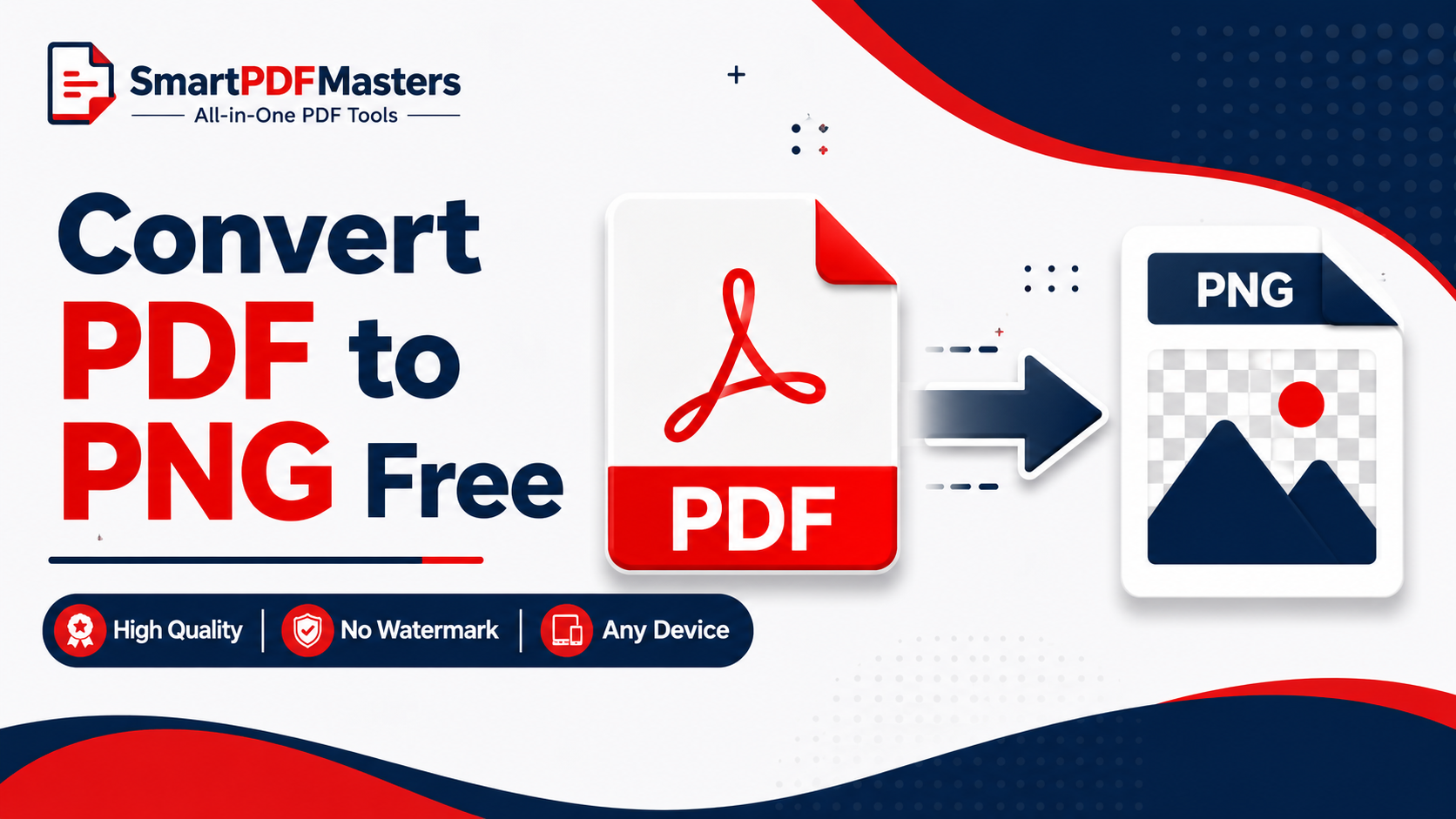
Learn how to convert any PDF page to PNG image free online — extract high-quality PNG images from any PDF on Windows, Mac, iPhone and Android with no software needed.
🛠 Free tools mentioned in this article
Converting a PDF to PNG is one of the most searched document conversion tasks on the internet — and it is something millions of people need every day. You need a PNG version of a PDF page to use as a thumbnail or preview image. You want to embed a document page as an image in a website or presentation. You need to share a single page visually on social media without sending the entire PDF. You want a high-quality PNG of a chart, graph, certificate, or invoice page for use in another document. You received a PDF and need the images it contains as separate PNG files.
This complete guide covers every free method to convert PDF to PNG in 2026 — online, on Windows, on Mac, on iPhone, and on Android — including how to get the highest quality PNG output and how to convert specific pages rather than the entire document.
Why PNG Instead of JPG When Converting PDF Pages?
When you convert a PDF page to an image, you typically have the choice between PNG and JPG format. Understanding the difference helps you choose the right format for your specific use case.
PNG uses lossless compression, which means no image data is discarded during compression. Every pixel in the original PDF page is preserved exactly in the PNG file. Text appears perfectly sharp with no compression artefacts. Fine lines, logos, diagrams, and areas of flat colour reproduce cleanly and accurately. PNG also supports a transparent background, which is important when you need the PDF page content placed on a coloured background without a white rectangle around it.
JPG uses lossy compression, which reduces file size by discarding some image data. For photographs and complex photographic content, the quality reduction is often barely perceptible. But for PDF pages that contain text, charts, diagrams, or any sharp lines, JPG compression causes visible blurring around text edges and colour banding in flat areas. At high enough quality settings, JPG is acceptable for photograph-heavy pages, but for document pages with text, PNG is the clearly better choice.
Choose PNG when: the PDF page contains primarily text, diagrams, charts, logos, screenshots, or any content with sharp edges and flat colours. This includes most business documents, academic papers, certificates, invoices, and presentations.
Choose JPG when: the PDF page contains primarily full-bleed photographs where file size matters more than absolute sharpness. Even then, high-quality JPG settings at 90 percent or above are acceptable.
Method 1 — Convert PDF to PNG Online Free (Any Device)
The fastest way to convert a PDF to PNG on any device is to use a browser-based converter that works without installing any software. Open a free online PDF to PNG converter in Chrome, Safari, or any browser. Upload your PDF, select the pages you want to convert, choose PNG format and your preferred resolution, and download the resulting image files.
When choosing an online PDF to PNG converter, prioritise tools that process files in your browser rather than uploading to a remote server, offer resolution control (ideally up to 300 DPI for print quality or 150 DPI for screen use), support individual page selection rather than only converting the entire document, and do not add watermarks to the output images.
After downloading your PNG files, if you need to convert them back into a PDF — for example, to create a new PDF from selected pages of the original — use our PNG to PDF tool to combine your PNG images into a new PDF.
Method 2 — Convert PDF to PNG on Mac Using Preview (Free, Built-in)
Mac users have the most straightforward free method available — the built-in Preview app can export any PDF page as a PNG image without any additional software.
Open the PDF in Preview. Go to View in the menu bar and choose Thumbnails to display the page panel on the left side of the window. Navigate to the page you want to convert to PNG. Go to File in the menu bar and choose Export. In the Format dropdown menu, select PNG. Adjust the Resolution slider — 150 DPI is good for screen use, 300 DPI is appropriate for print use. Choose where to save the file and click Save.
To convert multiple pages to individual PNG files, select multiple page thumbnails in the sidebar (hold Command for non-consecutive pages, or Shift for a consecutive range) before choosing File then Export. Preview will export each selected page as a separate PNG file.
The resolution setting in Preview's export dialog directly controls the quality of the output PNG. Higher resolution produces larger, sharper PNG files. For most screen display purposes, 150 DPI produces excellent results. For printing or use in high-resolution graphics, choose 300 DPI.
Method 3 — Convert PDF to PNG on Windows (Free Methods)
Windows does not include a built-in PDF to PNG converter, but there are several free approaches available without purchasing software.
Method 3a — Screenshot method (simplest, lower quality): Open the PDF in Microsoft Edge or any PDF viewer. Navigate to the page you want to convert. Press Windows key, Shift, and S to open the Snipping Tool. Drag to select the area of the PDF page you want to capture. Click the Edit button in the notification that appears. Go to File then Save As and choose PNG format. This method captures only what is visible on screen at your monitor's resolution — typically 72 to 96 DPI — which is adequate for casual use but not for high-quality output.
Method 3b — Print to image method (better quality): Open the PDF in Edge or Chrome. Press Ctrl and P to open the print dialog. Select a PDF printer like Microsoft Print to PDF, then close without printing. Instead, use the browser's built-in screenshot tools at maximum zoom for higher quality captures.
Method 3c — Browser-based converter (best quality): Open Chrome or Edge and use a browser-based PDF to PNG converter for the highest quality results without installing any software. This method allows you to specify resolution settings and processes pages more accurately than screenshots.
Method 4 — Convert PDF to PNG on iPhone (Free, No App Needed)
iPhone has a built-in method for converting PDF pages to PNG images that most users have not discovered — the Screenshots with Full Page feature combined with the Files app Markup tool.
Method using Screenshots: Open the PDF in Safari or the Files app. Take a screenshot by pressing the Side button and Volume Up button simultaneously (Face ID models) or the Side button and Home button simultaneously (Touch ID models). Tap the screenshot thumbnail that appears in the bottom left corner. Tap Full Page in the top right to capture the entire PDF page. Tap Done and choose Save to Photos. The saved image in Photos is a PNG file.
Method using Files app: Open the PDF in the Files app. Tap the Share button. Tap Create PDF — this may seem counterintuitive, but in some iOS versions this process allows you to then share individual pages as images. Alternatively, tap the page in the viewer, tap the Share button, and look for a Save Image or Copy option that creates a PNG.
For the most reliable iPhone results, use a browser-based PDF to PNG converter in Safari. The process works identically to the desktop version and produces higher quality output than screenshots.
Method 5 — Convert PDF to PNG on Android (Free)
Android's most reliable free method for PDF to PNG conversion is using the screenshot system combined with Google Chrome's PDF viewer, or using a browser-based converter.
Screenshot method: Open the PDF in Chrome for Android. Navigate to the page you want. Take a screenshot by pressing the Volume Down and Power buttons simultaneously. The screenshot is saved to your Gallery as a PNG image. For higher quality, zoom in on the PDF before screenshotting and capture sections at higher apparent resolution.
Browser-based converter: Open Chrome for Android and use a free online PDF to PNG converter. Upload your PDF, select your pages and resolution settings, and download the resulting PNG files to your device. This method produces significantly higher quality output than screenshots.
How to Convert a Specific Page of a PDF to PNG
When you only need one or a few specific pages from a PDF converted to PNG, rather than the entire document, there are two practical approaches:
Option 1 — Extract the page first, then convert: Use our Split PDF tool to extract the specific page or pages you need as a separate PDF. Then convert that smaller PDF to PNG using any of the methods above. This approach is useful when using Mac's Preview, as it simplifies the export process.
Option 2 — Screenshot the specific page: Navigate to the specific page in any PDF viewer and take a high-quality screenshot of just that page. This is the quickest method for casual use.
How to Convert a PDF to High-Quality PNG for Printing
If you need a PNG version of a PDF page for printing purposes — for use in print layouts, for sending to a print service, or for inserting into a high-resolution design file — you need to convert at a minimum of 300 DPI.
At 300 DPI, an A4 page (210mm × 297mm) produces a PNG image of 2480 × 3508 pixels. This is sufficient for most commercial printing purposes. For very high-quality offset printing, 600 DPI (4960 × 7016 pixels for A4) may be specified, though most PDF to image converters cap at 300 DPI.
On Mac, use Preview's Export function and set the resolution to 300 DPI explicitly. On other platforms, use a browser-based converter that offers explicit DPI settings.
Converting All PDF Pages to PNG at Once
If you need to convert every page of a PDF to a separate PNG image — for example, to create a gallery of document pages for a website, or to process pages individually in an image editor — look for a batch PDF to PNG converter that processes all pages in a single operation and delivers them in a ZIP file.
On Mac, Preview handles multi-page export by selecting all thumbnails and choosing Export — each page is saved as a separate numbered PNG file. For Windows and mobile users, a browser-based batch converter is the most practical free option.
After converting all pages to PNG, if you need to convert them back into a PDF (perhaps after editing), use our PNG to PDF tool to combine all your PNG images into a new PDF in the correct order.
How to Compress a PDF Before Converting to PNG
If your PDF is very large — many pages or high-resolution embedded images — compressing it before converting to PNG can significantly speed up the conversion process.
Use our Compress PDF tool to reduce the PDF file size before converting. This is particularly helpful for scanned PDFs where the large file size is caused by high-resolution page images.
Frequently Asked Questions
How do I convert a PDF to PNG for free?
Use a browser-based PDF to PNG converter for the best quality on any device. On Mac, use Preview's Export function and choose PNG format. On iPhone, use a browser-based converter in Safari or take a Full Page screenshot. On Android, use a browser-based converter in Chrome.
What is the best quality for PDF to PNG conversion?
Choose 300 DPI for print use and 150 DPI for screen display. PNG format is always better than JPG for PDF pages containing text, diagrams, or charts because it uses lossless compression.
How do I convert a single page of a PDF to PNG?
On Mac, navigate to the specific page in Preview, then go to File then Export and choose PNG. On other devices, extract the page first using our Split PDF tool, then convert the single-page PDF to PNG.
Can I convert a PDF to PNG on my phone without an app?
Yes. On iPhone, use a browser-based converter in Safari. On Android, use Chrome with a browser-based converter. No app download is required.
What is the difference between PDF to PNG and PDF to JPG?
PNG uses lossless compression and preserves text sharpness perfectly. JPG uses lossy compression that can blur text edges. For document pages, PNG is always the better choice. For photograph-heavy pages where file size matters, high-quality JPG is acceptable.
How do I convert a PDF to PNG without a watermark?
Use a browser-based converter that explicitly states no watermark is added. Avoid free converters that overlay branding on output images — these watermarks cannot always be removed afterward.
Ready to work with your PDFs?
All six tools are completely free — no signup, no watermarks, no limits.