How to Convert PDF to Excel Free — Extract Tables and Data Instantly
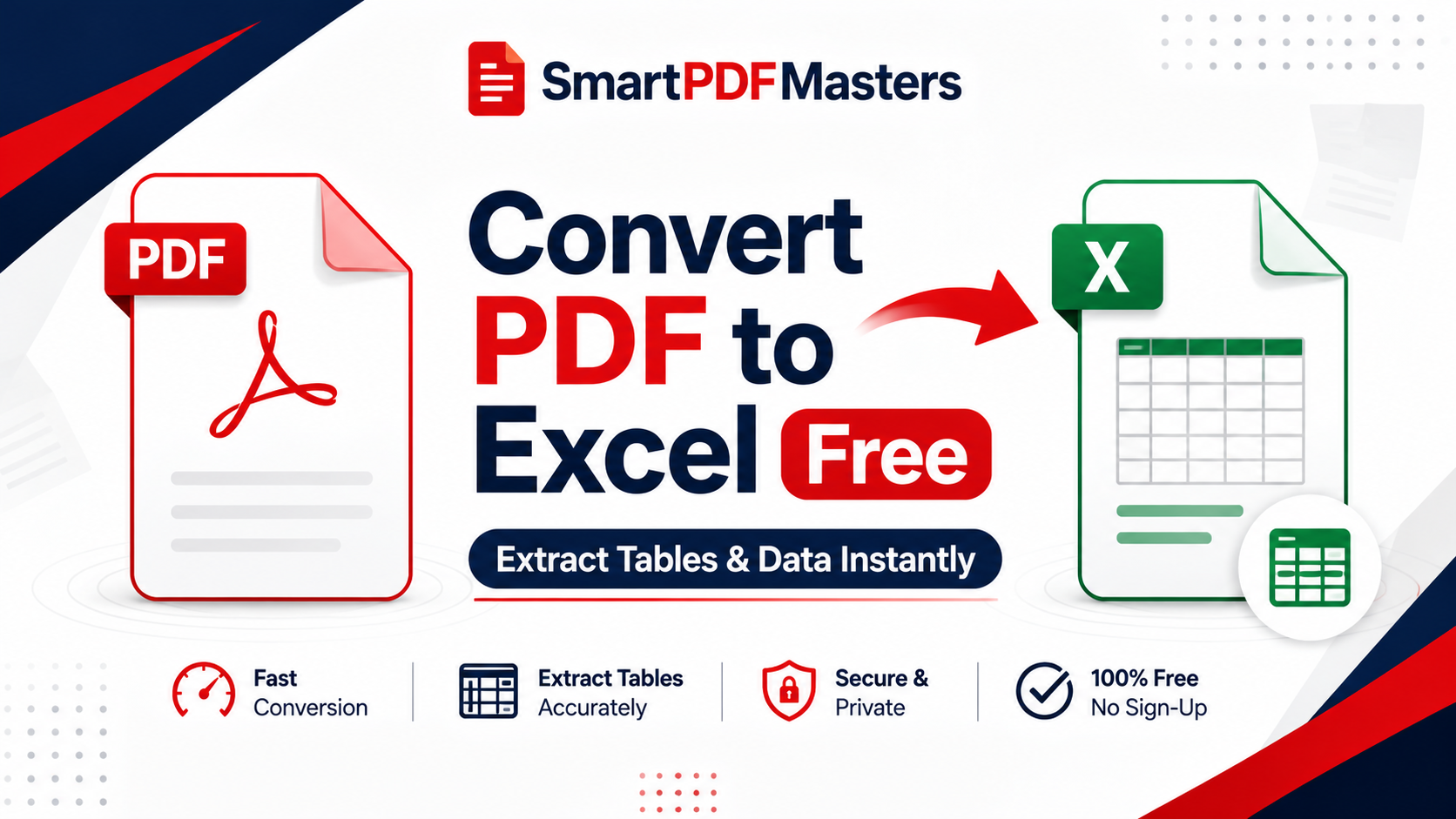
Learn how to convert any PDF to Excel free online — extract tables, financial data, and spreadsheet content from any PDF to XLSX in seconds with no software needed.
🛠 Free tools mentioned in this article
Converting a PDF to Excel is one of the most valuable and frequently searched document tasks for finance professionals, accountants, analysts, business owners, and students. When you receive a financial statement, invoice, bank statement, pricing table, or data report as a PDF, you cannot calculate with the numbers, sort the data, or create charts — until you convert it to Excel. The numbers are locked in the PDF as visual text rather than live data you can work with.
This complete guide explains every method to convert PDF to Excel free in 2026 — extracting tables, financial data, and spreadsheet content accurately — on any device, without paying for expensive software.
Why PDF to Excel Conversion Is Difficult
PDF to Excel conversion is technically more challenging than PDF to Word conversion, and understanding why helps you choose the right tool and set realistic expectations.
When a table is created in Excel and exported to PDF, the table structure is lost. The PDF file stores the visual appearance of the table — lines, borders, cell positions — but does not preserve the underlying data structure of rows and columns. Instead, each cell's text content is stored as positioned text at specific coordinates on the page, with no information about which cell it belongs to.
Converting back from PDF to Excel requires a converter to analyse the visual layout, identify the positions of lines and text, reconstruct which text belongs to which row and column, and organise this reconstructed data into an actual spreadsheet structure. This is a complex process that no tool performs perfectly in all cases. Simple tables with clear borders and consistent formatting convert well. Complex tables with merged cells, nested headers, rotated text, or inconsistent spacing are harder to convert accurately.
Scanned PDFs — created by photographing or scanning a printed document — present an additional challenge because the table is stored as an image rather than as text. Converting a scanned PDF to Excel requires OCR to first recognise the text, then table reconstruction to organise it into rows and columns.
Method 1 — Convert PDF to Word First, Then to Excel
The most reliable free method for converting PDF tables to Excel is a two-step process: convert the PDF to Word first using our PDF to Word tool, then open the Word document and copy the table into Excel.
Step one: Use our PDF to Word tool to convert your PDF to an editable DOCX file. The tool preserves table structure during conversion, giving you tables that are already organised in rows and columns in the Word document.
Step two: Open the converted Word document in Microsoft Word or Google Docs. Find the table you need. Select the entire table by clicking the table selection handle at the top left corner of the table. Copy it with Ctrl + C (or Command + C on Mac).
Step three: Open Microsoft Excel or Google Sheets. Click on the cell where you want the table to start. Paste with Ctrl + V (or Command + V on Mac). Excel automatically recognises the table structure and places each cell's content in the correct row and column.
This two-step method works well for most PDFs that were created digitally (not scanned). The table structure is preserved through the Word conversion, and pasting into Excel maintains the row and column organisation.
Method 2 — Use Microsoft Word to Open and Convert the PDF
If you have Microsoft Word installed, you can open a PDF directly in Word without any additional tools. Word converts the PDF to an editable document automatically, preserving table structure for most standard documents.
Open Microsoft Word. Go to File, then Open, and select your PDF file. Word will warn you that it is converting the PDF and that the layout may not be perfect. Click OK. Word opens the converted document with tables intact. Select the table, copy it, open Excel, and paste.
This method is completely free if you have Microsoft Word installed. It works well for simple to moderately complex tables. Very complex multi-level headers or tables with heavy formatting sometimes convert with errors that need manual correction.
Method 3 — Google Docs Method (Free, No Software Needed)
Google Docs provides a free browser-based way to convert PDF to a document format that can then be transferred to Google Sheets.
Go to Google Drive and upload your PDF. Right-click the uploaded PDF and choose Open with Google Docs. Google Docs converts the PDF to an editable document using Google's OCR and document recognition technology. Find your table in the converted document. Select and copy the table content. Open Google Sheets and paste into a blank spreadsheet.
Google Sheets recognises the table structure when pasting from Google Docs and organises the content into rows and columns automatically. This method is entirely free and requires only a Google account.
Method 4 — Copy and Paste Directly from PDF Viewer
For simple tables in digitally created PDFs (not scanned), you can sometimes copy table content directly from your PDF viewer and paste it into Excel.
Open the PDF in Adobe Acrobat Reader (free), Chrome, or any PDF viewer. Click and drag to select the table content. Press Ctrl + C to copy. Open Excel and paste into a cell. If the PDF viewer recognises the table structure, Excel may import the content into separate columns automatically. If not, all content may paste into a single column, requiring manual organisation.
This method works well for simple single-column tables or data with consistent separators. For complex multi-column tables, the two-step method (PDF to Word then to Excel) produces more accurate results.
Method 5 — Use Online PDF to Excel Converters
Several browser-based PDF to Excel converters are available that handle the table extraction process automatically. These tools analyse the PDF layout, identify tables, extract the data, and deliver an XLSX file.
When choosing an online PDF to Excel converter, prioritise tools that process files in your browser rather than uploading to a remote server, delete files immediately after processing, work without requiring account creation, and do not add watermarks to your output file.
Our PDF to Word tool combined with the copy-paste method remains the most reliable free approach for most users. For more specialised PDF to Excel conversion, look for dedicated converters that explicitly support Excel output format.
How to Convert a Bank Statement PDF to Excel
Bank statement PDFs are one of the most common conversion requests. Converting bank statements to Excel lets you calculate totals, sort by date or amount, create spending category summaries, and import the data into accounting software.
Most bank statement PDFs are digitally created rather than scanned, which means they contain actual text that can be extracted. Use the PDF to Word method (Method 1) to convert the statement, then copy the transaction table into Excel.
After pasting into Excel, you may need to clean up the data: combine date and description columns that pasted into separate cells, remove header rows that appear multiple times (once per page of the original statement), convert text-formatted numbers to actual numbers by selecting them and using the Text to Columns feature, and add formula columns for running balance, category totals, or filtering.
If your bank's PDF statement uses a complex layout with transactions split across multiple columns or with running balance integrated into the transaction list, the automatic conversion may not preserve the exact structure. Manual adjustment will be needed.
How to Convert Invoice PDFs to Excel
Converting invoice PDFs to Excel is valuable for accounts payable teams who receive many invoices and need to enter data into accounting systems. Use the PDF to Word method to extract the invoice table, then paste into Excel. For batch processing of many invoices, consider whether a dedicated accounts payable automation tool is more appropriate than manual PDF to Excel conversion.
How to Convert Scanned PDF Tables to Excel
Scanned PDFs — created by photographing or scanning a printed document — require OCR before the table content can be extracted. Our PDF to Word tool includes OCR support for converting scanned PDFs to editable Word documents. After conversion, copy the table from the Word document and paste into Excel.
The accuracy of OCR-converted table data depends on the quality of the original scan. High-quality scans at 300 DPI or higher with good lighting produce the most accurate results. Low-quality or poorly-lit scans may produce OCR errors that require manual correction before the data is usable.
How to Convert Multiple PDF Pages of Tables to One Excel File
If your PDF contains multiple pages of tables — for example, a multi-page financial report with data tables on every page — convert the entire PDF to Word first using our PDF to Word tool, then copy all the tables from the Word document into a single Excel spreadsheet.
If you only need specific pages from a large PDF, you can reduce file size and simplify the conversion by working with a smaller file. Use our Compress PDF tool to reduce the file size before converting, or use the Chrome page-range method to extract only the pages containing your tables.
Tips for More Accurate PDF to Excel Conversion
Ensure your PDF is not a scanned image — digitally created PDFs convert much more accurately than scanned ones.
If the PDF is scanned, improve OCR accuracy by ensuring the original scan was done at 300 DPI or higher and with good, even lighting.
Simple tables with clear borders and consistent row heights convert better than complex tables with merged cells, varying column widths, or special formatting.
After converting, always verify your data against the original PDF. Check total rows and column sums to catch any data that was incorrectly parsed or missed during conversion.
For financial data specifically, check that decimal points and thousand separators converted correctly — commas and periods are used differently in European and American number formats, and PDF to Excel converters sometimes swap them.
Frequently Asked Questions
How do I convert a PDF to Excel for free?
Use our PDF to Word tool to convert the PDF to an editable Word document, then copy the table from Word and paste into Excel or Google Sheets. Alternatively, upload the PDF to Google Drive and open it with Google Docs, then copy the table to Google Sheets.
Why does my PDF table not convert correctly to Excel?
PDF tables are stored as positioned text without actual row and column structure. Converters must reconstruct this structure from visual layout, which is imperfect for complex tables. Simple tables with clear borders convert best. Complex tables with merged cells or inconsistent formatting require manual adjustment after conversion.
Can I convert a scanned PDF to Excel for free?
Yes. Use our PDF to Word tool with OCR support to convert the scanned PDF to Word first, then copy the table into Excel. Scan quality significantly affects accuracy — higher quality scans produce more accurate results.
How do I convert a bank statement PDF to Excel?
Use our PDF to Word tool to convert the bank statement to Word, then copy the transaction table and paste it into Excel. After pasting, clean up the data by removing repeated header rows and ensuring numbers are formatted correctly for calculations.
Is it safe to convert PDF financial documents online?
Safety depends on which tool you use. Our tools process files in your browser, which means your financial documents never leave your device. If you use any online converter, choose one that confirms browser-based processing or immediate server deletion.
Ready to work with your PDFs?
All six tools are completely free — no signup, no watermarks, no limits.