How to Compress PDF to 1MB or Less — Free & Fast Guide 2026
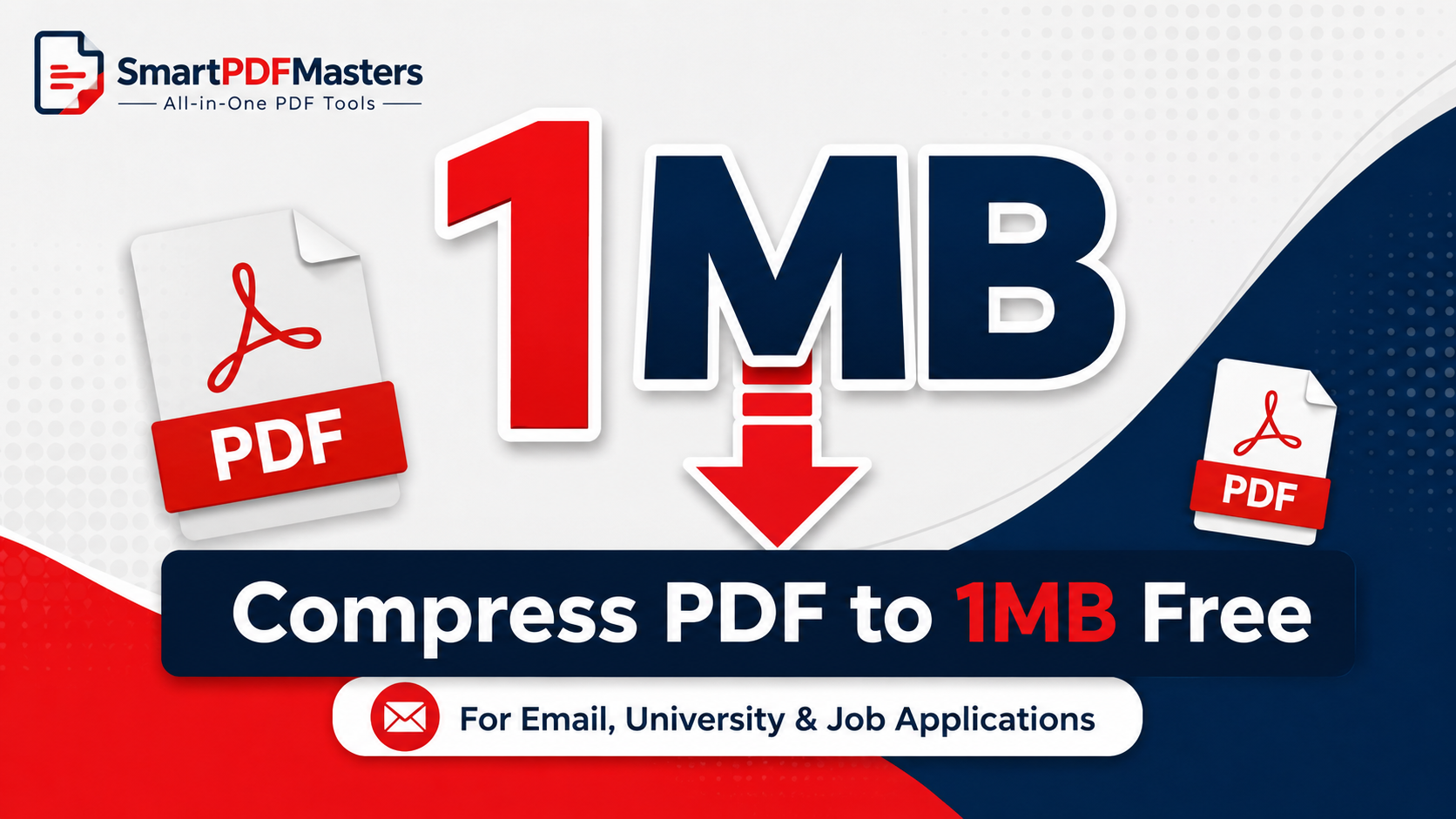
Need to compress a PDF to 1MB or less? Learn the fastest free methods to reduce any PDF file under 1MB — for email, WhatsApp, university portals and job applications.
🛠 Free tools mentioned in this article
Compressing a PDF to under 1MB is one of the most specific and urgent PDF tasks people search for every day. University portals that reject files over 1MB. Job application systems with a 500KB limit. Government forms that refuse uploads over 2MB. WhatsApp Web that struggles with large attachments. Email servers that bounce files over 25MB. These limits are everywhere, and hitting them at the wrong moment is genuinely frustrating.
This guide explains exactly how to compress any PDF to 1MB or less — and when necessary, to 500KB or even 200KB — using completely free methods that work in your browser without installing any software.
Why 1MB Is Such a Common Upload Limit
The 1MB limit appears constantly in university portals, government submission systems, HR recruitment platforms, and online application forms. The reason is largely historical — many of these systems were built when average internet speeds were much slower, and 1MB was considered a reasonable maximum for a document upload. The systems have not always kept pace with modern file sizes, even as PDFs have become larger through higher-resolution embedded images and more complex formatting.
Understanding this helps set the right expectations: the goal is not to make your PDF look worse. It is to remove the invisible bloat — high-resolution images, embedded fonts, metadata, edit history — that inflates PDF file size without adding anything visible to the reader.
Step 1 — Compress PDF Online Free First
The fastest starting point for compressing any PDF to 1MB is our Compress PDF tool. Upload your PDF, select maximum compression, and download the result. For most text-heavy documents — typed reports, contracts, filled forms — this single step reduces the file to well under 1MB.
After compressing, check the file size. If it is now under 1MB, you are done. If it is still over 1MB, continue to the methods below based on what type of PDF you have.
Why Your PDF Might Still Be Over 1MB After Compression
If maximum compression still leaves your PDF over 1MB, the file contains content that resists standard compression — typically high-resolution photographs, scanned pages at high DPI, or embedded vector graphics from design software.
A standard text PDF (a typed letter, a contract, a form) should compress to under 100KB with maximum compression. A PDF with a few embedded photos should reach 500KB to 2MB depending on the number and resolution of images. A PDF created from a scanned paper document can be anywhere from 500KB to 50MB per page depending on the scanner resolution.
Knowing which category your PDF falls into tells you which additional step to take.
Method for Scanned PDFs Over 1MB
Scanned PDFs are the hardest to compress below 1MB because each page is essentially a photograph stored inside the PDF container. The compression ratio depends entirely on the resolution of the original scan.
If your scanner is set to 300 DPI (the common default), each A4 page produces an image of approximately 2480 × 3508 pixels. At JPEG quality suitable for a document, this is roughly 500KB to 1MB per page. A 5-page scanned document can easily reach 3 to 5MB even after standard compression.
The most effective approach for scanned PDFs is to reduce the scan resolution. If you are scanning now, set your scanner to 150 DPI instead of 300 DPI. For documents that will only be read on screen (not professionally printed), 150 DPI is completely clear and readable, and produces files approximately one quarter the size of 300 DPI scans.
If you have already scanned at high resolution, use our Compress PDF tool at maximum compression first. If the result is still over 1MB, use our Split PDF tool to divide the document into smaller sections and compress each section individually before uploading separately (if the portal allows multiple file uploads).
Method for Presentation PDFs Over 1MB
PDFs exported from PowerPoint, Keynote, or Google Slides are often large because presentation slides are designed for projected display — they contain large background images, decorative graphics, and high-resolution photographs embedded at full quality.
The most effective fix for presentation PDFs is to re-export from the original application with reduced image quality settings. In PowerPoint, go to File, then Export, then Create PDF/XPS, then Options, and reduce the image quality setting from High to Medium or Standard. This typically reduces a 10MB presentation PDF to under 2MB, and further compression using our Compress PDF tool can bring it under 1MB for most presentations.
If you do not have access to the original presentation file, compress the exported PDF using our tool at maximum compression. For presentations with many photographic images, consider whether any images can be removed or simplified before re-exporting.
Method for Word Document PDFs Over 1MB
PDFs exported from Microsoft Word are sometimes larger than expected because of embedded fonts, tracked changes saved into the file, comments, and high-resolution images inserted into the document.
If you have the original Word document, go to File then Save As then PDF, click Options, and choose Standard rather than High quality for the image compression. Additionally, before exporting, accept all tracked changes (which removes the revision history from the file), delete all comments, and compress images within Word by going to Format then Compress Pictures and choosing Email or Screen resolution rather than Print.
If you only have the PDF, use our PDF to Word tool to convert it back to an editable document, then clean it up and re-export with lower quality settings.
How to Compress a PDF to Under 500KB
Getting a PDF under 500KB requires more aggressive reduction than getting under 1MB. Use maximum compression in our Compress PDF tool as the first step. If the result is still over 500KB:
Remove all non-essential pages using our Split PDF tool — extract only the pages the recipient actually needs. Convert colour pages to greyscale where colour is not essential — this alone can reduce file size by 30 to 50 percent for image-heavy pages. If the document was scanned, the original scan resolution was probably too high — rescanning at 150 DPI will produce a much smaller file.
How to Compress a PDF to Under 200KB
Getting a PDF under 200KB is challenging for anything beyond simple typed text documents. At this file size, even a single medium-resolution photograph will exceed the limit.
For typed text documents with no embedded images, maximum compression in our tool easily achieves under 200KB for most documents. For documents with images, you may need to remove all images and submit a text-only version. For scanned documents, 200KB per page is very difficult to achieve with readable quality — scanning in greyscale rather than colour at 100 to 120 DPI is the only way to reach this limit for scanned content.
Checking Your PDF File Size Before Uploading
Always check the file size of your compressed PDF before attempting to upload it to a portal. On Windows, right-click the file in File Explorer and choose Properties — the size is shown on the General tab. On Mac, right-click the file in Finder and choose Get Info. On iPhone, press and hold the file in the Files app and tap Info. On Android, tap the file in your file manager for size details.
Note that some portals display file size limits in MB while others use KB. 1MB equals 1,024KB. A portal with a 1MB limit will reject any file over 1,024KB.
Common Upload Portals and Their PDF Size Limits
University submission portals: typically 1MB to 10MB per file, though some older systems cap at 1MB or 2MB. Always check the specific portal's documentation before compressing.
Government application portals: typically 2MB to 5MB per document, though some immigration and legal portals have strict 1MB or 2MB limits per attachment.
HR and recruitment systems: vary widely from 500KB to 5MB. Many applicant tracking systems convert PDFs internally, which can inflate the file size after upload.
Job application email attachments: while most email servers allow up to 20MB to 25MB, many recruiters prefer CVs under 1MB to keep their inbox manageable.
WhatsApp document sharing: supports documents up to 100MB, so PDF size is rarely a problem for WhatsApp. If a PDF appears not to send on WhatsApp, the issue is usually the internet connection rather than file size.
Frequently Asked Questions
How do I compress a PDF to 1MB for free?
Use our Compress PDF tool with maximum compression. For most text-heavy documents, this achieves files well under 1MB in under 30 seconds.
Why is my PDF still over 1MB after compression?
Your PDF likely contains high-resolution images, scanned pages, or complex graphics that resist standard compression. Try re-exporting from the original application with lower image quality settings, or use our Split PDF tool to process sections separately.
How do I compress a PDF to 500KB?
Use maximum compression in our Compress PDF tool and remove any non-essential pages using our Split PDF tool. For scanned documents, rescan at 150 DPI.
Can I compress a PDF to 1MB on my phone?
Yes. Open our Compress PDF tool in Safari on iPhone or Chrome on Android. Upload your PDF from the Files app, choose maximum compression, and download the compressed file.
How long does it take to compress a PDF to 1MB?
Our tool processes most PDFs in under 30 seconds. Larger files with many high-resolution images may take up to 60 seconds.
Ready to work with your PDFs?
All six tools are completely free — no signup, no watermarks, no limits.