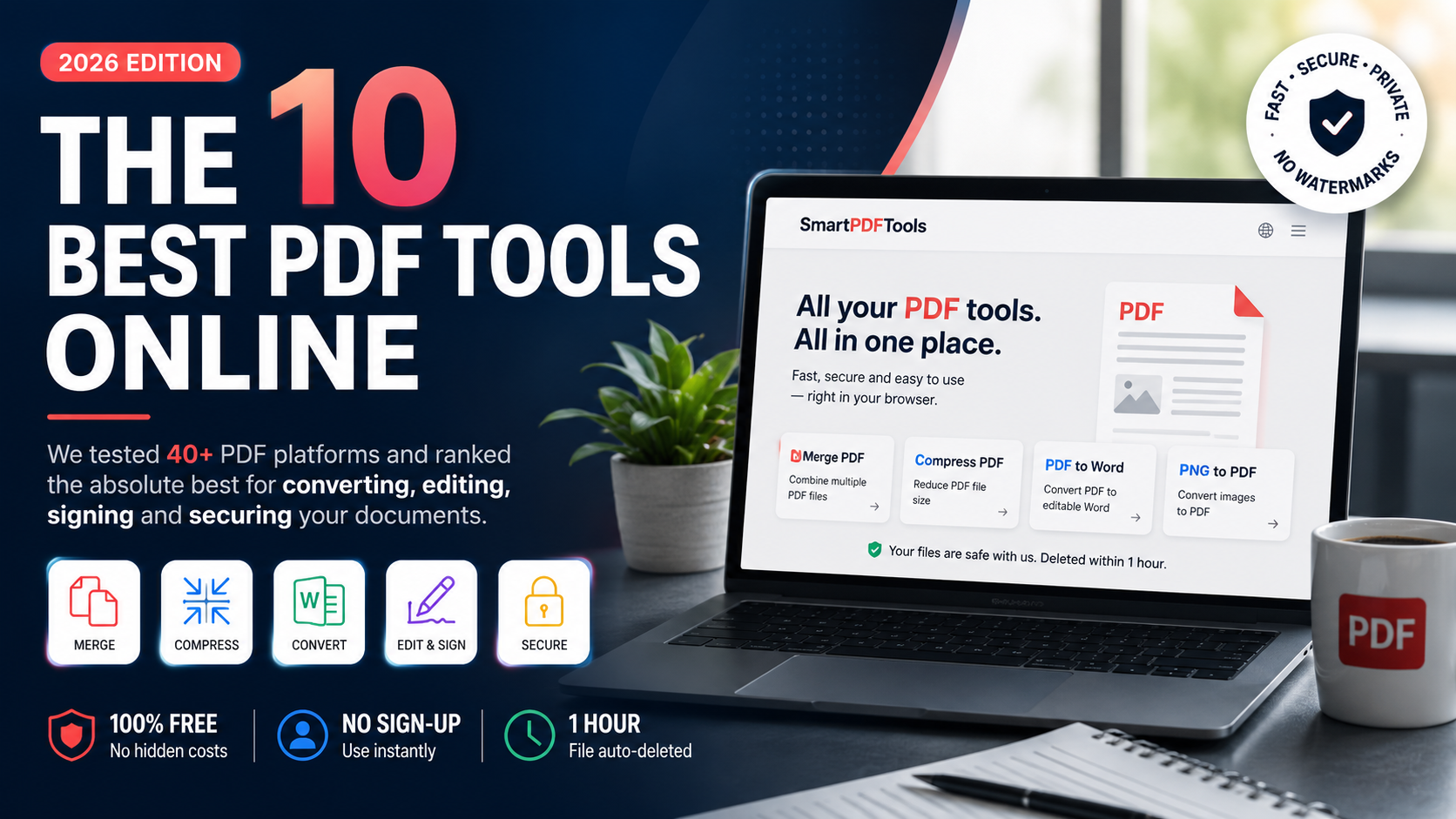
How to Combine PDF Files on iPhone Free — Complete Guide 2026
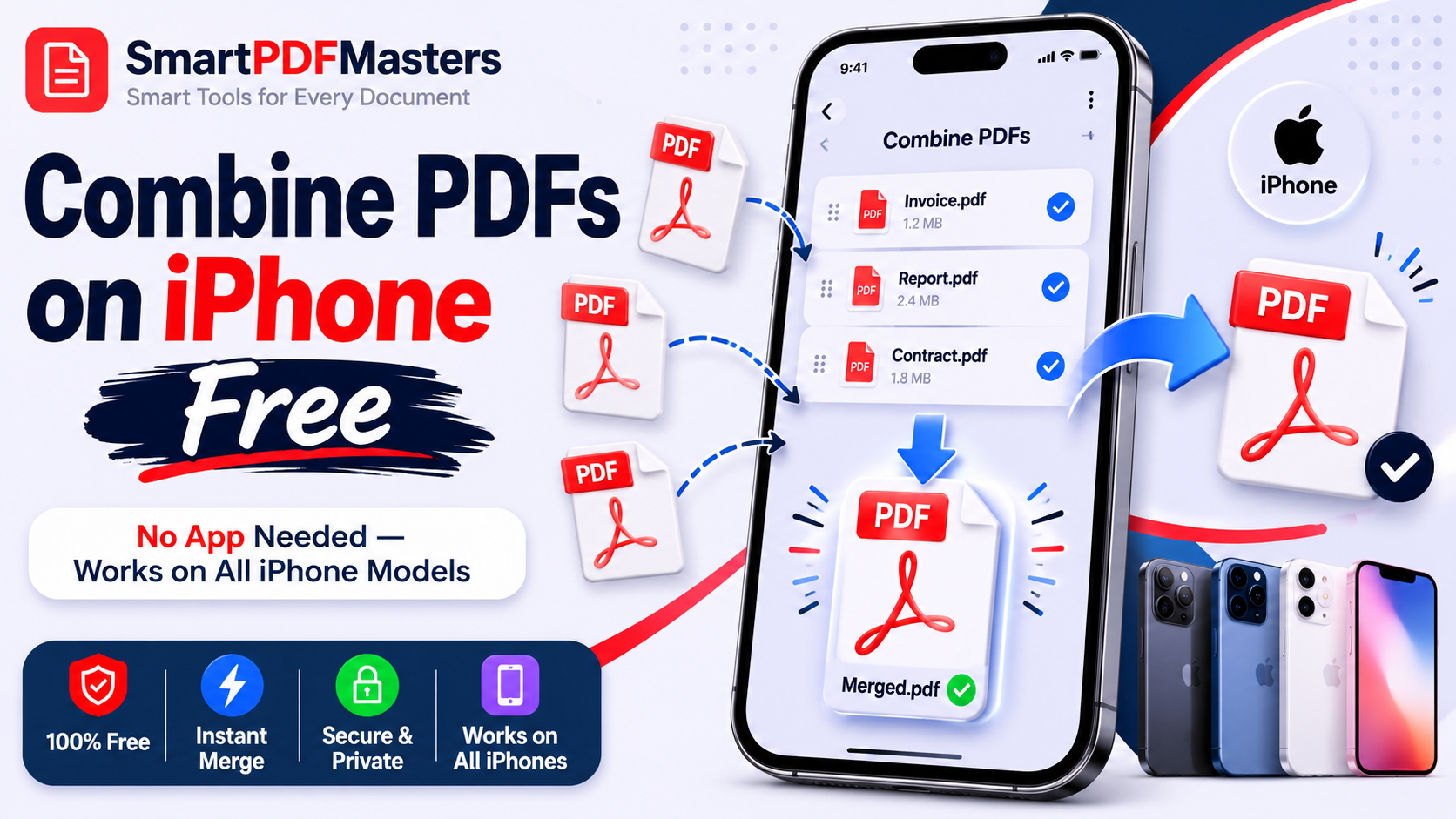
Learn how to combine PDF files on iPhone and iPad for free in 2026 — using the Files app, Safari, and free tools. No app download, no signup, works on all iPhone models.
🛠 Free tools mentioned in this article
Combining PDF files on iPhone is something millions of people need to do — merging scanned documents, joining a cover letter with a resume, combining multiple receipts into one expense report, or consolidating reading materials into a single file. The good news is that you can combine PDFs on iPhone completely free in 2026, without downloading any additional app, using tools that are already on your device or accessible in Safari.
This complete guide covers every method to combine PDF files on iPhone and iPad in 2026, from the built-in Files app to browser-based tools in Safari, so you can merge any PDFs on your iPhone in under a minute.
Method 1 — Combine PDFs Using the Files App (Built-in, No App Needed)
The Files app on iPhone and iPad running iOS 15 or later includes a built-in PDF combining feature that most users have never discovered. This is the fastest free method for combining PDFs directly on your iPhone without Safari, without additional apps, and without any internet connection.
Open the Files app on your iPhone. Navigate to the folder where your PDF files are stored — this could be On My iPhone, iCloud Drive, or any connected storage. Make sure all the PDFs you want to combine are visible in the same folder.
Tap the three-dot menu icon in the top right corner of the Files app and choose Select. Tap each PDF file you want to combine — in the order you want them merged. Selected files show a blue checkmark. After selecting all your PDFs, tap the three-dot menu at the bottom right of the screen. Look for Create PDF or Merge from the options that appear.
The Files app combines your selected PDFs into a new file and saves it in the same folder. The combined PDF contains all pages from your selected files in the order you selected them.
If you need to reorder the files before merging, make sure you tap them in the exact sequence you want the pages to appear in the final document. The merge order follows the selection order.
After combining, if the merged file is larger than you need, open it in Safari and use our Compress PDF tool to reduce the file size before sharing.
Method 2 — Combine PDFs Using Our Merge PDF Tool in Safari (Best Results)
For the most reliable PDF combining with full control over page order, use our Merge PDF tool directly in Safari on your iPhone. This method works on all iPhone models regardless of iOS version and gives you the ability to drag and reorder files before merging.
Open Safari on your iPhone and go to smartpdfmasters.com. Tap the Merge PDF tool. Tap the upload area and select your PDF files from the Files app or iCloud Drive. You can select multiple files at once. Once uploaded, drag the file thumbnails to arrange them in the order you want. Tap Merge and wait a few seconds. Tap Download to save the combined PDF to your device.
The download saves to your Downloads folder in the Files app, where you can move, share, or open it immediately.
This method is ideal when you need to combine PDFs from different locations — some from iCloud Drive, some from email attachments, some downloaded from websites — because the Files picker in Safari lets you access all storage locations at once.
Method 3 — Combine PDFs from Email Attachments on iPhone
If you received PDF files as email attachments and need to combine them, iPhone's Mail app integrates with the Files app and Markup system to make this straightforward.
Open each email containing a PDF attachment. Tap and hold the attachment. Choose Save to Files and save each PDF to a folder on your iPhone or iCloud Drive.
Once all PDF attachments are saved to the same folder, use the Files app method (Method 1) or our Safari tool (Method 2) to combine them.
Alternatively, for a quick single-step method: open the first PDF from Mail, tap the Share button, and look for a Print option. In the print preview, pinch outward to convert to PDF view. Tap Share again and choose Save to Files. Repeat for each PDF. Then combine the saved files using Method 1 or Method 2.
Method 4 — Combine PDFs Using Shortcuts App (Automation Method)
iPhone's Shortcuts app allows you to create a reusable shortcut that combines PDFs automatically. This is useful if you regularly need to merge PDFs on your iPhone.
Open the Shortcuts app. Tap the plus button to create a new shortcut. Search for the action Combine PDF and add it. Configure the shortcut to ask for input each time so you can select which files to combine. Add a Save File action to specify where the combined PDF is saved.
Once set up, you can run this shortcut from the Shortcuts app, from your iPhone home screen, or through Siri — just say "Combine my PDFs" if you have configured the shortcut with a name.
The Shortcuts method is particularly useful for students who regularly merge lecture notes, professionals who combine weekly reports, or anyone who merges the same types of documents repeatedly.
Method 5 — Combine a PDF with Photos on iPhone
If you have a mixture of PDF files and photos that you want to combine into a single PDF, convert your photos to PDF first and then merge everything together.
Open Safari and use our PNG to PDF tool to convert your photos or screenshots to PDF format. Upload your images, arrange them in the correct order, and download the resulting PDF.
Then use our Merge PDF tool to combine the photo PDFs with your existing PDF files into one complete document. This is particularly useful for job applications where you need to combine a typed cover letter PDF with scanned supporting documents photographed with your camera.
How to Combine PDFs on iPhone and Send by Email
After combining your PDFs on iPhone, sharing the merged file by email is straightforward.
Find the combined PDF in the Files app. Tap and hold the file. Choose Share. Tap Mail from the share sheet. The PDF is automatically attached to a new email. Add the recipient's address and send.
If the combined PDF is too large to send by email — Gmail's limit is 25MB, Outlook's is 20MB — compress it first using our Compress PDF tool in Safari before attaching it to the email.
How to Combine PDF Files on iPhone Without iCloud
All the methods above work without iCloud if you prefer to keep files stored only on your device. In the Files app, navigate to On My iPhone rather than iCloud Drive to access files stored locally. When saving combined PDFs, choose On My iPhone as the save location.
Our Merge PDF tool in Safari processes files entirely in your browser — files are never uploaded to any server — so it works whether you use iCloud or not, and without any internet connection beyond loading the tool page initially.
Combining Large PDF Files on iPhone
If you need to combine large PDF files on iPhone — for example, combining several scanned documents that are each 5MB or more — the process is the same as for smaller files, but may take slightly longer to process.
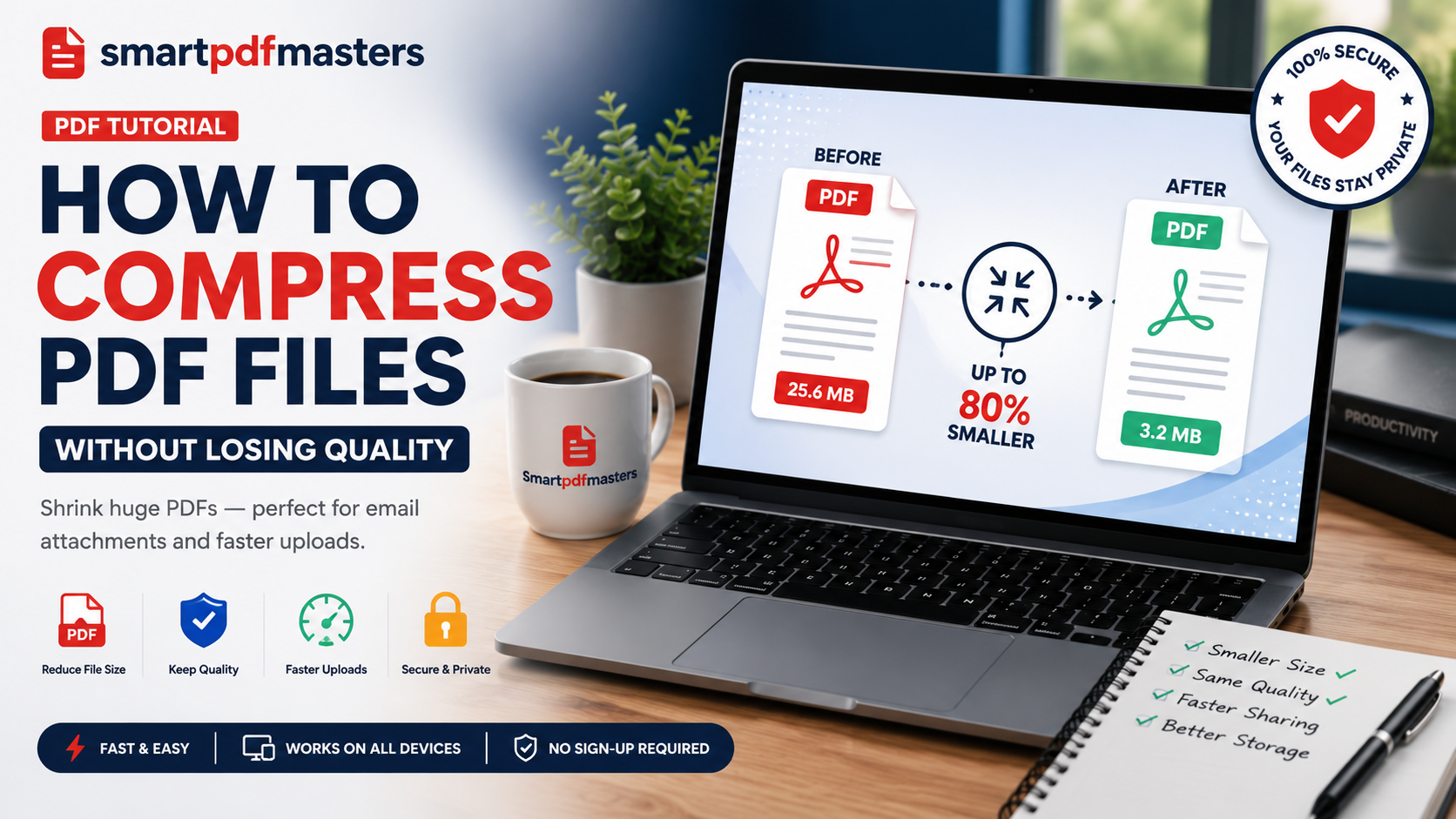
After combining large PDFs, always compress the result before sharing. Use our Compress PDF tool to reduce the combined file size significantly while keeping text sharp and readable. This is especially important for scanned documents, which compress very effectively.
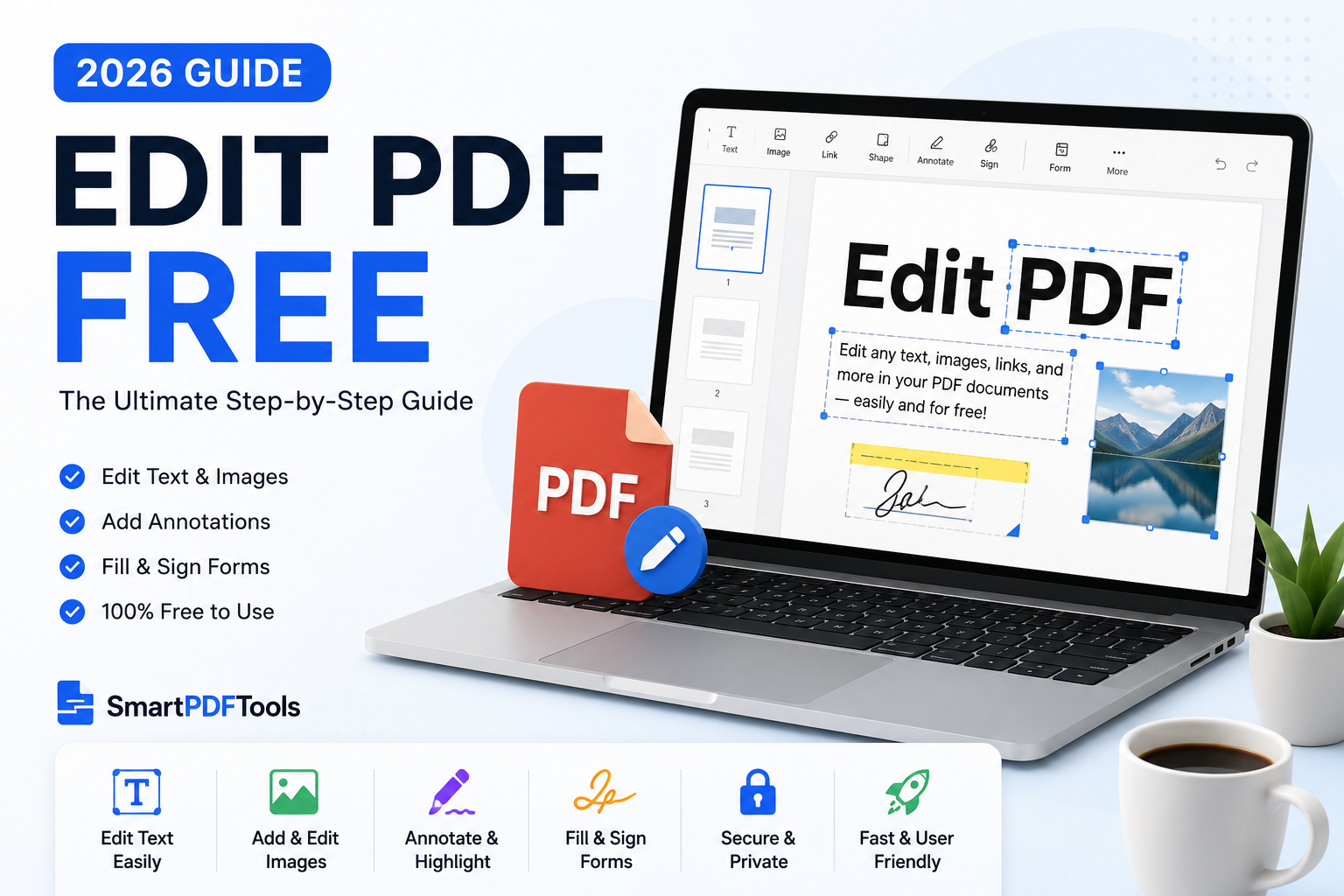
After merging and compressing, if you need to edit the content of the combined document, use our PDF to Word tool to convert it to an editable Word document.
Troubleshooting — Common Issues When Combining PDFs on iPhone
The Files app does not show a Merge option: Make sure you are running iOS 15 or later. Update your iPhone if needed. Also ensure you are selecting PDF files — the merge option only appears when all selected files are PDFs.
The combined PDF pages are in the wrong order: In the Files app, the pages combine in selection order. Deselect all and reselect in the correct order. In our Safari tool, drag the file thumbnails to reorder before merging.
The combined PDF is too large to share: Use our Compress PDF tool after merging to reduce the file size.
Safari cannot access my PDF files: In iOS Settings, go to Safari then allow access to Files. Alternatively, save your PDFs to iCloud Drive which Safari can always access.
The merged file looks different from the originals: PDF combining preserves pages exactly as they are in the original files. If pages look different, check that the original PDFs were not formatted differently from each other.
Frequently Asked Questions
How do I combine PDF files on iPhone for free?
Use the Files app: tap Select, choose multiple PDFs, tap the three-dot menu, and choose Create PDF or Merge. Alternatively, use our free Merge PDF tool in Safari — no app download required.
Can I merge PDFs on iPhone without an app?
Yes. Both the Files app method and our Safari browser tool work without downloading any additional app. Our tool processes files in your browser for complete privacy.
How do I combine PDFs on iPhone and keep them in order?
In the Files app, select your PDFs in the exact order you want them merged. In our Safari Merge PDF tool, drag the file thumbnails to arrange them in the correct sequence before tapping Merge.
How do I combine a PDF and a photo on iPhone?
Convert the photo to PDF first using our PNG to PDF tool in Safari, then use our Merge PDF tool to combine the photo PDF with your other PDF files.
Does combining PDFs on iPhone reduce quality?
No. Combining PDFs joins the pages exactly as they appear in the original files without any quality reduction.
How do I reduce the size of a combined PDF on iPhone?
Use our Compress PDF tool in Safari after merging. Upload the combined PDF, choose your compression level, and download the smaller file.
Ready to work with your PDFs?
All six tools are completely free — no signup, no watermarks, no limits.