How to Annotate a PDF Free — Highlight, Comment and Mark Up PDFs
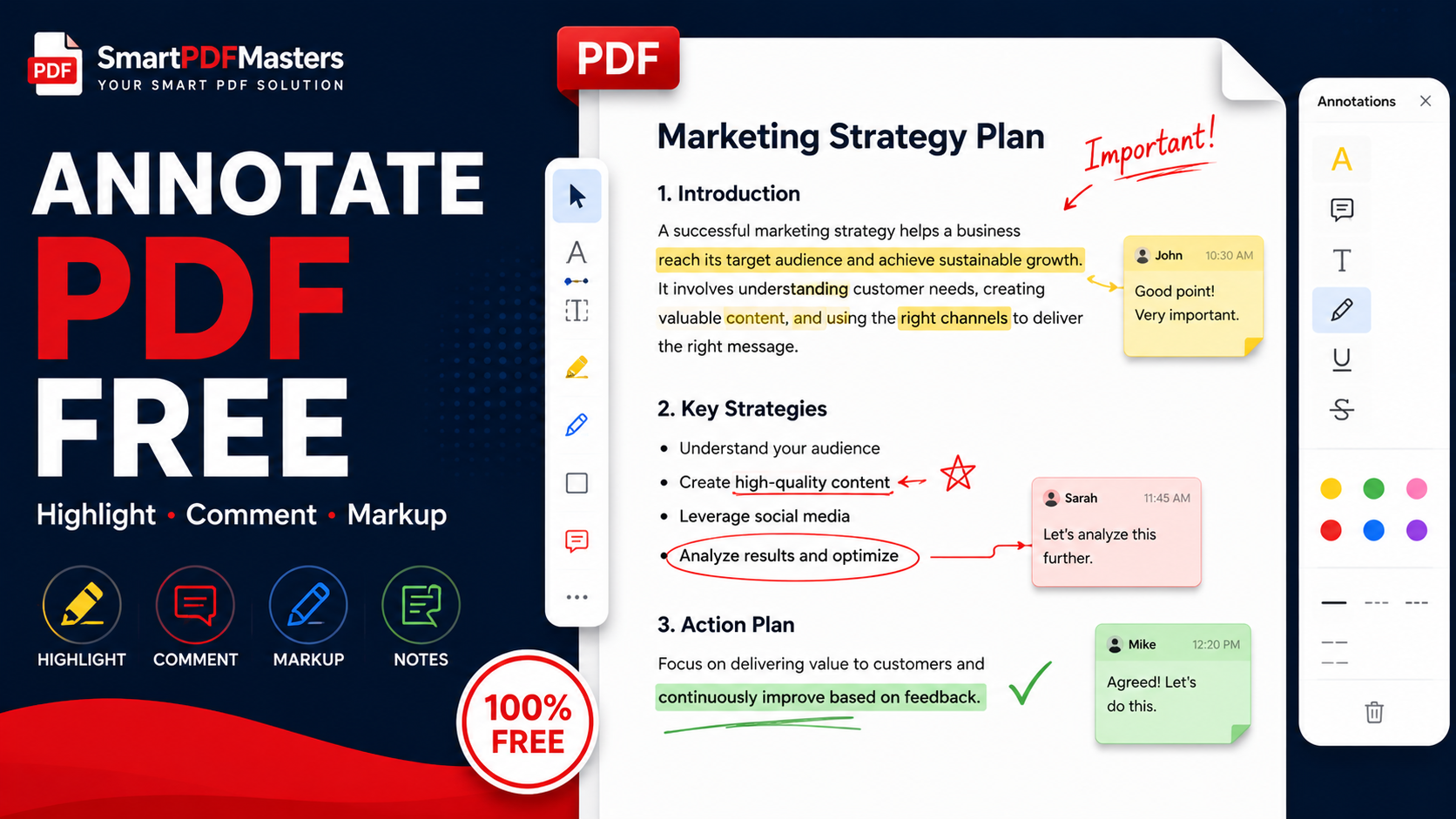
Learn how to annotate any PDF for free in 2026 — add highlights, comments, sticky notes, drawings and text boxes on Windows, Mac, iPhone, iPad and Android without Adobe.
🛠 Free tools mentioned in this article
Annotating PDFs is essential for students reviewing research papers, professionals marking up contracts, teachers providing feedback on assignments, and anyone who needs to record their thoughts, corrections, or questions directly on a document. In 2026, every major device includes built-in PDF annotation tools that are completely free — and third-party options add significant power without any cost.
This complete guide covers every free method to annotate a PDF in 2026 — highlighting text, adding comments and sticky notes, drawing shapes and freehand marks, adding text boxes, and underlining — on Windows, Mac, iPhone, iPad, and Android.
What PDF Annotation Actually Means
PDF annotation refers to any mark, note, or drawing added to a PDF document without changing the underlying content of the document itself. Annotations sit as a separate layer on top of the original PDF content — they can be removed or edited without affecting the text or images beneath them.
Common types of PDF annotations include text highlights in yellow, green, pink, or blue, comments and sticky notes that display as speech bubbles or note icons, underlines and strikethroughs applied to text, freehand drawings made with a stylus or finger, shapes like rectangles, circles, and arrows, text boxes containing typed notes, and stamps or watermarks.
Most PDF viewers save annotations directly into the PDF file so they are visible to anyone who opens the document, regardless of which application they use to view it.
Method 1 — Annotate PDF on iPhone and iPad (Built-in, No App Needed)
iPhone and iPad have the most capable built-in PDF annotation tools of any platform — the Markup system is available in the Files app, Mail app, and through the Share menu in almost any application.
Open your PDF in the Files app. Tap the pen tip icon in the top right corner of the screen to open Markup. The Markup toolbar appears at the bottom of the screen with tools for drawing, adding shapes, adding text, and highlighting.
To highlight text: tap the Highlighter tool from the toolbar. Tap and drag across the text you want to highlight. The text is highlighted in yellow by default — tap the colour dot to change to other highlight colours.
To add a comment: tap the plus button at the right end of the toolbar. Choose Text to add a typed text box, or choose Sticky Note to add a note that appears as a coloured square on the page.
To draw freehand: choose a pen tool from the toolbar. Draw directly on the PDF with your finger or Apple Pencil. Adjust the line weight and colour using the toolbar options.
To add shapes: tap the plus button and choose a shape — rectangle, circle, arrow, or speech bubble. Position and resize the shape on the page.
When finished, tap Done to save all annotations into the PDF. The annotated PDF is saved in place and maintains all your marks when opened on any other device or platform.
For Apple Pencil users on iPad, the Markup tools become significantly more powerful — you can write handwritten notes that are automatically converted to text, draw precisely, and annotate with the precision of a real pen.
After annotating, if the file is large, use our Compress PDF tool in Safari to reduce the file size before sharing.
Method 2 — Annotate PDF on Mac Using Preview (Built-in, Free)
Mac's Preview app includes a full set of annotation tools that are built into the operating system and require no additional downloads.
Open the PDF in Preview. Click the pen tip icon in the toolbar, or go to View then Show Markup Toolbar. The Markup Toolbar appears below the main toolbar with all annotation options.
To highlight text: click the Highlight Text tool (looks like a highlighter). Click and drag across text to highlight it. Right-click a highlight to change its colour or add a note to it.
To add a note: click the Note tool (speech bubble icon). Click anywhere on the page to add a sticky note. Type your comment in the note window that appears.
To underline or strikethrough: select text using the text selection tool. Right-click and choose from the annotation options — highlight, underline, or strikethrough.
To draw shapes: click the Shapes button in the Markup Toolbar. Choose from rectangle, oval, line, arrow, speech bubble, or other shapes. Click and drag on the page to draw the shape. Resize and reposition as needed.
To add a text box: click the Text tool (large T icon). Click anywhere on the page and type your annotation. Adjust font, size, and colour in the text formatting toolbar.
All annotations are saved automatically when you close Preview. To save an explicitly new version with annotations embedded for sharing, go to File then Export as PDF.
Method 3 — Annotate PDF on Windows Using Microsoft Edge (Built-in, Free)
Windows 10 and Windows 11 include annotation tools built into Microsoft Edge, which is the default PDF viewer.
Open your PDF in Microsoft Edge by right-clicking the file and choosing Open with then Microsoft Edge. The PDF toolbar appears at the top of the window with annotation tools.
To draw on the PDF: click the Draw tool (pencil icon) in the toolbar. Choose your colour and line width. Draw directly on the PDF with your mouse. This tool is best for circling items or adding freehand marks.
To add a text note: click the Add notes button (pencil with plus icon). Click anywhere on the page and type your annotation in the text box that appears.
To highlight text: select the text you want to highlight using the mouse, then click the Highlight button that appears in the mini toolbar, or use the Highlight tool from the main toolbar.
For more advanced annotation including sticky notes, strikethroughs, shapes, and stamps, Adobe Acrobat Reader (the free version) provides a more complete annotation toolkit.
Method 4 — Annotate PDF Using Adobe Acrobat Reader (Free Version, Windows and Mac)
Adobe Acrobat Reader is the free version of Adobe's PDF software and includes a comprehensive annotation toolkit with more options than any other free desktop tool.
Download Adobe Acrobat Reader (the free version) from Adobe's website. Open your PDF. Go to the Comment tool in the toolbar or use the Tools menu.
The Comment panel gives you access to: sticky notes that appear as note icons on the page, text highlights in multiple colours, underlines and strikethroughs, drawing tools for freehand marks, shapes and lines, stamps for pre-defined annotations like Approved, Reviewed, or Confidential, and text boxes for typed annotations.
All annotations are saved into the PDF file when you save. The free Acrobat Reader saves annotation files that open correctly in any other PDF viewer.
Method 5 — Annotate PDF on Android Using Adobe Acrobat Reader (Free)
Android does not include a built-in PDF annotation tool comparable to iOS Markup or macOS Preview. The best free option is Adobe Acrobat Reader for Android, available free from the Google Play Store.
Open your PDF in Acrobat Reader. Tap the pen icon to access annotation tools. Use the highlight tool to select and colour text, the note tool to add comments, and the draw tool to add freehand marks. Save the annotated PDF to your device.
Method 6 — Annotate PDF Online Free Using Browser-Based Tools
Several free browser-based PDF annotation tools let you annotate PDFs without installing any software on any device — useful when you are on a device that does not have good built-in annotation support, or when you need more annotation types than the built-in tools provide.
When choosing a browser-based annotation tool, look for one that processes files locally in your browser rather than uploading to a remote server, supports the annotation types you need, and does not add watermarks to the output PDF.
After annotating online, you may need to compress the resulting PDF if the annotation layer has increased the file size. Use our Compress PDF tool to reduce the size.
How to Share Annotated PDFs
After annotating a PDF, sharing it is straightforward. The annotations are embedded in the file and visible to anyone who opens it in any PDF viewer. You can email it, share it through messaging apps, upload it to cloud storage, or send it through any standard file sharing method.
If the annotated PDF is too large for email — annotations sometimes increase file size — use our Compress PDF tool to reduce it before sending.
If you need to combine your annotated PDF with other documents, use our Merge PDF tool.
If you need to extract the text content from an annotated PDF to edit it in Word, use our PDF to Word tool — it extracts the document text while preserving most annotations.
How to Remove Annotations from a PDF
If you want to share a clean version of an annotated PDF with all marks removed, open the PDF in Preview on Mac, select all annotations in the sidebar and delete them, then Export as PDF. In Adobe Acrobat Reader, go to Comment then select and delete individual annotations.
For a quick method that removes all annotations at once, print the PDF to a new file using Chrome's print-to-PDF function — the printed output captures only the visual content of each page, removing the annotation layer entirely.
Frequently Asked Questions
How do I annotate a PDF for free?
On iPhone, use the built-in Markup tool in the Files app. On Mac, use Preview's Markup Toolbar. On Windows, use Microsoft Edge's built-in tools or the free Adobe Acrobat Reader. On Android, use the free Adobe Acrobat Reader app.
How do I highlight text in a PDF for free?
On iPhone, open in Files app, tap Markup, and use the Highlighter tool. On Mac, open in Preview, enable the Markup Toolbar, and use the Highlight Text tool. On Windows, open in Edge and use the Highlight tool from the toolbar.
Can I add comments to a PDF without Adobe Acrobat Pro?
Yes. The free Adobe Acrobat Reader, Preview on Mac, and iOS Markup all support adding comments and sticky notes to PDFs at no cost.
How do I annotate a PDF on iPhone without an app?
Open the PDF in the Files app and tap the pen tip icon to open the built-in Markup tool. No additional app download is required.
Do PDF annotations stay when I share the file?
Yes. Annotations are embedded in the PDF file and are visible to anyone who opens the document in any PDF viewer, on any device.
How do I annotate a scanned PDF?
Scanned PDFs can be annotated the same way as any PDF — the annotation tools draw over the scanned images. If you also need the scanned text to be searchable and selectable, first make the PDF searchable using Google Drive OCR, then annotate the resulting searchable PDF.
Ready to work with your PDFs?
All six tools are completely free — no signup, no watermarks, no limits.