How to Add a Signature to a PDF Free — Complete Guide 2026
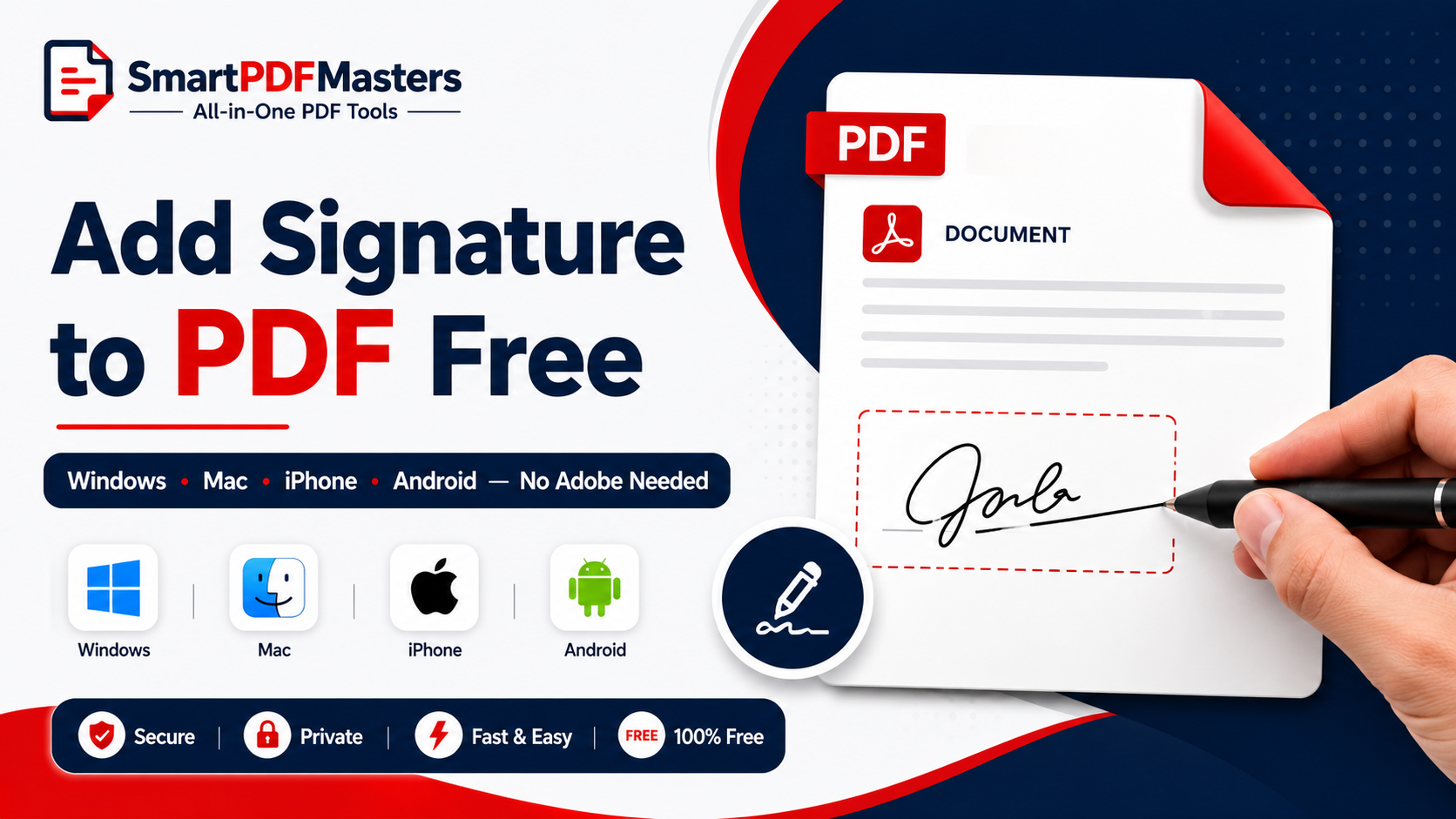
Learn how to add a signature to any PDF file for free in 2026 — draw, upload or type your signature on Windows, Mac, iPhone and Android without Adobe Acrobat.
🛠 Free tools mentioned in this article
Adding a signature to a PDF is something millions of people need to do every day — signing contracts, approving documents, completing application forms, countersigning agreements, and authorising work orders. Until recently, the standard workflow was to print the PDF, sign it with a pen, scan it, and send it back — a process that takes ten to twenty minutes and requires a printer and scanner. In 2026, you can add a signature to any PDF in under two minutes, completely free, on any device, without printing a single page.
This complete guide explains every free method to add a signature to a PDF in 2026 — on Windows, Mac, iPhone, iPad, and Android — including the difference between drawn signatures and digital signatures, and which type is appropriate for which situation.
The Difference Between a Drawn Signature and a Digital Signature
Before choosing a method, it is important to understand that the word "signature" means two different things in the context of PDFs, and they have very different legal standing.
Drawn Signatures (Image-Based Signatures)
A drawn signature is an image of your handwritten signature placed on a PDF page. You create it by drawing on a touchscreen or trackpad, uploading a photograph of your signature, or typing your name in a cursive font. The result looks like a handwritten signature but is technically just an image file placed on top of the PDF content.
Drawn signatures are accepted for most everyday business documents — internal approvals, delivery confirmations, contractor agreements between parties who know each other, consent forms, and personal documents. They are the type of signature produced by most free signing tools.
The limitation of drawn signatures is that they contain no cryptographic verification. Anyone can copy the signature image from one document and paste it onto another. There is no way to verify that the signature was placed by a specific person at a specific time, or that the document has not been changed after signing.
Cryptographic Digital Signatures
A cryptographic digital signature uses a private key and a certificate to create a mathematical proof of identity and document integrity. When you apply a cryptographic digital signature to a PDF, anyone who opens the file can verify exactly who signed it, when they signed it, and whether the document has been modified since signing.
Cryptographic digital signatures are required for certain legal and regulated documents — eIDAS-regulated documents in the EU, legally binding contracts in some jurisdictions, tax authority submissions in some countries, and documents where tamper evidence is specifically required.
Most free tools produce drawn signatures. Cryptographic digital signatures typically require a certificate issued by a Certificate Authority and are provided by paid services like DocuSign or Adobe Sign.
For the vast majority of everyday signing needs, a drawn signature is perfectly appropriate. The guide below covers free methods for drawn signatures, which is what most people need.
Method 1 — Sign a PDF on Mac Using Preview (Free, Built-in)
Mac users have the most convenient free signature tool built directly into their operating system — Preview's signature feature, which has been available since macOS Sierra.
Open the PDF in Preview. Go to View in the menu bar and choose Show Markup Toolbar, or click the pen tip icon in the Preview toolbar. In the Markup Toolbar, click the Signature button — it looks like a cursive signature. If you have not created a signature before, a dialog appears offering three methods to create one.
Trackpad method: Click Trackpad and draw your signature using your finger on the trackpad. Press any key when finished.
Camera method: Click Camera. Sign your name on a piece of white paper. Hold it up to your Mac's camera, facing the screen. Preview captures your signature from the paper.
iPhone or iPad method: If your iPhone or iPad is nearby, click iPhone or iPad. A drawing interface appears on your phone or tablet. Draw your signature with your finger or Apple Pencil, and it transfers to your Mac automatically.
After creating your signature, Preview saves it for future use. Select your signature from the Signature dropdown in the Markup Toolbar. Click on the PDF where you want to place the signature. Drag and resize the signature image to fit the signature line. Go to File then Export as PDF to save the signed document.
Preview's signature tool is completely free, saves your signature permanently for reuse, and produces clean signed PDFs with no watermarks.
Method 2 — Sign a PDF on iPhone and iPad (Free, Built-in)
iPhone and iPad have a built-in signature tool through the Markup system that works in the Files app, Mail app, and any app that supports document annotation.
Method 1 — Files app: Open the PDF in the Files app. Tap the pen tip icon to open Markup. Tap the plus button in the bottom right corner. Tap Signature. Draw your signature with your finger or Apple Pencil in the signature panel. Tap Done. Your signature appears as a moveable, resizable object. Drag it to the correct position on the document. Tap Done again to save the signed PDF.
Method 2 — Mail app: When you receive a PDF attached to an email and need to sign and return it, tap the PDF attachment to open it. Tap the Markup and Reply button (a pen icon with an arrow). This opens the PDF with Markup tools. Add your signature as described above. Tap Done. A new email is automatically created with the signed PDF attached, ready to send back.
Method 3 — Share Sheet: Open the PDF in any app, tap the Share button, and look for a Markup option in the share sheet. This opens Markup for the PDF from any compatible app.
iPhone and iPad Markup saves your signature for future use once you create it, so subsequent signings take only a few seconds.
Method 3 — Sign a PDF on Android (Free Methods)
Android does not include a built-in PDF signature tool equivalent to Mac's Preview or iPhone's Markup. The available free options are Google Drive, Adobe Acrobat Reader (free version), and browser-based signing tools.
Using Adobe Acrobat Reader (free): Download the free Adobe Acrobat Reader app from the Google Play Store. Open your PDF in the app. Tap the pencil icon to open editing tools. Look for the Fill & Sign option. Tap the Signature tool and draw your signature with your finger. Place the signature in the correct position on the document. Save the signed PDF.
Using Google Drive: Upload the PDF to Google Drive. Open it in Google Drive's built-in PDF viewer. Tap the edit icon. Look for a drawing or signature tool. Draw or add your signature. Save the changes.
Using a browser-based signing tool: Open Chrome for Android and navigate to a free online PDF signing tool. Upload your PDF, add your signature by drawing it on the touchscreen, position it correctly, and download the signed PDF. Choose a tool that explicitly states no watermarks and processes files privately.
Method 4 — Sign a PDF on Windows (Free Methods)
Windows does not include a built-in PDF signature tool, but several free options are available without purchasing software.
Using Adobe Acrobat Reader (free): Adobe Acrobat Reader, the free version of Adobe's PDF reader, includes a Fill & Sign tool that allows drawing signatures on PDFs. Download it from Adobe's website. Open your PDF in Reader. Go to Tools then Fill & Sign. Click the Sign icon (a pen nib). Choose Add Signature. Draw your signature in the panel. Click Apply. Click on the PDF where you want to place the signature. Save the signed document.
Using Microsoft Edge: Microsoft Edge can open PDFs and includes basic drawing tools. Open the PDF in Edge by dragging it into the browser or using File then Open. Click the Draw tool in the Edge PDF toolbar. Draw your signature directly onto the PDF at the signature line. The drawing is saved when you print to PDF or save the file.
Using a browser-based tool: Open Chrome or Edge and use a free online PDF signing tool. Most browser-based PDF signers allow you to draw a signature with your mouse, upload an image of your signature, or type your name in a signature font. Choose a tool that processes files in your browser for maximum privacy.
How to Create a Clean Digital Signature Image for Uploading
Many PDF signing tools allow you to upload an image of your signature rather than drawing it on screen. This is often more convenient and produces a more natural-looking result than mouse-drawn signatures.
To create a clean signature image for uploading:
Sign your name on white paper using a black or dark blue pen. Photograph the signature with your phone in good lighting, making sure the paper is flat and evenly lit with no shadows. Crop the image to just the signature area using any photo editor or your phone's built-in cropping tool. The result is a signature image you can upload to any PDF signing tool.
For a transparent background version — so your signature appears naturally on the document without a white rectangle — use an app that supports background removal. Many free photo editing apps on iPhone and Android can remove white backgrounds from images, producing a PNG with a transparent background.
Positioning Your Signature Correctly on a PDF
After adding your signature to a PDF, position it precisely over the designated signature line. Most PDF signing tools allow you to drag the signature image to any position on the page and resize it by dragging the corner handles.
Standard practice is to place the signature so the baseline of the signature rests on the signature line rather than floating above it. If the signature block includes a printed name below the signature line, make sure your signature does not overlap with it.
After positioning, zoom in to verify the signature looks correct at high magnification before saving and sending the document.
After Signing — Compressing and Sharing
A PDF with a high-resolution signature image embedded can be slightly larger than the original unsigned file. If you need to send the signed PDF by email or upload it to a portal with a file size limit, compress it first using our Compress PDF tool.
If you need to combine your signed PDF with other documents — for example, attaching a signed cover letter to a signed application form — use our Merge PDF tool to join them into one complete submission.
Legal Considerations for PDF Signatures
The legal standing of a PDF signature depends on the jurisdiction, the type of document, and the level of verification associated with the signature.
In the European Union, the eIDAS regulation establishes three levels of electronic signature: Simple Electronic Signatures (any electronic mark indicating agreement), Advanced Electronic Signatures (uniquely linked to the signer with some identity verification), and Qualified Electronic Signatures (highest level, requiring a qualified certificate from a trusted authority).
Drawn image signatures generally qualify as Simple Electronic Signatures under eIDAS and are legally binding for most everyday commercial agreements in EU member states.
In the United States, the ESIGN Act and UETA give electronic signatures the same legal weight as handwritten signatures for most commercial and personal documents. A drawn image signature is generally sufficient for most business contracts.
For high-value transactions, regulated financial or legal documents, government submissions, or any document where the identity of the signatory may be disputed, consult a legal professional about whether a higher-assurance signature method is required.
Frequently Asked Questions
How do I add a signature to a PDF for free?
On Mac, use Preview's built-in Signature tool in the Markup Toolbar. On iPhone, use the Markup tool in the Files app or Mail app. On Windows, use Adobe Acrobat Reader's free Fill & Sign tool. On Android, use the free Adobe Acrobat Reader app or a browser-based signing tool.
How do I sign a PDF without Adobe Acrobat?
On Mac, use Preview. On iPhone and iPad, use the built-in Markup tool. On Windows, use Microsoft Edge's draw tool or a browser-based PDF signer. All of these are completely free.
Can I add a signature to a PDF on my phone for free?
Yes. On iPhone, the built-in Markup tool handles PDF signing without any app download. On Android, the free Adobe Acrobat Reader app or a browser-based tool in Chrome works without any subscription.
How do I create a digital signature for a PDF?
For a drawn image signature, use Preview on Mac, Markup on iPhone, or the free Adobe Acrobat Reader. For a cryptographic digital signature (with verified identity and tamper evidence), you need a certificate from a Certificate Authority — this typically requires a paid service.
Is a drawn PDF signature legally valid?
For most everyday commercial documents, yes. In the EU, drawn signatures qualify as Simple Electronic Signatures under eIDAS. In the US, they are generally accepted under ESIGN and UETA. For specific regulated documents or high-value transactions, consult a legal professional.
How do I sign a PDF and send it back by email on iPhone?
Open the PDF attachment in Mail, tap the Markup and Reply button (pen with arrow icon), add your signature using the Markup Signature tool, tap Done, and a new reply email is automatically created with the signed PDF attached.
Ready to work with your PDFs?
All six tools are completely free — no signup, no watermarks, no limits.