Free PDF Tools vs Adobe Acrobat — Which Is Better in 2026?
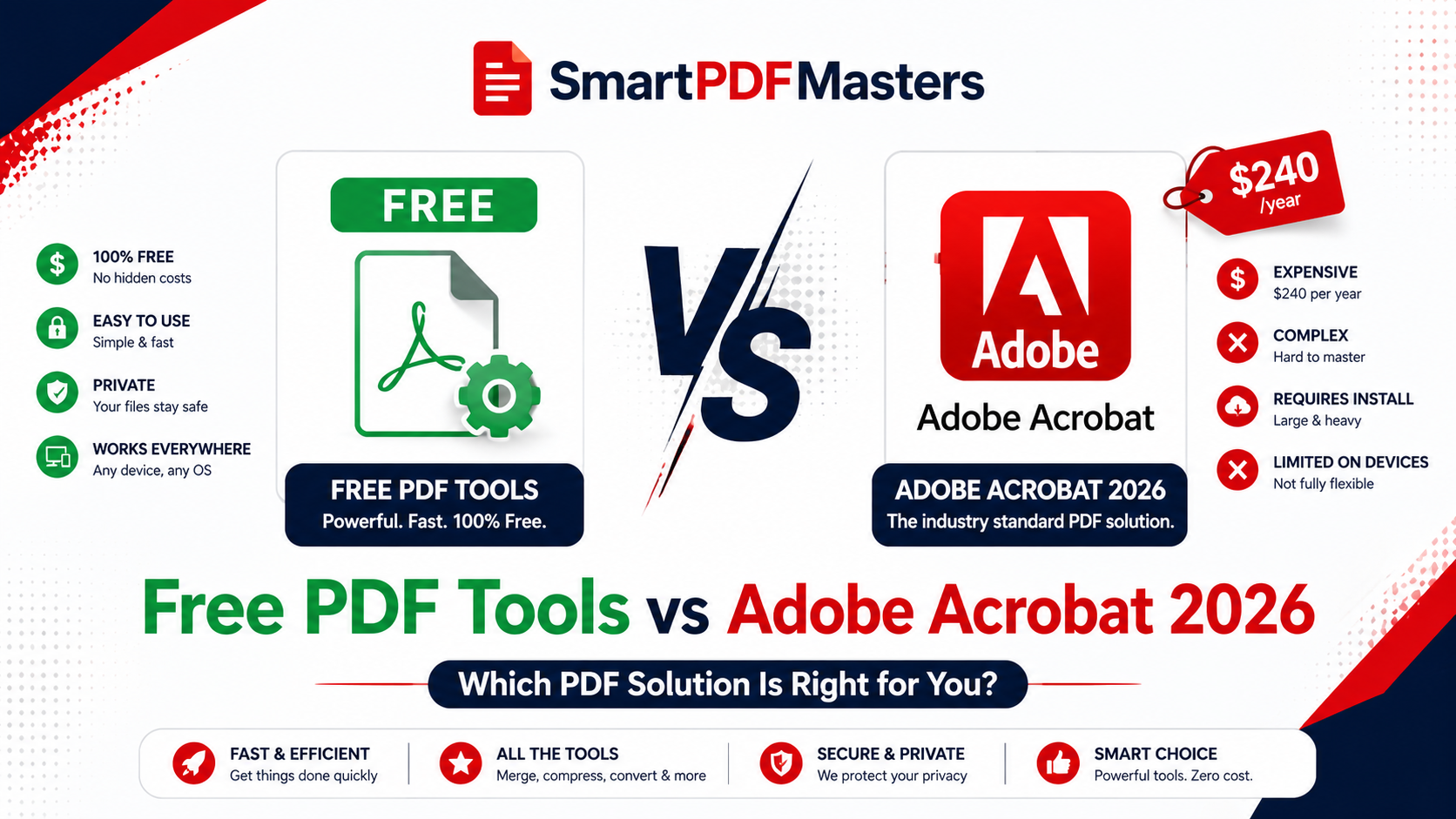
Is Adobe Acrobat worth $239.88 per year in 2026? We compared Adobe Acrobat Pro against the best free PDF tools — honest results that could save you $240 a year.
🛠 Free tools mentioned in this article
Adobe Acrobat Pro costs $239.88 per year in 2026 — or $19.99 per month if you pay monthly. For millions of users who need PDF tools for occasional tasks, that price is difficult to justify. But is the paid subscription actually worth it? And what are you giving up if you switch to free tools?
We spent three months using both Adobe Acrobat Pro and the best free PDF tools available in 2026 to answer this question honestly. Here is what we found.
The Honest Case for Adobe Acrobat Pro
Adobe Acrobat Pro is genuinely the most capable PDF application available in 2026. It has earned its reputation over three decades of development, and for users who need its full feature set, the price is defensible.
Acrobat Pro includes features that no free tool matches: full PDF editing including reformatting text and reflow of page content, advanced form creation with complex logic and calculated fields, redline and compare documents to see exactly what changed between versions, Bates numbering for legal document sets, advanced digital signature workflows that comply with eIDAS (the European digital signature standard), PDF accessibility tools for creating WCAG-compliant documents, integration with Adobe Document Cloud for team collaboration, and AI Assistant for summarising and chatting with documents.
If you use these advanced features regularly, Acrobat Pro justifies its price.
The Honest Case for Free PDF Tools
For the vast majority of people who search for PDF tools, the actual tasks they need to complete are: merging multiple PDFs into one file, compressing a PDF that is too large to email, converting a PDF to Word for editing, converting images to PDF, and occasionally filling out a form or adding a simple signature.
None of these tasks require a $240 annual subscription. Every one of them can be done completely free using browser-based tools — without installing any software, creating an account, or adding watermarks to your documents.
SmartPDFMasters covers the four most common PDF tasks — Merge PDF, Compress PDF, PDF to Word and PNG to PDF — for free, with no daily limits, no watermarks, and no signup required.
Head-to-Head Comparison: 8 Common PDF Tasks
Task 1 — Merging Multiple PDFs into One File
Adobe Acrobat Pro: Excellent. Drag and drop multiple files, reorder pages, set bookmarks automatically. Works with PDFs, Word documents, images, and more in a single merge operation.
Free tools: Excellent for basic merging. Our Merge PDF tool handles multiple PDF files, lets you reorder them before merging, and produces a clean combined document with no quality loss. The limitation is that you can only merge PDF files — not mixed formats like PDFs and Word documents in the same operation.
Verdict: Free tools handle 95 percent of real-world merging needs. Adobe wins only if you regularly merge mixed file types.
Task 2 — Compressing a PDF to Reduce File Size
Adobe Acrobat Pro: Very good. Offers multiple compression presets and the ability to optimise specific elements of the PDF individually.
Free tools: Excellent. Our Compress PDF tool offers three compression levels that cover every practical use case. The results are comparable to Acrobat's standard compression presets for typical documents.
Verdict: Free tools match or exceed Adobe for this task. No reason to pay.
Task 3 — Converting PDF to Word (DOCX)
Adobe Acrobat Pro: The best PDF to Word converter available. Handles complex multi-column layouts, preserves tables with high accuracy, and uses Adobe's own OCR technology for scanned documents.
Free tools: Very good for most documents. Our PDF to Word tool preserves fonts, tables, images, and basic layout accurately for the large majority of PDFs. Complex multi-column layouts and highly designed documents occasionally require manual adjustment after conversion.
Verdict: Adobe wins for complex, heavily designed documents. Free tools are sufficient for the typical Word documents, reports, and contracts that most people work with.
Task 4 — Converting Images to PDF
Adobe Acrobat Pro: Good. Supports many image formats and combines multiple images into one PDF easily.
Free tools: Excellent. Our PNG to PDF tool converts JPG, PNG, and other image formats to PDF instantly. For this specific task, there is no meaningful advantage to using Acrobat.
Verdict: Free tools are just as good. No reason to pay.
Task 5 — Filling Out PDF Forms
Adobe Acrobat Pro: Excellent. Detects form fields automatically, handles all interactive field types, and allows saving partially completed forms.
Free tools: Good for standard fillable forms. The free version of Adobe Acrobat Reader (not Pro) also handles fillable forms — note that Reader is free. Browser-based form fillers handle most everyday forms effectively.
Verdict: For most standard forms, free tools including the free Acrobat Reader are sufficient. Adobe Pro is needed only for creating forms or saving partially completed non-fillable forms.
Task 6 — Adding a Signature
Adobe Acrobat Pro: Excellent. Supports both drawn image signatures and cryptographic digital signatures that comply with legal standards in the EU (eIDAS), UK, US, and Australia.
Free tools: Good for image-based signatures. Drawn signatures can be added to PDFs in Preview on Mac, in the Files app on iPhone, and through various browser-based tools. However, browser-based tools generally do not support legally binding cryptographic signatures.
Verdict: For casual signing — delivery confirmations, consent forms, internal approvals — free tools are fine. For legally binding digital signatures in regulated industries or EU eIDAS compliance, Adobe is necessary.
Task 7 — Editing Text Directly in a PDF
Adobe Acrobat Pro: Excellent. Click on any text in the PDF and edit it directly. Reflow text across paragraphs automatically. Change fonts and formatting.
Free tools: Limited. Most free PDF editors allow adding text boxes on top of existing content but do not allow editing the original text. For editing existing PDF content, the best free approach is to convert to Word using our PDF to Word tool, make edits in Word, and export back to PDF.
Verdict: Adobe wins clearly for direct PDF text editing. If you regularly need to edit text within existing PDFs, this alone may justify the subscription.
Task 8 — OCR (Making Scanned PDFs Searchable)
Adobe Acrobat Pro: Excellent. Industry-leading OCR accuracy, supports over 40 languages, and preserves document structure.
Free tools: Good for basic OCR. Our PDF to Word tool includes OCR for converting scanned PDFs to editable Word documents. The accuracy is sufficient for standard typed documents in English and major European languages.
Verdict: Adobe wins for complex OCR needs, multilingual documents, and handwritten text. Free tools handle standard typed documents effectively.
Who Should Pay for Adobe Acrobat Pro?
Based on our testing, Adobe Acrobat Pro is worth $239.88 per year if you regularly need at least two or three of the following: direct text editing within existing PDFs, legally binding cryptographic digital signatures for regulated industries, advanced form creation with complex logic, Bates numbering for legal documents, document comparison (redline), PDF accessibility compliance tools, or team collaboration through Adobe Document Cloud.
If you do not regularly need these specific features, you are paying $240 per year for features you do not use.
Who Should Use Free PDF Tools?
Free tools are the right choice for individuals, students, small businesses, and professionals who primarily need to merge PDFs, compress PDFs for emailing, convert PDFs to Word for editing, convert images to PDF, fill out standard forms, and add simple image-based signatures.
This describes the vast majority of PDF users. For these tasks, SmartPDFMasters provides everything you need at no cost, with no daily limits, no watermarks, and complete privacy — files are processed in your browser and never leave your device.
The Real Cost Comparison
Adobe Acrobat Pro: $239.88 per year or $19.99 per month.
SmartPDFMasters: Free. No subscription. No daily limits. No watermarks.
Over five years, switching from Adobe Acrobat Pro to free tools for everyday PDF tasks saves $1,199.40.
A Practical Recommendation for 2026
If you are currently paying for Adobe Acrobat Pro, audit your actual usage for one month. Note every task you use it for. Then ask whether free tools could handle that task at acceptable quality.
For most users, the honest answer is yes — free tools handle 80 to 90 percent of their actual PDF tasks with no meaningful quality difference. The remaining 10 to 20 percent of tasks that genuinely require Acrobat's advanced features can often be handled with the free Acrobat Reader (for forms) or through occasional use of a free trial.
Start with SmartPDFMasters for your everyday PDF tasks. Use Merge PDF to combine documents, Compress PDF to reduce file sizes, PDF to Word to convert for editing, and PNG to PDF to convert images. Only return to a paid subscription if you find yourself regularly blocked by a specific limitation that free tools genuinely cannot handle.
Frequently Asked Questions
Is Adobe Acrobat free?
Adobe Acrobat Reader — the PDF viewer — is free. Adobe Acrobat Pro — the full-featured editor — costs $239.88 per year or $19.99 per month in 2026. Many features people associate with Acrobat are actually available in free tools.
What is the best free alternative to Adobe Acrobat in 2026?
SmartPDFMasters covers the four most common PDF tasks for free with no signup and no watermarks. For more advanced editing, LibreOffice Draw is a free desktop alternative. For annotation and reading, Xodo and PDF24 are strong free options.
Can I merge PDFs without Adobe Acrobat?
Yes. Our Merge PDF tool combines multiple PDFs in seconds, completely free. On Mac, Preview handles this natively. On iPhone, the Files app includes PDF merging.
Can I compress PDFs without Adobe Acrobat?
Yes. Our Compress PDF tool reduces PDF file size at three compression levels, completely free. On Mac, Preview's Quartz filter provides basic compression.
Can I convert PDF to Word without Adobe Acrobat?
Yes. Our PDF to Word tool converts PDFs to editable DOCX files in seconds, free. Microsoft Word can also open PDFs directly.
Is it safe to use free online PDF tools?
Yes, if the tool processes files locally in your browser and deletes server copies within one hour. SmartPDFMasters processes all files in your browser — your document content never leaves your device.
Ready to work with your PDFs?
All six tools are completely free — no signup, no watermarks, no limits.