Best PDF Tools for Students — Free Complete Guide 2026
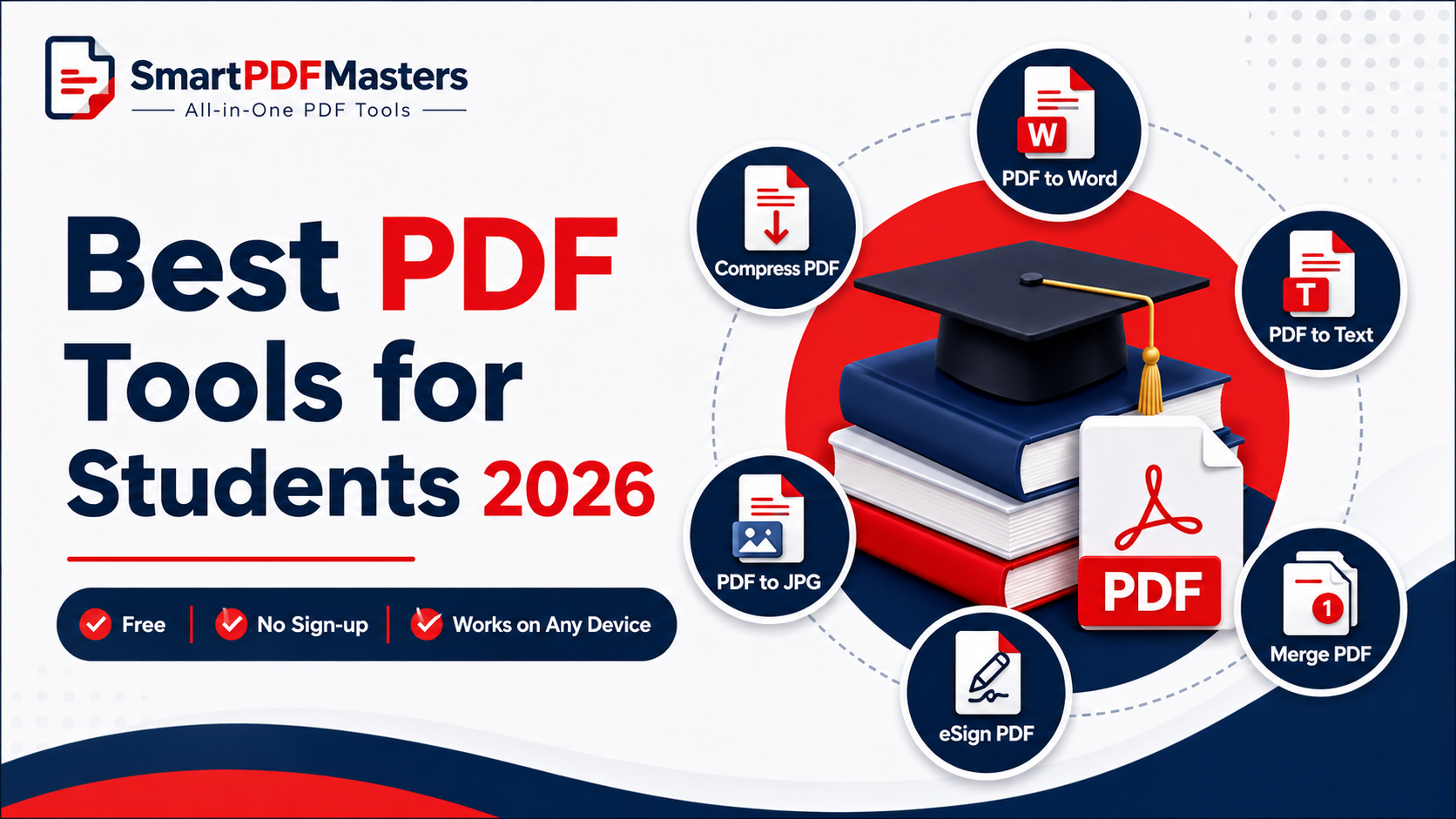
The best free PDF tools for students in 2026 — merge lecture notes, compress assignments under 1MB, convert PDFs to Word for editing, and split large study materials. No sign-up needed.
🛠 Free tools mentioned in this article
Students interact with PDF files constantly — downloading lecture slides, submitting assignments, combining multiple readings into one document, converting PDFs to Word for editing, compressing files to meet portal upload limits, and scanning handwritten notes to share with classmates. The right free PDF tools make all of these tasks take seconds instead of minutes, without spending money on software that costs more than most textbooks.
This guide covers the best free PDF tools for students in 2026, what each one is actually useful for in a real student workflow, and how to use them on any device — laptop, phone, or tablet.
Why Students Need PDF Tools More Than Anyone
PDF is the default format for academic life. Lecture slides are shared as PDFs. Journal articles are PDFs. Assignment submission portals accept PDFs. Reading lists are PDFs. Course outlines are PDFs. Textbook chapters are PDFs.
The problem is that PDFs are designed to be read, not managed. Without the right tools, combining four separate lecture PDFs into one revision document takes twenty minutes of frustrating workarounds. Compressing an assignment that is 3MB over the portal limit seems impossible. Converting a scanned PDF to editable text requires expensive software.
The good news is that every task a student regularly needs to do with PDFs can be done for free, in a browser, without installing anything.
Tool 1 — Merge PDF: Combine Lecture Notes and Readings
The single most used PDF task for students is combining separate files into one organised document. Merging lecture slides from weeks one through twelve into a single revision PDF. Combining multiple journal article PDFs into one reading list file. Joining a cover sheet with an assignment. Attaching a signed consent form to a completed questionnaire.
Our Merge PDF tool combines any number of PDF files in the order you choose. Upload your files, drag to reorder them if needed, click Merge, and download the combined PDF in seconds.
Student use cases:
Revision documents — combine weekly lecture slides into one PDF sorted by topic for exam revision. Reading lists — merge individual journal article PDFs into one organised research file. Assignment packages — combine your main submission document with appendices, reference pages, and supplementary materials. Group project files — merge contributions from multiple group members into one final submission.
Tool 2 — Compress PDF: Meet University Portal Upload Limits
University submission portals are notorious for strict file size limits — often 1MB, 2MB, or 5MB per file. A 10-page assignment with a few embedded images can easily reach 5MB, making it impossible to upload without compression.
Our Compress PDF tool reduces PDF file size significantly while keeping text perfectly sharp. At the recommended compression level, most student assignment PDFs reduce to under 1MB. At maximum compression, even image-heavy files are reduced as much as technically possible.
Student use cases:
Assignment submission — compress your final assignment PDF to meet the portal's file size limit. Thesis chapters — compress individual thesis chapters before combining or submitting. Scanned handwritten work — scanned pages are often very large; compression dramatically reduces their size. Emailing work to supervisors — large PDFs bounce from some email servers; compression ensures delivery.
Pro tip: After compressing, check the file looks correct on your phone before submitting. If the text is still sharp and readable on a small screen, the quality is sufficient for any academic submission.
Tool 3 — PDF to Word: Edit Locked PDF Documents
Many students receive PDFs they need to edit — feedback forms, templates, previous exam papers, research questionnaires, or essays from group members. Converting a PDF to an editable Word document lets you add text, restructure content, update references, and make any changes you need.
Our PDF to Word tool converts any PDF to an editable DOCX file that opens in Microsoft Word, Google Docs, or LibreOffice. Fonts, tables, and basic layout are preserved through the conversion.
Student use cases:
Editing templates — convert PDF assignment templates to Word so you can type directly into them. Updating references — convert a PDF draft to Word to update citations and bibliography formatting. Extracting content — convert a PDF reading into Word to extract quotes and paraphrase sections for essays. Accessibility — convert PDFs to Word for screen reader compatibility if the original PDF lacks proper accessibility tags.
Note that PDF to Word conversion works best for digitally created PDFs. For scanned PDFs — photographs of handwritten or printed pages — the conversion uses OCR to recognise the text, which works well for clear, typed documents but may require manual correction for handwritten content or unusual fonts.
Tool 4 — Rotate PDF: Fix Scanned Notes and Documents
Scanning documents with a phone or flatbed scanner often produces PDF pages that are rotated sideways or upside down — particularly when scanning in a hurry or when document pages were placed in the scanner at an angle.
Our Rotate PDF tool permanently fixes the orientation of PDF pages. Upload your PDF, choose the rotation angle (90°, 180°, or 270°), and download the corrected file. The rotation is saved permanently into the file so anyone who opens it sees the correct orientation.
Student use cases:
Scanned assignments — fix the orientation of scanned handwritten work before submitting. Photographed notes — correct the rotation of phone-photographed lecture notes converted to PDF. Library scans — fix rotation issues in PDFs scanned from library photocopiers. Shared documents — correct rotated pages in PDFs received from classmates or supervisors.
Tool 5 — Split PDF: Extract Specific Sections from Large Documents
Textbooks, research papers, and comprehensive reading lists in PDF format are often very large files. When you only need one chapter, one case study, or specific pages for a particular assignment, splitting the PDF extracts exactly what you need.
Our Split PDF tool divides a PDF into separate files based on page ranges you specify. Enter the pages you want (for example, 45-62 for chapter three of a textbook) and download just those pages as a separate, smaller PDF.
Student use cases:
Textbook chapters — extract individual chapters from large textbook PDFs for specific modules. Research papers — extract the methodology section or results section from academic papers. Lecture slides — extract slides relevant to a specific exam topic from a full semester PDF. Sharing — extract specific pages to share with a classmate without sending an entire large file.
Tool 6 — PNG to PDF: Convert Phone Photos to PDF
Photographing handwritten notes, completed worksheets, and physical documents with your phone is a quick alternative to scanning. Converting these photographs to PDF creates a proper document that can be submitted through academic portals, shared with supervisors, or archived with other PDF course materials.
Our PNG to PDF tool converts JPG and PNG photos to a single PDF in seconds. Upload multiple photos and they are combined into one PDF in the order you arrange them — perfect for multi-page handwritten assignments photographed page by page.
Student use cases:
Handwritten work — convert phone photos of handwritten assignments or lab reports to PDF for submission. Completed paper forms — convert signed consent forms or physical questionnaires to PDF. Physical textbook pages — convert photographed textbook pages to PDF for personal study notes. Whiteboard notes — convert phone photos of whiteboard diagrams to PDF for reference.
The Student PDF Workflow for Common Scenarios
Submitting a Written Assignment
Write your assignment in Word or Google Docs. Export or download as PDF. If the file is over the portal's size limit, use Compress PDF. If you need to attach additional pages (a cover sheet, an ethics form, a signed declaration), use Merge PDF to combine them into one file. Check the final file size and upload.
Creating a Revision Document from Lecture Slides
Download all lecture slide PDFs for the module. Use Merge PDF to combine them into one file in chronological order. If the combined file is very large, use Compress PDF to reduce it before saving to your device. You now have one organised PDF for the entire module.
Submitting Scanned Handwritten Work
Photograph each page of your handwritten work with your phone. Use PNG to PDF to convert all photos to a single PDF in page order. Use Rotate PDF if any pages came out sideways. Use Compress PDF if the file is over the portal's size limit. Submit.
Editing a PDF Template or Previous Assignment
Use PDF to Word to convert the PDF to an editable DOCX. Open in Word or Google Docs and make your changes. Export back to PDF. Compress if needed before submitting.
Extracting a Chapter from a Textbook PDF
Use Split PDF and enter the page numbers for the chapter you need. Download the extracted chapter as a separate PDF. This smaller file is easier to annotate, share with classmates, or print.
Why SmartPDFMasters Is the Best Free PDF Tool for Students
All six tools work in your browser — no installation, no app download, no account required. Every tool is completely free with no daily limits, no watermarks, and no hidden charges. Your files are processed locally in your browser wherever possible, which means your assignments and personal documents never leave your device. Everything works on phone, tablet, and laptop equally well.
For students on tight budgets who cannot justify $240 per year for Adobe Acrobat Pro, SmartPDFMasters provides every PDF tool a student actually needs for free.
Frequently Asked Questions
What is the best free PDF tool for students?
SmartPDFMasters provides the six tools students use most — merge, compress, rotate, split, PDF to Word, and PNG to PDF — all free, with no sign-up required and no daily limits.
How do I compress a PDF for university submission?
Use our Compress PDF tool. Upload your PDF, choose maximum compression, and download the smaller file. Most student assignment PDFs compress to well under 1MB in under 30 seconds.
How do I merge lecture notes into one PDF?
Use our Merge PDF tool. Upload your lecture slide PDFs in the order you want, click Merge, and download the combined document.
How do I convert a PDF to Word for editing?
Use our PDF to Word tool. Upload your PDF and download the editable DOCX file in seconds. Open it in Microsoft Word or Google Docs to make your changes.
How do I submit handwritten work as a PDF?
Photograph each page with your phone, upload the photos to our PNG to PDF tool, arrange them in page order, and download the PDF ready for submission.
Do these PDF tools work on a phone?
Yes. All six tools work in Safari on iPhone and Chrome on Android without downloading any app.
Are student PDF tools free to use?
Yes. SmartPDFMasters is completely free for all six tools with no daily limits, no watermarks, and no credit card required.
Ready to work with your PDFs?
All six tools are completely free — no signup, no watermarks, no limits.