Secure PDF Management: A Practical Guide
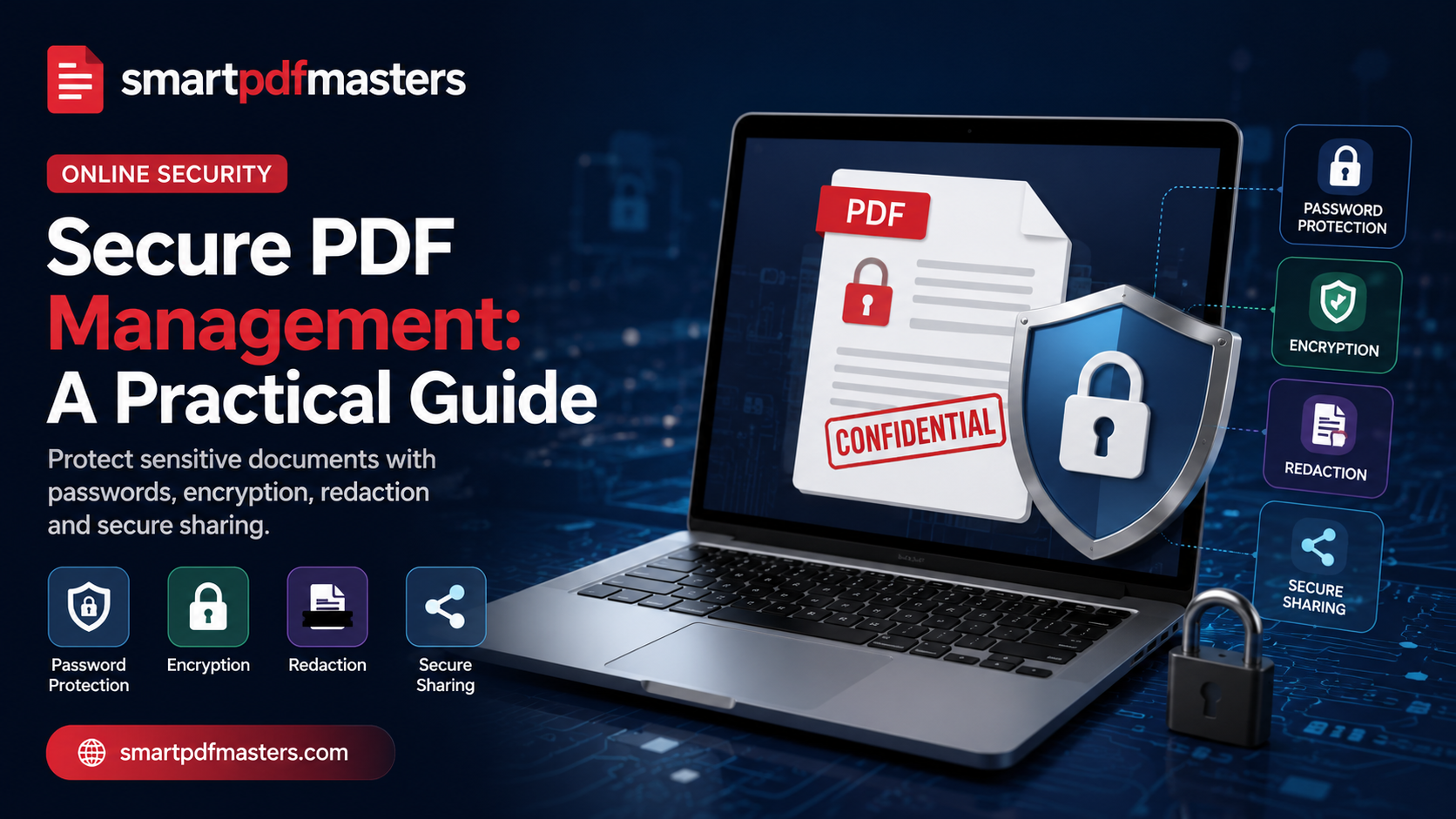
Protect sensitive documents with passwords, encryption, redaction and digital signatures.
🛠 Free tools mentioned in this article
PDFs routinely carry the most sensitive information people and businesses handle — contracts, identification documents, medical records, financial statements. A single security mistake can lead to identity theft, regulatory fines, or serious legal liability. Most PDF security risks are entirely preventable with a handful of straightforward practices.
1. Always Encrypt Sensitive Files Before Sharing
PDF encryption scrambles the file contents so that only someone with the correct password can open it. Always use AES-256 encryption — the current industry standard. Avoid the legacy 40-bit RC4 cipher that appears in older tools, which has been breakable for over a decade.
Never send the password in the same email as the encrypted file. Use a separate channel — a phone call, Signal message, or password manager share link.
2. Redact Properly — Drawing a Black Box Is Not Enough
This is the most common and dangerous PDF security mistake. Drawing a black rectangle over sensitive text covers it visually, but the underlying characters remain in the file. Anyone can copy and paste the covered text into another application and read it instantly.
Real redaction removes both the visible content and the underlying data permanently. After redacting, open the result in a plain text viewer and search for what you removed to confirm it is genuinely gone.
3. Use Cryptographic Digital Signatures, Not Signature Images
An image of a signature proves nothing — anyone can copy it and paste it onto any document. A cryptographic signature based on the PAdES standard creates a mathematical proof that you signed the document and that it has not been modified since.
4. Strip Metadata Before Sharing
PDF files store metadata most people never think about — author name, software version, edit history, GPS coordinates, original filename. Strip metadata before sending sensitive documents externally.
5. Disable JavaScript and Treat Attachments with Caution
PDF supports embedded JavaScript and file attachments — both common malware delivery vectors. Disable JavaScript execution in your PDF reader settings by default.
6. Use Expiring Links When Sharing PDFs Online
A link that expires after 48 hours is far safer than a permanent public URL that could be indexed by search engines or shared indefinitely.
7. Choose a Privacy-First PDF Service
SmartPDFMasters processes documents in your browser for all core tasks. Use Compress PDF before sharing, PNG to PDF for ID scans, and PDF to Word and Merge PDF — all processed in-browser.
Frequently Asked Questions
How do I add a password to a PDF for free?
On Mac, open in Preview, go to File then Export as PDF, check Encrypt, and enter a password. On Windows, re-export from Word or use a browser-based tool that specifies AES-256 encryption.
Is drawing a black box over text enough to redact a PDF?
No. Drawing a box only covers text visually — the underlying characters remain in the file and can be copied.
What is the difference between a digital signature and a signature image?
A digital signature (PAdES standard) is a cryptographic proof verified by PDF readers with a green checkmark. A signature image is just a picture with no verification capability.
Ready to work with your PDFs?
All six tools are completely free — no signup, no watermarks, no limits.