PDF Security Guide: How to Protect, Encrypt and Watermark PDF Files Free
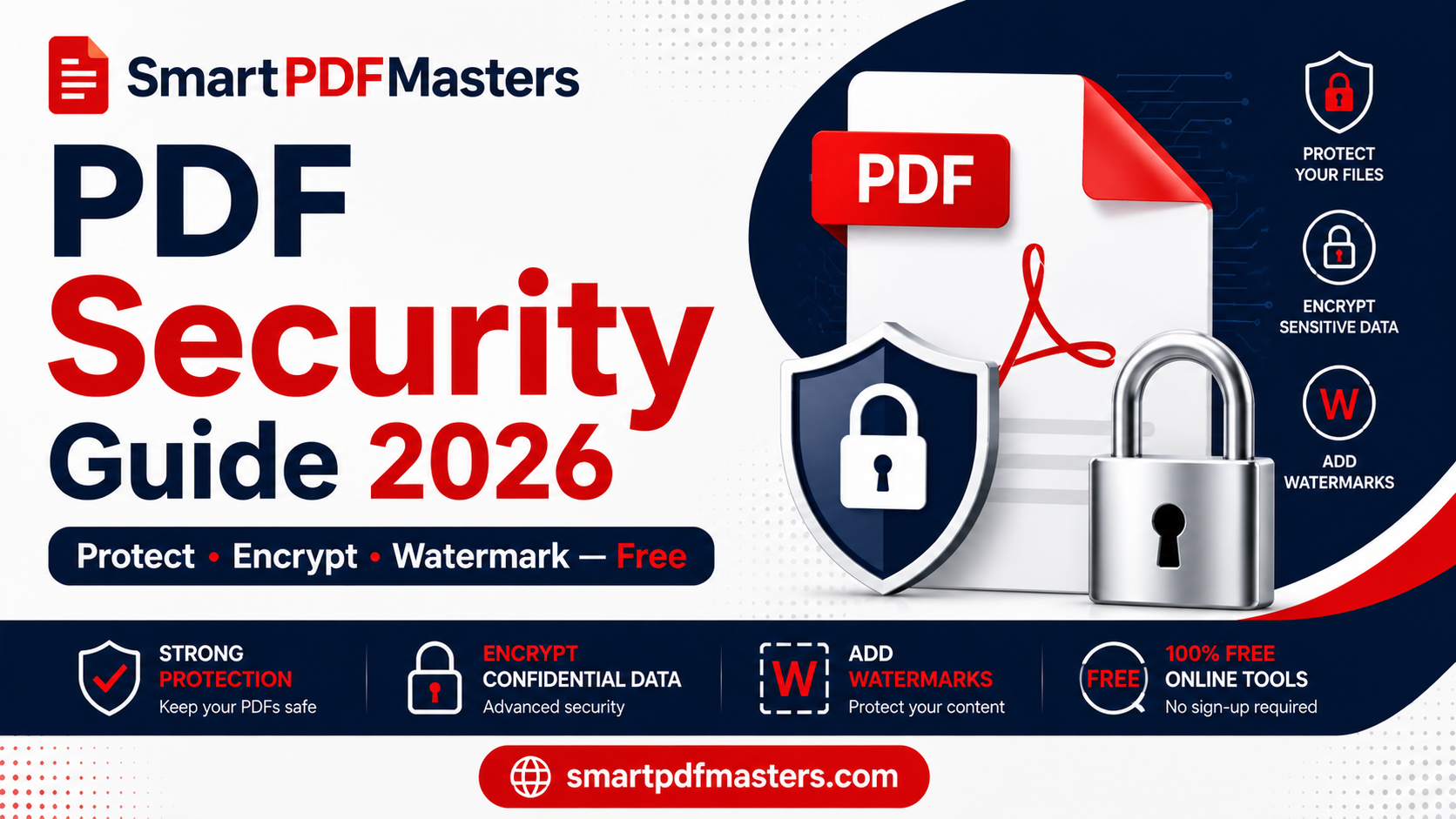
Complete PDF security guide for 2026 — learn how to password protect, encrypt, watermark, redact, and share PDF files securely using free tools on any device.
🛠 Free tools mentioned in this article
PDF files carry some of the most sensitive information that individuals and organisations handle — contracts worth millions of pounds, employee salary data, medical diagnoses, legal advice, financial statements, identification documents, and intellectual property. A single PDF security failure can expose confidential information, breach regulatory requirements, or result in significant financial and reputational damage.
This comprehensive PDF security guide covers every layer of PDF protection available in 2026 — from basic password protection to AES-256 encryption, digital certificates, watermarking, proper redaction, secure sharing practices, and regulatory compliance. All methods described include free options.
Understanding PDF Security: What You Are Protecting Against
Effective PDF security starts with understanding what you are trying to prevent. PDF threats fall into four main categories.
Unauthorised access means someone opens and reads a document who should not have access to it. This can happen through email interception, accidental forwarding, data breaches at cloud storage providers, or physical access to an unlocked device. Password protection and encryption defend against unauthorised access.
Unauthorised modification means someone changes the content of a document after it has been shared — altering contract terms, changing financial figures, or modifying the text of a signed agreement. Digital signatures and permissions restrictions defend against unauthorised modification.
Unintentional disclosure means sensitive information leaks because it was not properly removed before sharing. This includes visible text that should have been deleted, hidden text behind black boxes that was not properly redacted, and metadata that reveals author names, edit history, and tracking information. Proper redaction and metadata stripping defend against unintentional disclosure.
Intellectual property theft means someone copies, republishes, or misuses content from your PDF without permission. Permissions restrictions that disable copying and printing, along with watermarks that identify the source, defend against intellectual property theft.
Layer 1 — Password Protection and AES-256 Encryption
The most fundamental PDF security measure is password protecting the document so that it cannot be opened without a password. Modern PDF encryption uses AES-256 (Advanced Encryption Standard with a 256-bit key), which is the same cryptographic standard used by governments and financial institutions to protect classified information. A PDF encrypted with AES-256 and a strong password is computationally infeasible to open without the password.
How to Add a Password to a PDF on Mac (Free)
Open the PDF in Preview. Go to File, then Export as PDF. In the export dialog, check the Encrypt checkbox. Enter a password and verify it by typing it again. Click Save. The resulting PDF requires the password to open on any device.
This method uses macOS's built-in AES encryption through the PDF creation system. The resulting file is a standard encrypted PDF that can be opened on Windows, iPhone, Android, and any PDF viewer — as long as the recipient knows the password.
How to Add a Password to a PDF on Windows (Free)
Windows does not include a native PDF encryption tool, but Microsoft Word can produce encrypted PDFs if your document originated as a Word file. Go to File, then Save As, choose PDF format, click Options, and check Encrypt the document with a password.
For existing PDFs that need password protection on Windows, use LibreOffice Writer (free, open-source): open the PDF in LibreOffice, go to File, then Export as PDF, click the Security tab, and enter an open password. The resulting file is AES-encrypted.
Choosing a Strong PDF Password
The strength of PDF encryption depends entirely on the password you choose. AES-256 is effectively unbreakable — but a short, simple, or common password can be guessed or found in a dictionary attack in minutes, regardless of the encryption strength.
A genuinely secure PDF password uses at least 16 characters, combines uppercase letters, lowercase letters, numbers, and symbols, avoids dictionary words in any language, avoids personal information such as names, dates, or addresses, and is unique to this document (not reused from other accounts or documents).
Use a password manager to generate and store strong passwords. Never use the same password for multiple protected PDFs, particularly those containing different categories of sensitive information.
Open Password vs Permissions Password
PDF supports two distinct types of passwords that serve different purposes.
An open password (also called a user password or document open password) prevents anyone from opening the PDF without entering the password. This is the primary form of access control.
A permissions password (also called an owner password or restrictions password) does not prevent opening the PDF but controls what actions can be performed on the document — printing, copying text, editing, extracting pages, or adding annotations. A recipient can read the PDF without any password but cannot take certain actions with it.
Both types can be applied simultaneously, giving you control over both access and permitted actions.
Layer 2 — Digital Signatures and Document Integrity
A digital signature does two things that an image of a signature cannot: it proves the identity of the person who signed the document, and it proves that the document has not been changed since it was signed. If even a single character in the document changes after signing, the signature becomes invalid.
Types of Digital Signatures for PDFs
Image-based signatures are photographs or drawings of a handwritten signature placed on a PDF page. They look like a signature but provide no cryptographic verification. Anyone can copy an image signature and paste it onto any document. For most legal and regulated purposes, image signatures are not sufficient.
Electronic signatures with basic authentication use email or SMS verification to confirm the signer's identity at the time of signing. These are accepted for many commercial agreements in the UK, EU, and US. Services like DocuSign and Adobe Sign provide this type.
Qualified electronic signatures (QES) under the EU eIDAS regulation are the highest level — they carry the same legal weight as a handwritten signature in all EU member states. They require a qualified certificate issued by a trusted Certificate Authority and are mandatory for certain regulated documents in EU jurisdictions.
PAdES (PDF Advanced Electronic Signatures) is the standard format for cryptographic PDF signatures. When you open a PDF with a valid PAdES signature in a modern PDF viewer, a green verification banner confirms the identity of the signer and confirms the document has not been modified since signing.
How to Verify a Digital Signature
Open the signed PDF in any modern PDF viewer — Adobe Acrobat Reader (free), Chrome, Preview on Mac, or the Files app on iPhone. Look for a signature panel or a banner at the top of the document. A valid digital signature displays as verified with the signer's name, the date and time of signing, and confirmation that the document has not been altered. An invalid signature or a modified document shows a red or yellow warning instead.
Layer 3 — Proper Redaction (Not Just Covering Text)
PDF redaction is frequently misunderstood, and the misunderstanding has caused significant data breaches. Many people believe that drawing a black rectangle over sensitive text in a PDF editor constitutes redaction. It does not.
When you place a black box over text in most PDF editors, you are adding a visual element that covers the text — but the original text remains in the PDF file underneath the black box. Anyone who opens the PDF can delete the black box and read the covered text. Anyone using a screen reader, accessibility tool, or search function can find and read the covered text regardless of the black box. Anyone who copies the text under the box may be able to paste it elsewhere.
Proper PDF Redaction
True redaction removes both the visual appearance of the text and the underlying data from the PDF file structure permanently. After proper redaction, the sensitive information is gone from the file entirely — it cannot be recovered by removing a covering box, by search functions, by screen readers, or by any forensic examination of the file.
To verify that redaction has been performed correctly, open the redacted PDF in a text editor or accessible viewer and search for the terms you removed. If the search returns no results, the redaction is complete. If the search finds the terms, the redaction was visual only and the information is still present in the file.
After redacting a PDF, run it through our Compress PDF tool to strip additional metadata and ensure no cached data from the original text remains in the file structure.
Layer 4 — Metadata Removal
PDF files accumulate metadata invisibly — information about the document that is not visible when reading normally but is present in the file structure and can be accessed by anyone who receives the file.
Common PDF metadata that can expose sensitive information includes the author's name and email address from the operating system account that created the document, the name of the software application and version used to create or edit the PDF, the complete history of every edit session including dates and times, GPS coordinates if the PDF was created on a mobile device, the original filename and any previous filenames, comments and annotations that were deleted but not fully removed, and names of all previous reviewers if the document went through tracked changes.
How to Remove PDF Metadata
On Mac, open the PDF in Preview, go to Tools, then Show Inspector, and click the information icon to view metadata. Basic metadata fields can be edited or cleared here. For comprehensive metadata removal, export the PDF using File then Export as PDF and choose minimal metadata options.
In LibreOffice, go to File then Properties, clear the metadata fields, and re-export as PDF.
After removing visible metadata, use our Compress PDF tool to further strip embedded data from the file structure.
Layer 5 — Watermarking PDFs
Watermarks serve two security purposes: they deter unauthorised copying by making the source identifiable, and they identify the intended recipient if a confidential document leaks.
Confidentiality Watermarks
A visible "CONFIDENTIAL," "DRAFT," or "INTERNAL USE ONLY" watermark across every page of a document serves as a clear signal to anyone who receives it that the document should not be shared further. It does not technically prevent sharing, but it establishes the expectation and can support legal action if the document is misused.
Recipient-Specific Watermarks
For highly sensitive documents shared with multiple parties, adding a recipient-specific watermark — the recipient's name, email address, or a unique code — to each copy allows you to identify the source of a leak if the document is shared without authorisation. This practice, sometimes called document fingerprinting, is standard in investment banking, legal M&A processes, and media pre-release distribution.
How to Add a Watermark to a PDF
On Mac, open the PDF in Preview, go to Tools, then Annotate, then Text, and add your watermark text. Adjust the font size, opacity, and colour to achieve the watermark effect. Position it diagonally across the page for maximum visibility.
For more precise watermark positioning, LibreOffice provides controls for exact placement, font, colour, and opacity.
After adding a watermark, ensure the PDF is saved with the watermark embedded as part of the page content rather than as a separate annotation layer that could potentially be removed.
Layer 6 — Secure PDF Sharing Practices
Even a perfectly encrypted and watermarked PDF can be compromised by poor sharing practices. Security of the document is only as strong as the security of how it is delivered.
Never Send Passwords in the Same Channel as the Protected File
If you send an encrypted PDF as an email attachment and include the password in the same email, the encryption provides no protection against email interception — anyone who intercepts the email has both the file and the key. Always use a different channel for the password: a phone call, an SMS, a Signal message, or a password manager share link.
Use Expiring Share Links
For very sensitive documents, sharing via a cloud storage link with a short expiry time and a download limit is significantly safer than email attachment. A link that expires after 24 hours and allows only three downloads ensures the document is not permanently accessible at a public URL. Google Drive, Dropbox, and OneDrive all support expiring link settings.
Confirm Recipient Identity Before Sharing
Before sending a sensitive PDF, confirm you are sending it to the correct email address. Typosquatting — where attackers register domains very similar to legitimate ones to intercept misdirected emails — is a common cause of sensitive document exposure. A quick phone confirmation that the recipient is expecting the document and that their address is correct takes thirty seconds and prevents one of the most common causes of inadvertent disclosure.
Regulatory Compliance Considerations
GDPR and PDF Documents
Under GDPR (the EU General Data Protection Regulation, applicable to all organisations handling EU residents' data regardless of where the organisation is located), personal data in PDF documents must be protected with appropriate technical measures. PDFs containing personal data should be encrypted when stored or transmitted, access should be restricted to those with a legitimate need, personal data should be deleted when no longer necessary, and proper redaction must remove personal data permanently rather than just visually covering it.
Organisations subject to GDPR should use tools that process PDF files locally in the browser rather than uploading to third-party servers, to avoid transferring personal data to processors without appropriate data processing agreements. Our tools at SmartPDFMasters process files in your browser — personal data in your PDFs never leaves your device.
HIPAA and Medical PDF Documents
In the United States, HIPAA (Health Insurance Portability and Accountability Act) governs the security of Protected Health Information (PHI) in medical documents. PDFs containing PHI must be encrypted when transmitted electronically, access must be limited to authorised individuals, and audit trails should be maintained for document access.
PDF files containing medical records, test results, diagnosis information, treatment plans, or any information that could identify an individual patient should be encrypted with AES-256 before transmission, shared only with authorised recipients, and deleted from temporary storage promptly after processing.
Financial Document Security
Bank statements, tax documents, salary information, invoices, and financial reports in PDF format should be treated as sensitive regardless of whether they are legally classified as regulated data. Best practices include encrypting files before sharing, using recipient-specific watermarks for documents shared with multiple parties, maintaining access logs, and ensuring documents shared with external parties cannot be edited by stripping editing permissions.
Comprehensive PDF Security Checklist
Before sharing any sensitive PDF, work through this checklist:
Content review — have you reviewed every page for content that should not go to this recipient? Have you removed pages or sections that are not intended for this recipient?
Redaction — have any sensitive terms been properly redacted (not just visually covered)? Have you verified the redaction by searching for the terms in the redacted file?
Metadata — have you stripped the author name, edit history, software version, and other identifying metadata from the file?
Encryption — is the file password protected with a strong, unique password? Are you sharing the password through a separate, secure channel?
Watermarking — does the document include a confidentiality watermark? For multi-recipient distribution, does each copy include a recipient-specific identifier?
Sharing method — are you using an expiring link rather than a permanent public URL? Have you confirmed the recipient's identity and contact information?
After sharing — do you have a plan for revoking access if the document was sent to the wrong recipient? Do you have a record of when the document was shared and with whom?
How SmartPDFMasters Protects Your Documents During Processing
When you use SmartPDFMasters to compress, merge, convert, or process your PDF files, your documents are processed directly in your browser. Your file content never travels to our servers. There is no server-side copy that could be compromised in a data breach. Files are not stored after processing.
This is particularly important for sensitive documents containing personal data, financial information, medical records, or legal content. You get the benefit of powerful PDF processing tools without exposing your confidential documents to third-party infrastructure.
Use Compress PDF to reduce sensitive document file sizes while stripping metadata. Use Merge PDF to combine confidential documents privately. Use PDF to Word to convert documents for editing without uploading to third-party servers.
Frequently Asked Questions
How do I password protect a PDF for free?
On Mac, open the PDF in Preview, go to File then Export as PDF, check Encrypt, enter a strong password, and save. On Windows, export from Microsoft Word as PDF with the encrypt option checked, or use LibreOffice's Export as PDF with a security password in the Security tab.
What is the difference between a PDF open password and a permissions password?
An open password prevents anyone from opening the PDF without entering the password. A permissions password controls what actions can be performed on an already-open PDF — printing, copying text, editing, and extracting pages. Both can be applied simultaneously.
Is drawing a black box over text enough to redact a PDF?
No. Drawing a black box over text only covers it visually — the text remains in the PDF file and can be found by searching, copying, removing the box, or using accessibility tools. Proper redaction removes the underlying text data permanently, not just its visual appearance.
How do I add a watermark to a PDF for free?
On Mac, use Preview's text annotation tool to add watermark text. On Windows, LibreOffice provides watermark tools in the Format menu when a PDF is open for editing. For browser-based watermarking, search for a free online PDF watermark tool that processes files locally.
How do I remove metadata from a PDF for free?
On Mac, use Preview's Inspector tool to clear visible metadata fields, then export as PDF. In LibreOffice, go to File then Properties to clear metadata before exporting. Using our Compress PDF tool also strips significant amounts of embedded metadata from PDF files.
What PDF encryption standard should I use?
Always use AES-256 encryption. Avoid RC4 40-bit or 128-bit encryption used in older PDF versions — both have been demonstrated to be breakable. Any modern PDF creation tool offers AES-256 as its encryption option.
Are online PDF tools safe for sensitive documents?
Only if the tool processes files in your browser without uploading to a server. SmartPDFMasters processes all files locally in your browser — your document content never leaves your device. Always verify a tool's privacy policy before processing confidential documents.
Ready to work with your PDFs?
All six tools are completely free — no signup, no watermarks, no limits.